![[kaneko lab.]](https://www.kkaneko.jp/info/logo_png.png)
Hunyuan-MT-7B 日本語・英語翻訳(ソースコードと実行結果)
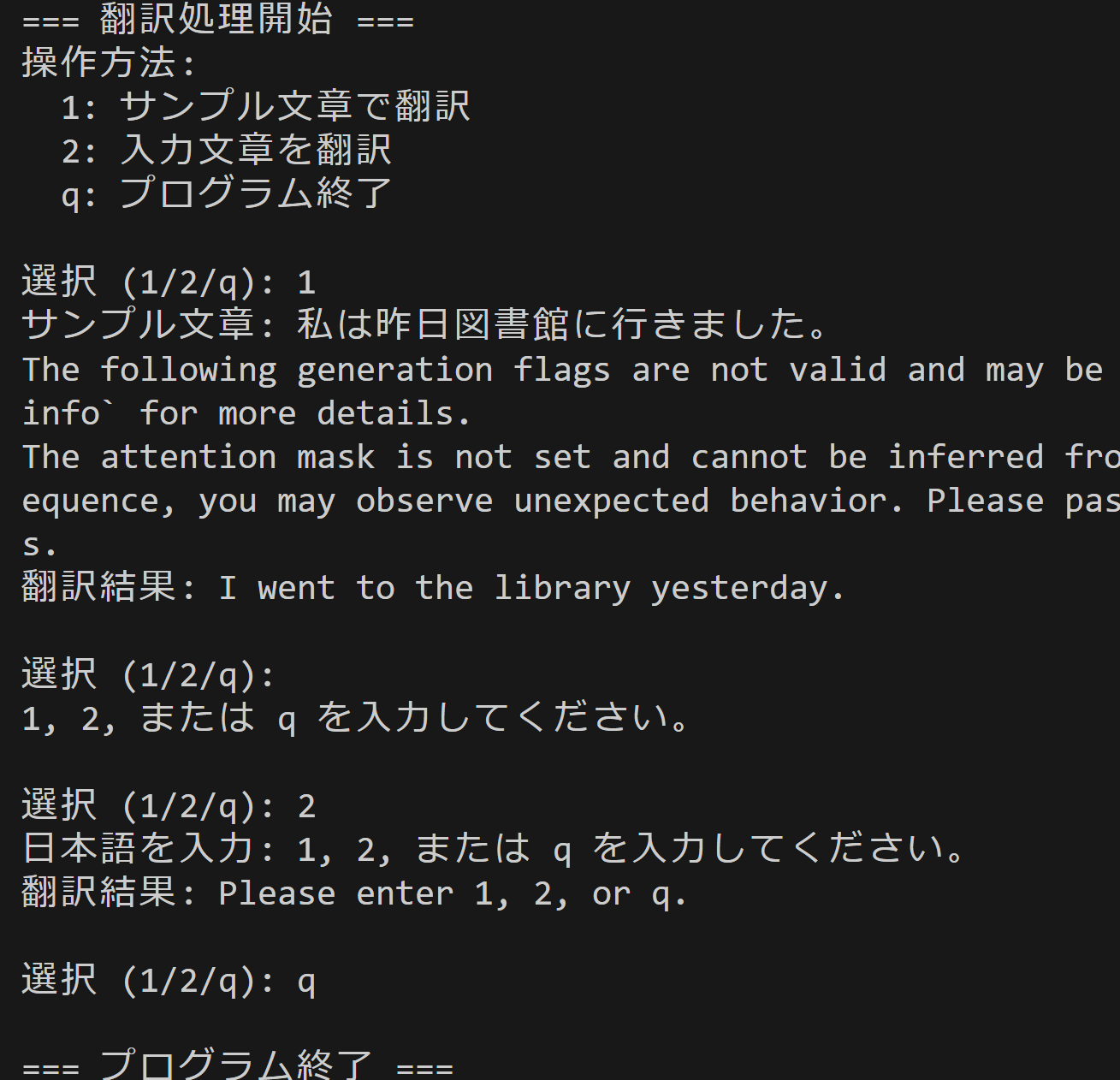
Python開発環境,ライブラリ類
ここでは、最低限の事前準備について説明する。機械学習や深層学習を行う場合は、NVIDIA CUDA、Visual Studio、Cursorなどを追加でインストールすると便利である。これらについては別ページ https://www.kkaneko.jp/cc/dev/aiassist.htmlで詳しく解説しているので、必要に応じて参照してください。
Python 3.12 のインストール
Pythonのインストールを行い、Pythonのプログラムを実行する環境を整える。扱う環境は、Windows搭載パソコンである。金子研究室では、Python 3.12.10を推奨する。
[Windows での Python 3.12 のインストール手順を見るには、ここをクリック]
Windows での Python 3.12 のインストール
以下のいずれかの方法でPython 3.12をインストールする。Pythonがインストール済みの場合、この手順は不要である。
方法 1:winget によるインストール
【インストールコマンドの実行方法】
管理者権限でコマンドプロンプトを起動する(手順:Windowsキーまたはスタートメニュー → cmd と入力 → 右クリック → 「管理者として実行」)。そして、コマンド全体をコマンドプロンプトにコピー&ペーストする。
--scope machine を指定することで、システム全体(全ユーザー向け)にインストールされる。このオプションの実行には管理者権限が必要である。インストール完了後、コマンドプロンプトを再起動するとPATHが反映される。
REM Python 3.12 をシステム領域にインストール
winget install --id Python.Python.3.12 -e --scope machine --silent --accept-source-agreements --accept-package-agreements --override "/quiet InstallAllUsers=1 PrependPath=1 Include_test=0 Include_pip=1 Include_launcher=1 InstallLauncherAllUsers=1 TargetDir=\"C:\Program Files\Python312\""

REM Python と Scripts を PATH 先頭に追加
powershell -NoProfile -Command "$p='C:\Program Files\Python312'; $s=\"$p\Scripts\"; $c=[Environment]::GetEnvironmentVariable('Path','Machine'); if((Test-Path $p) -and (';'+$c+';' -notlike \"*;$p;*\") -and (';'+$c+';' -notlike \"*;$s;*\")){[Environment]::SetEnvironmentVariable('Path',\"$p;$s;$c\",'Machine')}"
方法 2:インストーラーによるインストール
- Python公式サイト(https://www.python.org/downloads/)にアクセスし、「Download Python 3.x.x」ボタンからWindows用インストーラーをダウンロードする。
- ダウンロードしたインストーラーを実行する。
- 初期画面の下部に表示される「Add python.exe to PATH」にチェックを入れてから「Customize installation」を選択する。このチェックを入れ忘れると、コマンドプロンプトから
pythonコマンドを実行できない。 - 「Install Python 3.xx for all users」にチェックを入れ、「Install」をクリックする。
インストールの確認
コマンドプロンプトで以下を実行する。
python --versionバージョン番号(例:Python 3.12.x)が表示されればインストール成功である。「'python' は、内部コマンドまたは外部コマンドとして認識されていません。」と表示される場合は、インストールが正常に完了していない。
Python の開発環境 Visual Studio Code のインストールと Python 用の設定
Python の開発環境Visual Studio Code(プログラムを編集するソフトウェア。以下、VS Code)を整える。
[Windows での Visual Studio Code のインストールと Python 用の設定手順を見るには、ここをクリック]
Windows での Visual Studio Code のインストールと Python 用の設定手順
1. VS Code と拡張機能のインストール
以下のコマンドにより,既存の VS Code を削除し,全ユーザー共有の設定で再インストールしたうえで,拡張機能(VS Code に機能を追加するソフトウェア)をまとめて導入する.
【インストールコマンドの実行方法】
管理者権限でコマンドプロンプトを起動する(手順:Windows キーまたはスタートメニュー → cmd と入力 → 右クリック → 「管理者として実行」)。そして,コマンド全体をコマンドプロンプトにコピー&ペーストする。
インストールコマンド
REM ============================================================
REM Microsoft Visual Studio Code
REM ============================================================
winget uninstall -e --id Microsoft.VisualStudioCode --silent --disable-interactivity --accept-source-agreements
rmdir /s /q C:\ProgramData\vscode-extensions 2>nul
rmdir /s /q "%APPDATA%\Code" 2>nul
rmdir /s /q "%USERPROFILE%\.vscode" 2>nul
rmdir /s /q "%LOCALAPPDATA%\Microsoft\vscode-update" 2>nul

REM VS Code をシステム領域に新規インストール
winget install --scope machine --id Microsoft.VisualStudioCode -e --silent --accept-source-agreements --accept-package-agreements

REM 全ユーザー共有の拡張機能フォルダ
mkdir C:\ProgramData\vscode-extensions 2>nul
icacls "C:\ProgramData\vscode-extensions" /grant "Everyone:(OI)(CI)M" /T

REM スタートメニューのショートカットを --extensions-dir 付きで再作成
rmdir /s /q "C:\ProgramData\Microsoft\Windows\Start Menu\Programs\Visual Studio Code" 2>nul
del "C:\ProgramData\Microsoft\Windows\Start Menu\Programs\Visual Studio Code.lnk" 2>nul
powershell -NoProfile -Command "$s=New-Object -ComObject WScript.Shell; $lnk=$s.CreateShortcut('C:\ProgramData\Microsoft\Windows\Start Menu\Programs\Visual Studio Code.lnk'); $lnk.TargetPath='C:\Program Files\Microsoft VS Code\Code.exe'; $lnk.Arguments='--extensions-dir \"C:\ProgramData\vscode-extensions\"'; $lnk.Save()"
REM ショートカットの検証
powershell -NoProfile -Command "$s=New-Object -ComObject WScript.Shell; $lnk=$s.CreateShortcut('C:\ProgramData\Microsoft\Windows\Start Menu\Programs\Visual Studio Code.lnk'); Write-Host 'TargetPath:' $lnk.TargetPath; Write-Host 'Arguments:' $lnk.Arguments"

REM ファイル / フォルダ右クリックの「Code で開く」を登録
reg add "HKLM\SOFTWARE\Classes\*\shell\VSCode\command" /ve /d "\"C:\Program Files\Microsoft VS Code\Code.exe\" --extensions-dir \"C:\ProgramData\vscode-extensions\" \"%1\"" /f
reg add "HKLM\SOFTWARE\Classes\Directory\shell\VSCode\command" /ve /d "\"C:\Program Files\Microsoft VS Code\Code.exe\" --extensions-dir \"C:\ProgramData\vscode-extensions\" \"%1\"" /f
reg add "HKLM\SOFTWARE\Classes\Directory\Background\shell\VSCode\command" /ve /d "\"C:\Program Files\Microsoft VS Code\Code.exe\" --extensions-dir \"C:\ProgramData\vscode-extensions\" \"%V\"" /f

REM --extensions-dir 付きで起動する code.cmd ラッパを作成
REM (%* を echo で書くと対話的 cmd で失われるため、PowerShell で [char]37+'*' を書き出す)
powershell -NoProfile -Command "$pct=[char]37; $q=[char]34; $c='@echo off'+[char]13+[char]10+$q+'C:\Program Files\Microsoft VS Code\bin\code.cmd'+$q+' --extensions-dir '+$q+'C:\ProgramData\vscode-extensions'+$q+' '+$pct+'*'+[char]13+[char]10; [IO.File]::WriteAllText('C:\ProgramData\vscode-extensions\vscode.cmd',$c,[Text.Encoding]::ASCII)"

REM 拡張機能のインストール
set "CODE=C:\Program Files\Microsoft VS Code\bin\code.cmd"
"%CODE%" --extensions-dir "C:\ProgramData\vscode-extensions" --uninstall-extension GitHub.copilot
"%CODE%" --extensions-dir "C:\ProgramData\vscode-extensions" --uninstall-extension GitHub.copilot-chat
"%CODE%" --extensions-dir "C:\ProgramData\vscode-extensions" --install-extension ms-python.python
"%CODE%" --extensions-dir "C:\ProgramData\vscode-extensions" --install-extension ms-python.vscode-pylance
"%CODE%" --extensions-dir "C:\ProgramData\vscode-extensions" --install-extension ms-python.debugpy
"%CODE%" --extensions-dir "C:\ProgramData\vscode-extensions" --install-extension MS-CEINTL.vscode-language-pack-ja
"%CODE%" --extensions-dir "C:\ProgramData\vscode-extensions" --install-extension saoudrizwan.claude-dev
"%CODE%" --extensions-dir "C:\ProgramData\vscode-extensions" --install-extension rust-lang.rust-analyzer
"%CODE%" --extensions-dir "C:\ProgramData\vscode-extensions" --install-extension tamasfe.even-better-toml
"%CODE%" --extensions-dir "C:\ProgramData\vscode-extensions" --install-extension anthropic.claude-code
"%CODE%" --extensions-dir "C:\ProgramData\vscode-extensions" --install-extension almenon.arepl
"%CODE%" --extensions-dir "C:\ProgramData\vscode-extensions" --list-extensions --show-versions
echo === セットアップ完了 ===
2. Python インタプリタの選択
同一マシンに複数の Python がインストールされている場合,VS Code で使用する Python 本体(インタプリタ:Python プログラムを解釈・実行するソフトウェア)を選択する必要がある.
- コマンドパレット(コマンド名で機能を呼び出す VS Code の入力欄)を開く(
Ctrl+Shift+P) Python: Select Interpreterと入力する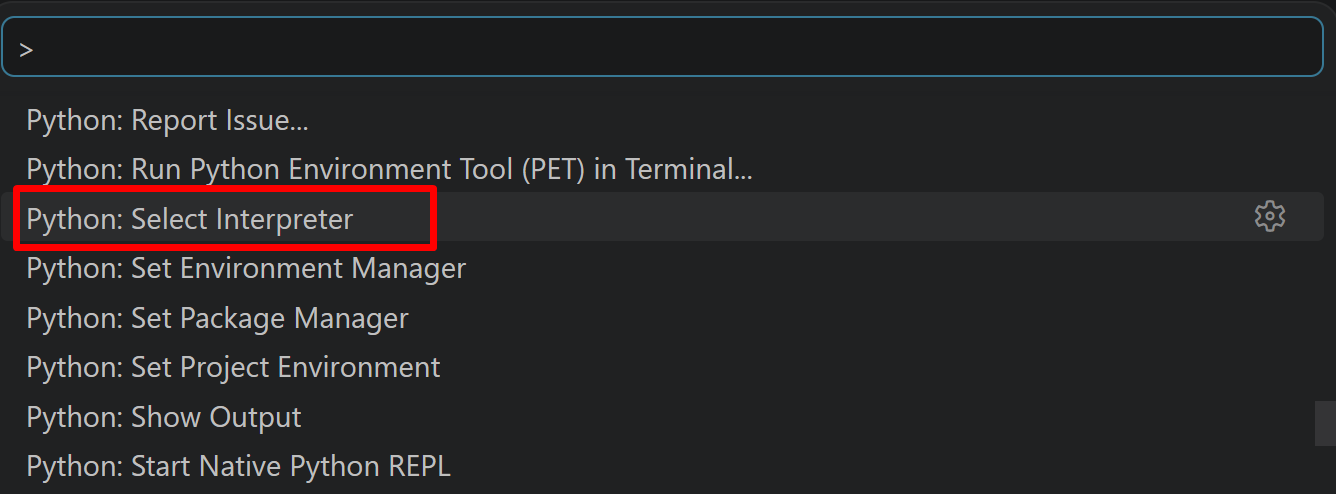
- 表示される一覧から,使用する Python(例:
C:\Program Files\Python312\python.exe)を選択する.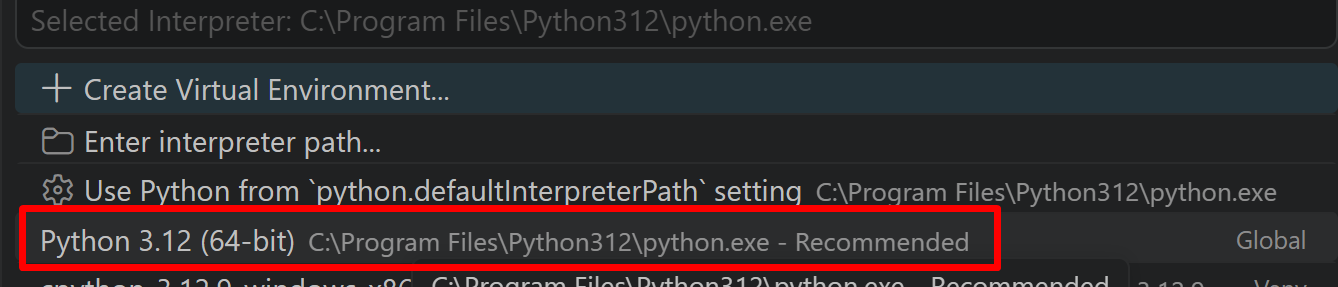
必要なライブラリをシステム領域にインストール
管理者権限のコマンドプロンプトで以下を実行する。管理者権限のコマンドプロンプトを起動するには、Windows キーまたはスタートメニューから「cmd」と入力し、表示された「コマンドプロンプト」を右クリックして「管理者として実行」を選択する。
REM PyTorch をインストール(GPU対応版)
set "CUDA_TAG=cu128"
set "PYTHON_PATH=C:\Program Files\Python312"
"%PYTHON_PATH%\Scripts\pip" install --no-user -U numpy torch torchvision torchaudio --index-url https://download.pytorch.org/whl/%CUDA_TAG%
pip install transformers accelerate protobuf
Hunyuan-MT-7B 日本語・英語翻訳プログラム
概要
このプログラムは、Tencent社が開発したHunyuan-MT-7Bモデルを使用して、日本語から英語への翻訳を実行するPythonプログラムである。
主要技術
Hunyuan-MT-7B
Tencentが公開した翻訳特化型の7Bパラメータモデル[1]。33言語間の相互翻訳に対応。
Transformers Library
Hugging Face社が開発するトランスフォーマーモデル実装ライブラリ[2]。AutoTokenizerとAutoModelForCausalLMクラスを通じて、事前学習済みモデルの読み込みと推論を実現する。バージョン4.56.0以降でtrust_remote_codeパラメータによる新規モデルタイプへの対応が可能となっている。
実装の特色
- 対話型インターフェース(サンプル文章機能、カスタム入力機能)
- max_new_tokens=256による出力長制御
- デバイス情報とGPU名の表示
参考文献
[1] Tencent. Hunyuan-MT. GitHub Repository. https://github.com/Tencent-Hunyuan/Hunyuan-MT
[2] Wolf, T., et al. (2020). Transformers: State-of-the-Art Natural Language Processing. Proceedings of the 2020 Conference on Empirical Methods in Natural Language Processing: System Demonstrations, 38-45. https://www.aclweb.org/anthology/2020.emnlp-demos.6
ソースコード
# Hunyuan-MT-7B 日本語・英語翻訳プログラム
# 特徴: Hunyuan-MT-7B は Tencent の翻訳特化 7B モデル。33言語の相互翻訳に対応。
# 翻訳品質向上のためのアンサンブル版 Hunyuan-MT-Chimera も公開(必要に応じて利用可)。
# WMT25 で参加31タスク中30で1位(公式README/報道参照)。
# 参考: HFモデル https://huggingface.co/tencent/Hunyuan-MT-7B
#       コレクション https://huggingface.co/collections/tencent/hunyuan-mt-68b42f76d473f82798882597
#       GitHub https://github.com/Tencent-Hunyuan/Hunyuan-MT
#       ModelScope https://modelscope.cn/collections/Hunyuan-MT-2ca6b8e1b4934f
# 重要: Transformers は v4.56.0 推奨。model_type が新規("hunyuan_v1_dense")のため
#       pipeline("translation") では未対応→ AutoModelForCausalLM + trust_remote_code を使用。
#       Windows で protobuf>=5 が入っていると "MessageFactory.GetPrototype" 表示が出る場合あり→
#       初回は7BのDLで数GBの空き容量が必要。GPU推奨。
# 前準備
#    pip install -U numpy torch torchvision torchaudio --index-url https://download.pytorch.org/whl/cu126
#    pip install transformers accelerate protobuf


import torch
from transformers import AutoTokenizer, AutoModelForCausalLM

# GPU/CPU自動選択
device = torch.device('cuda' if torch.cuda.is_available() else 'cpu')
print(f'デバイス: {str(device)}')
# GPU使用時の最適化
if device.type == 'cuda':
    torch.backends.cudnn.benchmark = True

print("Hunyuan-MT-7B モデルを読み込み中...")
model_name = "tencent/Hunyuan-MT-7B"

try:
    tokenizer = AutoTokenizer.from_pretrained(
        model_name,
        trust_remote_code=True
    )

    # device_map を削除し、手動でdeviceを指定
    model = AutoModelForCausalLM.from_pretrained(
        model_name,
        trust_remote_code=True,
        torch_dtype=torch.float16 if device.type == 'cuda' else torch.float32
    ).to(device)

    print("モデルの読み込みが完了しました。")
    if device.type == 'cuda':
        print(f'GPU: {torch.cuda.get_device_name(0)}')

except Exception as e:
    print(f"モデル読み込みエラー: {e}")
    print("pip install transformers torch を実行してください")
    exit()

print("\n=== 翻訳処理開始 ===")
print("操作方法:")
print("  1: サンプル文章で翻訳")
print("  2: 入力文章を翻訳")
print("  q: プログラム終了")

try:
    while True:
        choice = input("\n選択 (1/2/q): ").strip()

        if choice.lower() == 'q':
            break
        elif choice == '1':
            japanese_text = "私は昨日図書館に行きました。"
            print(f"サンプル文章: {japanese_text}")
        elif choice == '2':
            japanese_text = input("日本語を入力: ").strip()
            if not japanese_text:
                print("入力が空です。")
                continue
        else:
            print("1, 2, または q を入力してください。")
            continue

        # 翻訳処理
        try:
            message = [{
                "role": "user",
                "content": f"Translate the following segment into English, without additional explanation.\n\n{japanese_text}"
            }]

            input_ids = tokenizer.apply_chat_template(
                message,
                add_generation_prompt=False,
                return_tensors="pt"
            ).to(device)

            with torch.no_grad():
                output = model.generate(
                    input_ids,
                    max_new_tokens=256,
                    do_sample=False,
                    temperature=1.0,
                    pad_token_id=tokenizer.eos_token_id
                )

            translated_text = tokenizer.decode(
                output[0][input_ids.shape[-1]:],
                skip_special_tokens=True
            )

            print(f"翻訳結果: {translated_text}")

        except Exception as e:
            print(f"翻訳処理エラー: {e}")

finally:
    print('\n=== プログラム終了 ===')