![[kaneko lab.]](https://www.kkaneko.jp/info/logo_png.png)
MediaPipe前景・背景セグメンテーション(ソースコードと実行結果)
【概要】
MediaPipe Image Segmenterを用いて動画から人物の前景を検出し、背景と分離するPythonプログラムを解説する。
【目次】
第1章 Python開発環境,ライブラリ類
ここでは、最低限の事前準備について説明する。機械学習や深層学習を行う場合は、NVIDIA CUDA、Visual Studio、Cursorなどを追加でインストールすると便利である。これらについては別ページ https://www.kkaneko.jp/cc/dev/aiassist.htmlで詳しく解説しているので、必要に応じて参照してください。
Build Tools for Visual Studio 2026(ビルドツール)のインストール
Build Tools for Visual Studio 2026(ビルドツール)のインストールを行い、C/C++ コードのビルド環境を整える。
Build Tools for Visual Studio は,Visual Studio の IDE を含まない C/C++ コンパイラ,ライブラリ,ビルドツール等のコマンドライン向け開発ツールセットである。インストール済みの場合,この手順は不要である。 以下のコマンドは、Build Tools が未インストールの場合は winget で新規インストールし、インストール済みの場合は 【インストールコマンドの実行方法】 管理者権限でコマンドプロンプトを起動する(手順:Windows キーまたはスタートメニュー → 上記のコマンドでは、Build Tools 本体と Visual C++ 再頒布可能パッケージをインストールし、続いて以下のコンポーネントを追加している。 追加のコンポーネントが必要になった場合は Visual Studio Installer で個別にインストールできる。 インストール完了の確認 Visual Studio を必要とするとき Visual Studio の機能を必要とする場合は,追加インストールできる。[Build Tools for Visual Studio 2026(ビルドツール)のインストール手順を見るには、ここをクリック]
Windows での Build Tools for Visual Studio 2026 のインストール
setup.exe modify でコンポーネントを追加する(バージョンは変更しない)。cmd と入力 → 右クリック → 「管理者として実行」)。そして、コマンド全体をコマンドプロンプトにコピー&ペーストする。REM ============================================================
REM Visual C++ 再頒布可能パッケージ (VCRedist 2015-)
REM ============================================================
winget install --scope machine --id Microsoft.VCRedist.2015+.x64 -e --silent --disable-interactivity --force --accept-source-agreements --accept-package-agreements --override "/quiet /norestart"
if not "%ERRORLEVEL%"=="0" ( color 0c & echo VCRedist のインストールに失敗しました & ping 127.0.0.1 -n 6 >nul & color )
REM ============================================================
REM Visual Studio Build Tools + Desktop development with C++
REM (VCTools、MSBuildTools、CMake連携、Clang、Windows 11 SDK)
REM ============================================================
REM 進行中のインストーラーを停止(ロック競合回避。対象プロセスが存在しない場合は
REM taskkillがエラーを返すが、これは想定内であるため出力のみ抑制する)
taskkill /F /IM vs_setup.exe /T >nul 2>&1
taskkill /F /IM vs_installer.exe /T >nul 2>&1
taskkill /F /IM vs_installerservice.exe /T >nul 2>&1
taskkill /F /IM msiexec.exe /T >nul 2>&1
REM Build Tools + Desktop development with C++(VCTools)+ 追加コンポーネント(一括)
REM 未インストール時: winget で新規インストール
REM インストール済み時: setup.exe modify でコンポーネント追加(バージョンは変更しない)
winget list --id Microsoft.VisualStudio.BuildTools 2>nul | findstr /i "BuildTools" >nul 2>&1
if %ERRORLEVEL% EQU 0 (
for /f "usebackq delims=" %P in (`"C:\Program Files (x86)\Microsoft Visual Studio\Installer\vswhere.exe" -products Microsoft.VisualStudio.Product.BuildTools -property installationPath`) do start /wait "" "C:\Program Files (x86)\Microsoft Visual Studio\Installer\setup.exe" modify --installPath "%P" --add Microsoft.VisualStudio.Workload.VCTools --add Microsoft.VisualStudio.Workload.MSBuildTools --add Microsoft.VisualStudio.Component.VC.CMake.Project --add Microsoft.VisualStudio.Component.VC.Llvm.Clang --add Microsoft.VisualStudio.Component.VC.Llvm.ClangToolset --add Microsoft.VisualStudio.Component.Windows11SDK.26100 --add Microsoft.VisualStudio.Component.VC.v143.x86.x64 --includeRecommended --quiet --norestart --nocache
if not "%ERRORLEVEL%"=="0" ( color 0c & echo Build Tools のコンポーネント追加に失敗しました & ping 127.0.0.1 -n 6 >nul & color )
) else (
winget install --scope machine --id Microsoft.VisualStudio.BuildTools -e --silent --disable-interactivity --force --accept-source-agreements --accept-package-agreements --override "--quiet --wait --norestart --nocache --add Microsoft.VisualStudio.Workload.VCTools --includeRecommended --add Microsoft.VisualStudio.Workload.MSBuildTools --add Microsoft.VisualStudio.Component.VC.CMake.Project --add Microsoft.VisualStudio.Component.VC.Llvm.Clang --add Microsoft.VisualStudio.Component.VC.Llvm.ClangToolset --add Microsoft.VisualStudio.Component.Windows11SDK.26100 --add Microsoft.VisualStudio.Component.VC.v143.x86.x64"
if not "%ERRORLEVEL%"=="0" ( color 0c & echo Build Tools のインストールに失敗しました & ping 127.0.0.1 -n 6 >nul & color )
)
REM
REM BuildTools のインストールパスを vswhere.exe で取得(メジャーバージョンに依存しない)
set "VSWHERE=C:\Program Files (x86)\Microsoft Visual Studio\Installer\vswhere.exe"
set "BT_PATH="
for /f "usebackq delims=" %P in (`"%VSWHERE%" -products Microsoft.VisualStudio.Product.BuildTools -property installationPath`) do set "BT_PATH=%P"
if not defined BT_PATH ( color 0c & echo Build Tools のインストールパスを取得できませんでした & ping 127.0.0.1 -n 6 >nul & color )
REM 破損時の修復(任意、動作がおかしくなった場合)
REM if defined BT_PATH "C:\Program Files (x86)\Microsoft Visual Studio\Installer\setup.exe" repair --installPath "%BT_PATH%" --quiet --norestart
REM 導入確認(インストールパスが表示されれば正常)
"%VSWHERE%" -products * -requires Microsoft.VisualStudio.Workload.VCTools -property installationPath
--includeRecommended により、MSVC コンパイラ、C++ AddressSanitizer、vcpkg、CMake ツール、Windows 11 SDK 等の推奨コンポーネントが含まれる)winget list Microsoft.VisualStudio.BuildTools
第2章 Python 3.12 のインストール
Pythonのインストールを行い、Pythonのプログラムを実行する環境を整える。扱う環境は、Windows搭載パソコンである。金子研究室では、Python 3.12.10を推奨する。
[Windows での Python 3.12 のインストール手順を見るには、ここをクリック]
Windows での Python 3.12 のインストール
以下のいずれかの方法でPython 3.12をインストールする。Pythonがインストール済みの場合、この手順は不要である。
方法 1:winget によるインストール
【インストールコマンドの実行方法】
管理者権限でコマンドプロンプトを起動する(手順:Windowsキーまたはスタートメニュー → cmd と入力 → 右クリック → 「管理者として実行」)。そして、コマンド全体をコマンドプロンプトにコピー&ペーストする。
--scope machine を指定することで、システム全体(全ユーザー向け)にインストールされる。このオプションの実行には管理者権限が必要である。インストール完了後、コマンドプロンプトを再起動するとPATHが反映される。
REM Python 3.12 をシステム領域にインストール
winget install --id Python.Python.3.12 -e --scope machine --silent --accept-source-agreements --accept-package-agreements --override "/quiet InstallAllUsers=1 PrependPath=1 Include_test=0 Include_pip=1 Include_launcher=1 InstallLauncherAllUsers=1 TargetDir=\"C:\Program Files\Python312\""
if not "%ERRORLEVEL%"=="0" ( color 0c & echo Python 3.12 のインストールに失敗しました & ping 127.0.0.1 -n 6 >nul & color )

REM Python と Scripts を PATH 先頭に追加
powershell -NoProfile -Command "$p='C:\Program Files\Python312'; $s=\"$p\Scripts\"; if(Test-Path $p){$k=[Microsoft.Win32.Registry]::LocalMachine.OpenSubKey('SYSTEM\CurrentControlSet\Control\Session Manager\Environment',$true); $c=$k.GetValue('Path','',[Microsoft.Win32.RegistryValueOptions]::DoNotExpandEnvironmentNames); $t=$k.GetValueKind('Path'); $new=$c; if((';'+$new+';') -notlike \"*;$p;*\"){$new=$p+';'+$new}; if((';'+$new+';') -notlike \"*;$s;*\"){$new=$s+';'+$new}; if($new -ne $c){$k.SetValue('Path',$new,$t)}; $k.Close()}"

REM 現在のセッションにも反映(システムPATHを再取得して連結)
for /f "usebackq tokens=2,*" %A in (`reg query "HKLM\SYSTEM\CurrentControlSet\Control\Session Manager\Environment" /v Path`) do set "PATH=%B"

REM pip / wheel の更新
python -m pip install --no-user -U pip wheel
if not "%ERRORLEVEL%"=="0" ( color 0c & echo pip / wheel の更新に失敗しました & ping 127.0.0.1 -n 6 >nul & color )
方法 2:インストーラーによるインストール
- Python公式サイト(https://www.python.org/downloads/)にアクセスし、「Download Python 3.x.x」ボタンからWindows用インストーラーをダウンロードする。
- ダウンロードしたインストーラーを実行する。
- 初期画面の下部に表示される「Add python.exe to PATH」にチェックを入れてから「Customize installation」を選択する。このチェックを入れ忘れると、コマンドプロンプトから
pythonコマンドを実行できない。 - 「Install Python 3.xx for all users」にチェックを入れ、「Install」をクリックする。
インストールの確認
コマンドプロンプトで以下を実行する。
python --versionバージョン番号(例:Python 3.12.x)が表示されればインストール成功である。「'python' は、内部コマンドまたは外部コマンドとして認識されていません。」と表示される場合は、インストールが正常に完了していない。
第3章 Python の開発環境 Visual Studio Code のインストールと Python 用の設定
Python の開発環境Visual Studio Code(プログラムを編集するソフトウェア。以下、VS Code)を整える。
[Windows での Visual Studio Code のインストールと Python 用の設定手順を見るには、ここをクリック]
Windows での Visual Studio Code のインストールと Python 用の設定手順
1. VS Code と拡張機能のインストール
以下のコマンドにより,既存の VS Code を削除し,全ユーザー共有の設定で再インストールしたうえで,拡張機能(VS Code に機能を追加するソフトウェア)をまとめて導入する.
【インストールコマンドの実行方法】
管理者権限でコマンドプロンプトを起動する(手順:Windows キーまたはスタートメニュー → cmd と入力 → 右クリック → 「管理者として実行」)。そして,コマンド全体をコマンドプロンプトにコピー&ペーストする。
インストールコマンド
REM ============================================================
REM Microsoft Visual Studio Code
REM ============================================================
REM Build Tools + Desktop development with C++(VCTools)+ 追加コンポーネント(一括)
REM 未インストール時: winget で新規インストール
REM インストール済み時: setup.exe modify でコンポーネント追加(バージョンは変更しない)
winget list --id Microsoft.VisualStudio.BuildTools 2>nul | findstr /i "BuildTools" >nul 2>&1
if %ERRORLEVEL% EQU 0 (
    for /f "usebackq delims=" %P in (`"C:\Program Files (x86)\Microsoft Visual Studio\Installer\vswhere.exe" -products Microsoft.VisualStudio.Product.BuildTools -property installationPath`) do start /wait "" "C:\Program Files (x86)\Microsoft Visual Studio\Installer\setup.exe" modify --installPath "%P" --add Microsoft.VisualStudio.Workload.VCTools --add Microsoft.VisualStudio.Workload.MSBuildTools --add Microsoft.VisualStudio.Component.VC.CMake.Project --add Microsoft.VisualStudio.Component.VC.Llvm.Clang --add Microsoft.VisualStudio.Component.VC.Llvm.ClangToolset --add Microsoft.VisualStudio.Component.Windows11SDK.26100 --add Microsoft.VisualStudio.Component.VC.v143.x86.x64 --includeRecommended --quiet --norestart --nocache
    if not "%ERRORLEVEL%"=="0" ( color 0c & echo Build Tools のコンポーネント追加に失敗しました & ping 127.0.0.1 -n 6 >nul & color )
) else (
    winget install --scope machine --id Microsoft.VisualStudio.BuildTools -e --silent --disable-interactivity --force --accept-source-agreements --accept-package-agreements --override "--quiet --wait --norestart --nocache --add Microsoft.VisualStudio.Workload.VCTools --includeRecommended --add Microsoft.VisualStudio.Workload.MSBuildTools --add Microsoft.VisualStudio.Component.VC.CMake.Project --add Microsoft.VisualStudio.Component.VC.Llvm.Clang --add Microsoft.VisualStudio.Component.VC.Llvm.ClangToolset --add Microsoft.VisualStudio.Component.Windows11SDK.26100 --add Microsoft.VisualStudio.Component.VC.v143.x86.x64"
    if not "%ERRORLEVEL%"=="0" ( color 0c & echo Build Tools のインストールに失敗しました & ping 127.0.0.1 -n 6 >nul & color )
)

REM 全ユーザー共有の拡張機能フォルダ
if not exist "C:\ProgramData\vscode-extensions" mkdir "C:\ProgramData\vscode-extensions"
icacls "C:\ProgramData\vscode-extensions" /grant "Everyone:(OI)(CI)M" /T

REM スタートメニューのショートカットを --extensions-dir 付きで再作成
if exist "C:\ProgramData\Microsoft\Windows\Start Menu\Programs\Visual Studio Code" rmdir /s /q "C:\ProgramData\Microsoft\Windows\Start Menu\Programs\Visual Studio Code"
if exist "C:\ProgramData\Microsoft\Windows\Start Menu\Programs\Visual Studio Code.lnk" del "C:\ProgramData\Microsoft\Windows\Start Menu\Programs\Visual Studio Code.lnk"
powershell -NoProfile -Command "$s=New-Object -ComObject WScript.Shell; $lnk=$s.CreateShortcut('C:\ProgramData\Microsoft\Windows\Start Menu\Programs\Visual Studio Code.lnk'); $lnk.TargetPath='C:\Program Files\Microsoft VS Code\Code.exe'; $lnk.Arguments='--extensions-dir \"C:\ProgramData\vscode-extensions\"'; $lnk.Save()"
REM ショートカットの検証
powershell -NoProfile -Command "$s=New-Object -ComObject WScript.Shell; $lnk=$s.CreateShortcut('C:\ProgramData\Microsoft\Windows\Start Menu\Programs\Visual Studio Code.lnk'); Write-Host 'TargetPath:' $lnk.TargetPath; Write-Host 'Arguments:' $lnk.Arguments"

REM ファイル / フォルダ右クリックの「Code で開く」を登録
reg add "HKLM\SOFTWARE\Classes\*\shell\VSCode\command" /ve /d "\"C:\Program Files\Microsoft VS Code\Code.exe\" --extensions-dir \"C:\ProgramData\vscode-extensions\" \"%1\"" /f
reg add "HKLM\SOFTWARE\Classes\Directory\shell\VSCode\command" /ve /d "\"C:\Program Files\Microsoft VS Code\Code.exe\" --extensions-dir \"C:\ProgramData\vscode-extensions\" \"%1\"" /f
reg add "HKLM\SOFTWARE\Classes\Directory\Background\shell\VSCode\command" /ve /d "\"C:\Program Files\Microsoft VS Code\Code.exe\" --extensions-dir \"C:\ProgramData\vscode-extensions\" \"%V\"" /f

REM --extensions-dir 付きで起動する code.cmd ラッパを作成
REM (%* を echo で書くと対話的 cmd で失われるため、PowerShell で [char]37+'*' を書き出す)
powershell -NoProfile -Command "$pct=[char]37; $q=[char]34; $c='@echo off'+[char]13+[char]10+$q+'C:\Program Files\Microsoft VS Code\bin\code.cmd'+$q+' --extensions-dir '+$q+'C:\ProgramData\vscode-extensions'+$q+' '+$pct+'*'+[char]13+[char]10; [IO.File]::WriteAllText('C:\ProgramData\vscode-extensions\vscode.cmd',$c,[Text.Encoding]::ASCII)"

REM 拡張機能のインストール
set "CODE=C:\Program Files\Microsoft VS Code\bin\code.cmd"
"%CODE%" --extensions-dir "C:\ProgramData\vscode-extensions" --uninstall-extension GitHub.copilot
"%CODE%" --extensions-dir "C:\ProgramData\vscode-extensions" --uninstall-extension GitHub.copilot-chat
"%CODE%" --extensions-dir "C:\ProgramData\vscode-extensions" --install-extension ms-python.python
"%CODE%" --extensions-dir "C:\ProgramData\vscode-extensions" --install-extension ms-python.vscode-pylance
"%CODE%" --extensions-dir "C:\ProgramData\vscode-extensions" --install-extension ms-python.debugpy
"%CODE%" --extensions-dir "C:\ProgramData\vscode-extensions" --install-extension MS-CEINTL.vscode-language-pack-ja
"%CODE%" --extensions-dir "C:\ProgramData\vscode-extensions" --install-extension saoudrizwan.claude-dev
"%CODE%" --extensions-dir "C:\ProgramData\vscode-extensions" --install-extension rust-lang.rust-analyzer
"%CODE%" --extensions-dir "C:\ProgramData\vscode-extensions" --install-extension tamasfe.even-better-toml
"%CODE%" --extensions-dir "C:\ProgramData\vscode-extensions" --install-extension anthropic.claude-code
"%CODE%" --extensions-dir "C:\ProgramData\vscode-extensions" --install-extension almenon.arepl
"%CODE%" --extensions-dir "C:\ProgramData\vscode-extensions" --list-extensions --show-versions

REM settings.json を作成(自動更新オフ、Python、Claude Code 設定)
if not exist "%APPDATA%\Code\User" mkdir "%APPDATA%\Code\User"
python -c "import json,os;data={'update.mode':'none','update.enableWindowsBackgroundUpdates':False,'extensions.autoUpdate':False,'python.defaultInterpreterPath':r'C:\Program Files\Python312\python.exe','claudeCode.environmentVariables':[{'name':'ANTHROPIC_API_KEY','value':'not-needed'},{'name':'ANTHROPIC_AUTH_TOKEN','value':'ollama'},{'name':'ANTHROPIC_BASE_URL','value':'http://localhost:11434'},{'name':'ANTHROPIC_MODEL','value':'glm-4.7-flash'},{'name':'CLAUDE_CODE_DISABLE_NONESSENTIAL_TRAFFIC','value':'1'}]};p=os.path.join(os.environ['APPDATA'],'Code','User','settings.json');open(p,'w',encoding='utf-8').write(json.dumps(data,indent=4));print('Done:',p)"

REM 自動更新の抑止ポリシー(settings.json に加えて、レジストリ側でも明示的にオフ)
reg add "HKLM\SOFTWARE\Policies\Microsoft\VSCode" /v "UpdateMode" /t REG_SZ /d "none" /f
echo === セットアップ完了 ===
2. Python インタプリタの選択
同一マシンに複数の Python がインストールされている場合,VS Code で使用する Python 本体(インタプリタ:Python プログラムを解釈・実行するソフトウェア)を選択する必要がある.
- コマンドパレット(コマンド名で機能を呼び出す VS Code の入力欄)を開く(
Ctrl+Shift+P) Python: Select Interpreterと入力する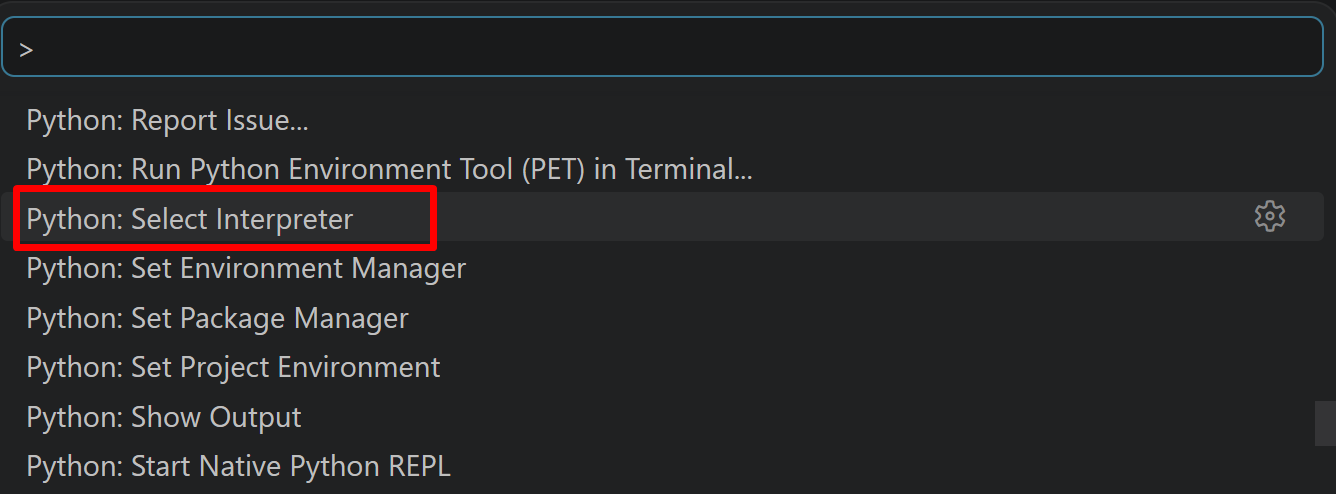
- 表示される一覧から,使用する Python(例:
C:\Program Files\Python312\python.exe)を選択する.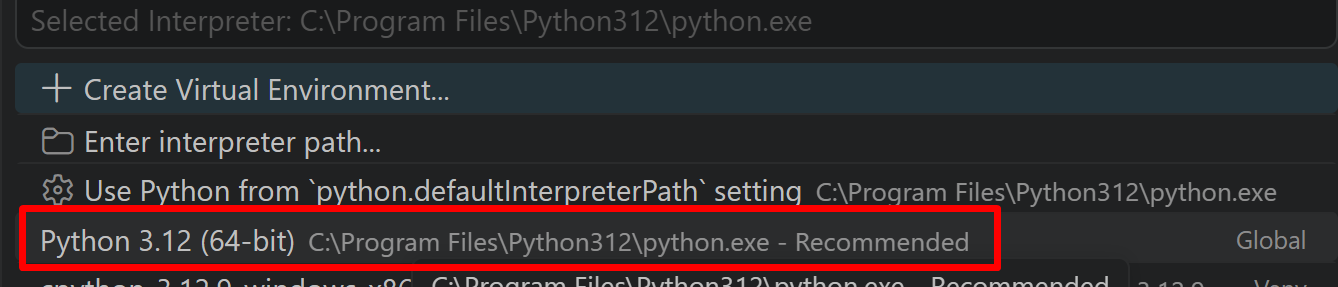
必要なライブラリをシステム領域にインストール
管理者権限でコマンドプロンプトを起動する
(手順:Windowsキーまたはスタートメニュー → cmd と入力 → 右クリック → 「管理者として実行」)。
以下を実行する。
pip install --no-user mediapipe opencv-python numpy pillow
第4章 MediaPipe前景・背景セグメンテーションプログラム
概要
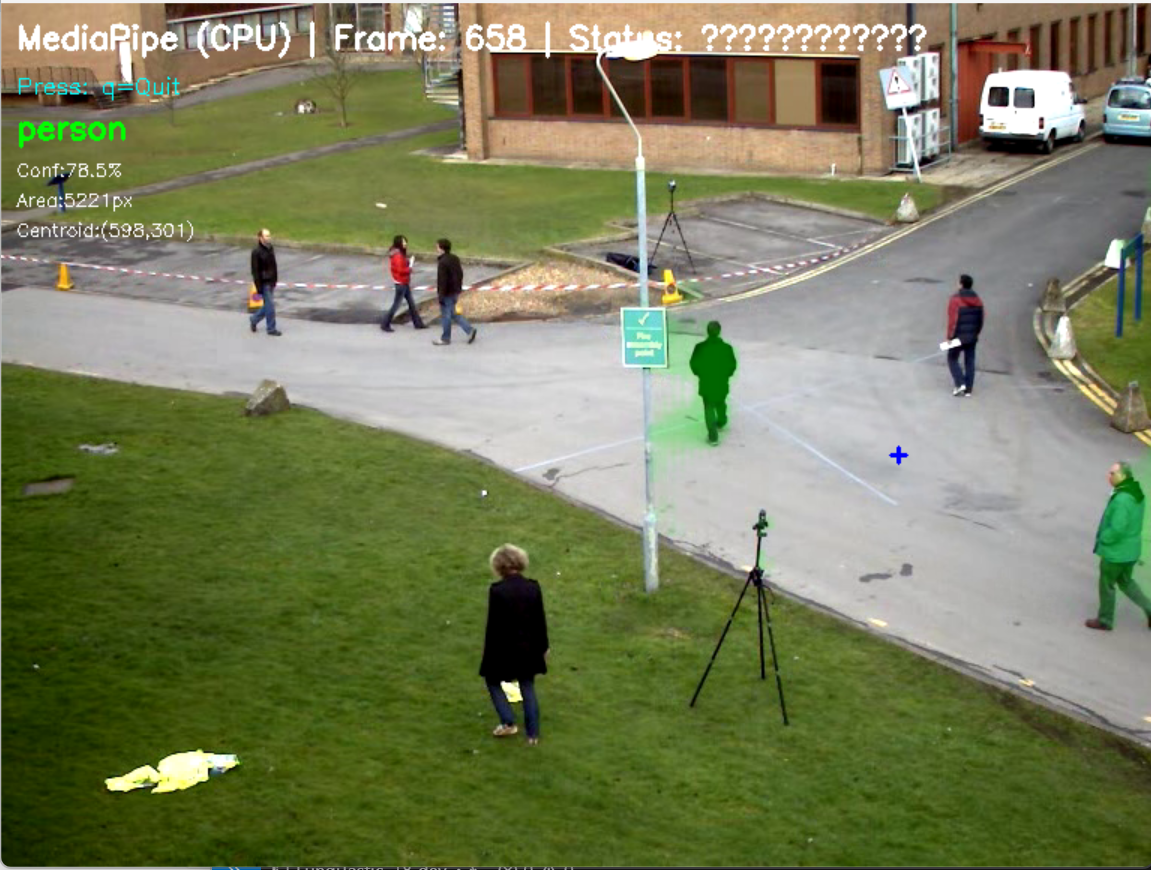
このプログラムは、MediaPipe Image Segmenterを用いて動画の各フレームから人物等の前景を自動的に検出し、背景から分離する。リアルタイム処理に対応し、検出された前景領域を半透明マスクで可視化する。動画ファイル、Webカメラ、サンプル動画の3種類の入力ソースに対応し、処理結果をフレームごとに出力する。
主要技術
MediaPipe Image Segmenter(selfie_multiclass_256x256モデル)
Googleが開発した軽量なセグメンテーションソリューションである[1]。機械学習モデルを用いて画像から人物領域を高速に抽出し、256×256ピクセルの入力に対して各ピクセルの前景確率を0から1の値で出力する。本プログラムはMediaPipe Tasks APIのImage Segmenterタスクを使用し、selfie_multiclass_256x256モデルにより人物領域を含む複数カテゴリのセグメンテーションを行う[2]。
技術的特徴
- 信頼度ベースの閾値処理:セグメンテーションマスクの各ピクセル値を信頼度として扱い、設定可能な閾値(デフォルト0.5)により前景・背景を二値化する
- 統計情報の算出:検出された前景領域の面積(ピクセル数)、重心座標、平均信頼度をフレームごとに計算する
- 半透明マスク描画:前景領域を40%の透明度で緑色にオーバーレイし、元画像と合成して視覚的にわかりやすく表示する
- マルチプラットフォーム対応:MediaPipe Tasks APIを使用し、Windows環境でCPUのみで動作する
実装の特色
本実装では、MediaPipeの基本機能に加えて独自の拡張機能を実装している。前景領域の重心位置を計算し、十字マークで表示することで、検出対象の位置を明確に示す。また、Windows環境向けに日本語フォント(メイリオ)を用いた情報表示に対応し、フォントが利用できない場合は英語表示にフォールバックする(メイリオはWindowsに標準搭載の日本語フォントである)。
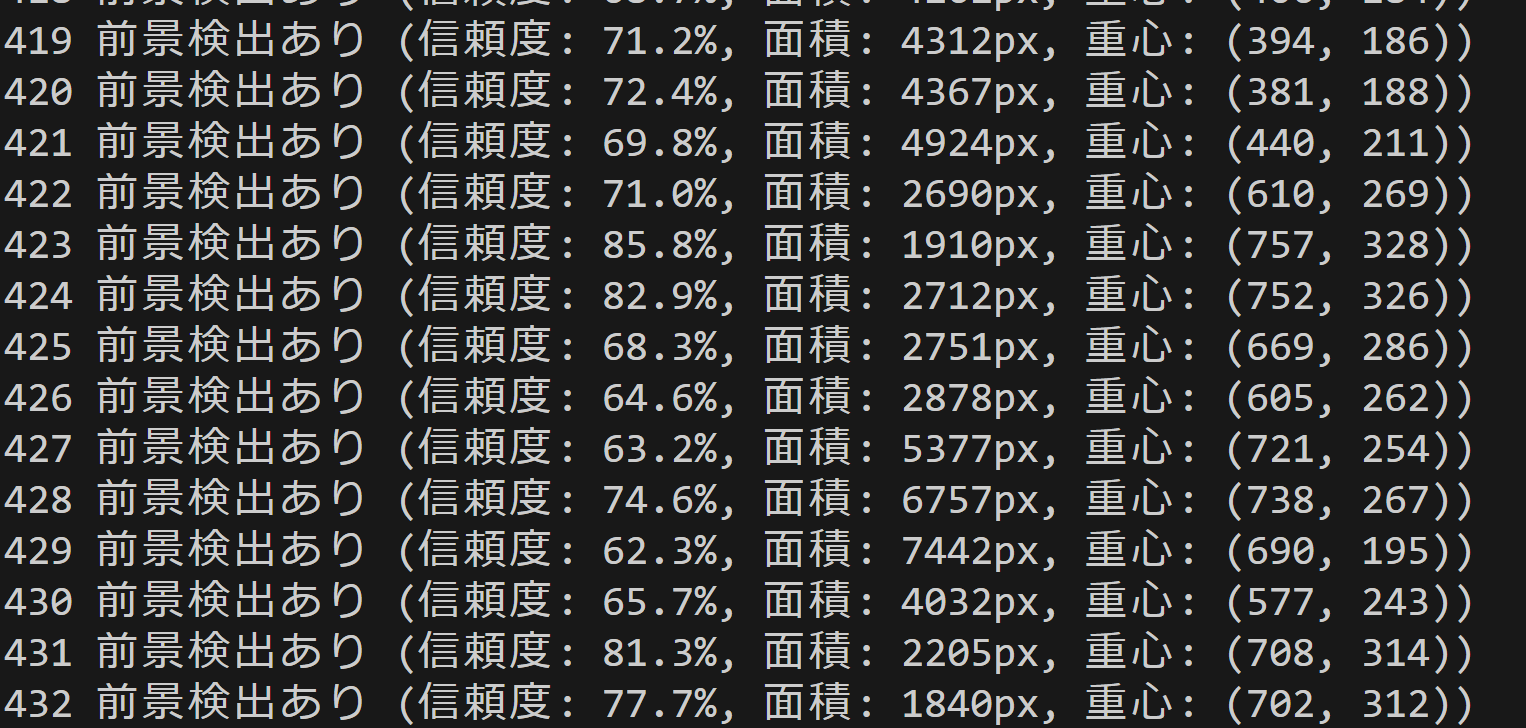
入力ソースの柔軟性も特徴の一つである。tkinterを用いたファイル選択ダイアログによる動画ファイルの選択、OpenCVによるWebカメラのキャプチャ、インターネットからのサンプル動画の自動ダウンロードという3つの入力方法を提供する。処理結果は標準出力にリアルタイムで表示されるとともに、プログラム終了時にresult.txtファイルに保存される。
参考文献
[1] Google. MediaPipe Selfie Segmentation. https://github.com/google-ai-edge/mediapipe/blob/master/docs/solutions/selfie_segmentation.md
[2] Google. Image segmentation guide. MediaPipe Solutions. https://ai.google.dev/edge/mediapipe/solutions/vision/image_segmenter
ソースコード
# プログラム名: MediaPipe前景・背景セグメンテーションプログラム
# 特徴技術名: MediaPipe Image Segmenter
# 出典: MediaPipe Tasks - Google, https://ai.google.dev/edge/mediapipe/solutions/vision/image_segmenter
# 特徴機能: MediaPipe Image Segmenter(selfie_multiclass_256x256モデル)による前景・背景分離。リアルタイムで動作する軽量な前景抽出
# 学習済みモデル: selfie_multiclass_256x256.tflite(前景・背景分離、初回実行時に自動ダウンロード)
# 方式設計:
#   - 関連利用技術:
#     - MediaPipe: Googleが開発したマルチプラットフォーム機械学習ソリューション(Tasks APIを使用)
#     - OpenCV: 画像処理、カメラ制御、描画処理、動画入出力管理
#     - Pillow: 日本語テキスト描画用
#   - 入力と出力: 入力: 動画(ユーザは「0:動画ファイル,1:カメラ,2:サンプル動画」のメニューで選択.0:動画ファイルの場合はtkinterでファイル選択.1の場合はOpenCVでカメラが開く.2の場合はhttps://raw.githubusercontent.com/opencv/opencv/master/samples/data/vtest.aviを使用)、出力: OpenCV画面でリアルタイム表示(検出した前景を半透明マスクで表示)、各フレームごとにprint()で処理結果表示、プログラム終了時にresult.txtファイルに保存
#   - 処理手順: 1.フレーム取得、2.MediaPipe推論実行、3.前景・背景分離、4.信頼度閾値による選別、5.半透明マスク描画
#   - 前処理、後処理: 前処理:MediaPipe内部で自動実行。後処理:信頼度による閾値フィルタリングを実施
#   - 追加処理: セグメンテーションマスクの平均信頼度計算、前景領域の面積・重心計算
#   - 調整を必要とする設定値: CONF_THRESH(セグメンテーション信頼度閾値、デフォルト0.5)- 値を上げると誤検出が減少するが検出漏れが増加
# 将来方策: CONF_THRESHの動的調整機能。フレーム毎のマスク面積を監視し、面積が閾値を超えた場合は信頼度を上げ、面積が少ない場合は下げる適応的制御の実装
# その他の重要事項: Windows環境専用設計、複数人物が存在する場合も単一の前景マスクとして処理。MediaPipe Tasks APIのImage Segmenterを使用
# 前準備:
#   - pip install --no-user mediapipe opencv-python numpy pillow

import cv2
import tkinter as tk
from tkinter import filedialog
import os
import numpy as np
import mediapipe as mp
from mediapipe.tasks import python as mp_python
from mediapipe.tasks.python import vision as mp_vision
import warnings
import time
import urllib.request
from PIL import Image, ImageDraw, ImageFont
from datetime import datetime

warnings.filterwarnings('ignore')

# ===== 設定・定数管理 =====
# MediaPipe設定(Tasks APIを使用)
BaseOptions = mp_python.BaseOptions
ImageSegmenter = mp_vision.ImageSegmenter
ImageSegmenterOptions = mp_vision.ImageSegmenterOptions
VisionRunningMode = mp_vision.RunningMode

# モデルファイル情報
MODEL_PATH = 'selfie_multiclass_256x256.tflite'
MODEL_URL = 'https://storage.googleapis.com/mediapipe-models/image_segmenter/selfie_multiclass_256x256/float32/latest/selfie_multiclass_256x256.tflite'

# クラス名(前景)
CLASS_NAME = '前景'

# 前景用の色(緑)
FOREGROUND_COLOR = (0, 255, 0)

# カメラ設定
WINDOW_WIDTH = 1280  # カメラ解像度幅
WINDOW_HEIGHT = 720  # カメラ解像度高さ
FPS = 30  # フレームレート

# 検出パラメータ(調整可能)
CONF_THRESH = 0.5  # セグメンテーション信頼度閾値(0.0-1.0)

# 日本語フォント設定
FONT_PATH = 'C:/Windows/Fonts/meiryo.ttc'
FONT_SIZE_LARGE = 24
FONT_SIZE_MEDIUM = 18
FONT_SIZE_SMALL = 14

# プログラム概要表示
print('=== MediaPipe前景・背景セグメンテーションプログラム ===')
print('概要: リアルタイムで前景を抽出し、半透明マスクで表示します')
print('機能: MediaPipe Image Segmenterによる前景・背景分離')
print('操作: qキーで終了')
print('出力: 各フレームごとの処理結果表示、終了時にresult.txt保存')
print()

# システム初期化
print('システム初期化中...')
start_time = time.time()

# モデルファイルの自動ダウンロード
if not os.path.exists(MODEL_PATH):
    print('MediaPipe Image Segmenterのモデルをダウンロード中...')
    try:
        urllib.request.urlretrieve(MODEL_URL, MODEL_PATH)
        print('モデルダウンロード完了')
    except Exception as e:
        print(f'モデルのダウンロードに失敗しました: {e}')
        exit()

# MediaPipeモデル初期化
segmenter = None
try:
    print('MediaPipe Image Segmenterモデルを初期化中...')
    options = ImageSegmenterOptions(
        base_options=BaseOptions(model_asset_path=MODEL_PATH),
        running_mode=VisionRunningMode.VIDEO,
        output_category_mask=True,
        output_confidence_masks=True
    )
    segmenter = ImageSegmenter.create_from_options(options)
    print('MediaPipe Image Segmenterモデルの初期化が完了しました')
    print('モデル: selfie_multiclass_256x256')
    print('セグメンテーション対象: 前景(人物等)')
except Exception as e:
    print('MediaPipe Image Segmenterモデルの初期化に失敗しました')
    print(f'エラー: {e}')
    exit()

print('CPUモード')
print('初期化完了')
print()

# グローバル変数
frame_count = 0
results_log = []

# 日本語フォント読み込み
try:
    font_large = ImageFont.truetype(FONT_PATH, FONT_SIZE_LARGE)
    font_medium = ImageFont.truetype(FONT_PATH, FONT_SIZE_MEDIUM)
    font_small = ImageFont.truetype(FONT_PATH, FONT_SIZE_SMALL)
    use_japanese_font = True
except:
    print('日本語フォントの読み込みに失敗しました。英語表示になります。')
    use_japanese_font = False


def draw_japanese_text(img, text, position, font, color):
    """日本語テキストを画像に描画"""
    if not use_japanese_font:
        # フォールバック:OpenCVで英語表示
        cv2.putText(img, text, position, cv2.FONT_HERSHEY_SIMPLEX, 0.6, color, 2)
        return img

    # PILで日本語描画
    img_pil = Image.fromarray(cv2.cvtColor(img, cv2.COLOR_BGR2RGB))
    draw = ImageDraw.Draw(img_pil)
    draw.text(position, text, font=font, fill=color)
    return cv2.cvtColor(np.array(img_pil), cv2.COLOR_RGB2BGR)


def video_frame_processing(frame):
    """フレーム処理メイン関数"""
    global frame_count
    current_time = time.time()
    frame_count += 1

    # RGB変換(MediaPipeはRGBを期待)
    rgb_frame = cv2.cvtColor(frame, cv2.COLOR_BGR2RGB)
    mp_image = mp.Image(image_format=mp.ImageFormat.SRGB, data=rgb_frame)

    # セグメンテーション実行(フレーム番号をミリ秒相当のタイムスタンプとして使用し単調増加を保証)
    timestamp_ms = frame_count
    results = segmenter.segment_for_video(mp_image, timestamp_ms)

    foreground_detected = False
    confidence = 0.0
    area = 0
    centroid_x = 0
    centroid_y = 0

    category_mask = results.category_mask.numpy_view()

    # 人物系カテゴリの信頼度を合算し、閾値処理で前景・背景を二値化(0:背景, 1:人体, 2:髪, 3:体, 4:顔, 5:衣服, 6:その他)
    confidence_masks = results.confidence_masks
    person_confidence = np.zeros_like(category_mask, dtype=np.float32)
    for idx in [1, 2, 3, 4, 5]:
        person_confidence += confidence_masks[idx].numpy_view()
    person_mask = (person_confidence > CONF_THRESH).astype(np.float32)

    # 前景が検出された場合
    if np.any(person_mask):
        foreground_detected = True
        # マスクの平均信頼度を計算
        confidence = float(np.mean(person_confidence[person_mask == 1]))

        # 面積計算(ピクセル数)
        area = int(np.sum(person_mask))

        # 重心計算
        y_indices, x_indices = np.where(person_mask == 1)
        if len(x_indices) > 0:
            centroid_x = int(np.mean(x_indices))
            centroid_y = int(np.mean(y_indices))

    # 結果文字列の生成
    if foreground_detected:
        result = f'前景検出あり (信頼度: {confidence:.1%}, 面積: {area}px, 重心: ({centroid_x}, {centroid_y}))'
    else:
        result = '前景検出なし'

    # 描画処理
    output_frame = frame.copy()

    if foreground_detected:
        mask = person_mask

        # 半透明マスクの作成
        colored_mask = np.zeros_like(frame)
        colored_mask[:, :] = FOREGROUND_COLOR

        # マスクを適用(半透明)
        alpha = 0.4
        mask_3channel = np.stack([mask] * 3, axis=-1)
        output_frame = output_frame * (1 - mask_3channel * alpha) + colored_mask * mask_3channel * alpha
        output_frame = output_frame.astype(np.uint8)

        # ラベル表示(日本語対応)
        if use_japanese_font:
            output_frame = draw_japanese_text(output_frame, CLASS_NAME, (10, 90), font_large, FOREGROUND_COLOR)
            output_frame = draw_japanese_text(output_frame, f'信頼度:{confidence:.1%}', (10, 115), font_small, (255, 255, 255))
            output_frame = draw_japanese_text(output_frame, f'面積:{area}px', (10, 135), font_small, (255, 255, 255))
            output_frame = draw_japanese_text(output_frame, f'重心:({centroid_x},{centroid_y})', (10, 155), font_small, (255, 255, 255))
        else:
            cv2.putText(output_frame, CLASS_NAME, (10, 90), cv2.FONT_HERSHEY_SIMPLEX, 0.7, FOREGROUND_COLOR, 2)
            cv2.putText(output_frame, f'Conf:{confidence:.1%}', (10, 115), cv2.FONT_HERSHEY_SIMPLEX, 0.4, (255, 255, 255), 1)
            cv2.putText(output_frame, f'Area:{area}px', (10, 135), cv2.FONT_HERSHEY_SIMPLEX, 0.4, (255, 255, 255), 1)
            cv2.putText(output_frame, f'Centroid:({centroid_x},{centroid_y})', (10, 155), cv2.FONT_HERSHEY_SIMPLEX, 0.4, (255, 255, 255), 1)

        # 重心に十字マーク表示
        cv2.drawMarker(output_frame, (centroid_x, centroid_y), (255, 0, 0), cv2.MARKER_CROSS, 10, 2)

    # システム情報表示
    status = '前景あり' if foreground_detected else '前景なし'
    if use_japanese_font:
        info1 = f'MediaPipe (CPU) | フレーム: {frame_count} | 状態: {status}'
        info2 = '操作: q=終了'
        output_frame = draw_japanese_text(output_frame, info1, (10, 30), font_medium, (255, 255, 255))
        output_frame = draw_japanese_text(output_frame, info2, (10, 60), font_small, (255, 255, 0))
    else:
        info1 = f'MediaPipe (CPU) | Frame: {frame_count} | Status: {status}'
        info2 = 'Press: q=Quit'
        cv2.putText(output_frame, info1, (10, 30), cv2.FONT_HERSHEY_SIMPLEX, 0.7, (255, 255, 255), 2)
        cv2.putText(output_frame, info2, (10, 60), cv2.FONT_HERSHEY_SIMPLEX, 0.5, (255, 255, 0), 1)

    return output_frame, result, current_time


# 入力選択
print('0: 動画ファイル')
print('1: カメラ')
print('2: サンプル動画')

choice = input('選択: ')

if choice == '0':
    root = tk.Tk()
    root.withdraw()
    path = filedialog.askopenfilename()
    if not path:
        exit()
    cap = cv2.VideoCapture(path)
elif choice == '1':
    cap = cv2.VideoCapture(0, cv2.CAP_DSHOW)
    if not cap.isOpened():
        cap = cv2.VideoCapture(0)
    cap.set(cv2.CAP_PROP_BUFFERSIZE, 1)
else:
    # サンプル動画ダウンロード・処理
    SAMPLE_URL = 'https://raw.githubusercontent.com/opencv/opencv/master/samples/data/vtest.avi'
    SAMPLE_FILE = 'vtest.avi'
    urllib.request.urlretrieve(SAMPLE_URL, SAMPLE_FILE)
    cap = cv2.VideoCapture(SAMPLE_FILE)

if not cap.isOpened():
    print('動画ファイル・カメラを開けませんでした')
    exit()

# メイン処理
print('\n=== 動画処理開始 ===')
print('操作方法:')
print('  q キー: プログラム終了')
try:
    while True:
        ret, frame = cap.read()
        if not ret:
            break

        MAIN_FUNC_DESC = "前景・背景セグメンテーション"
        processed_frame, result, current_time = video_frame_processing(frame)
        cv2.imshow(MAIN_FUNC_DESC, processed_frame)
        if choice == '1':  # カメラの場合
            print(datetime.fromtimestamp(current_time).strftime("%Y-%m-%d %H:%M:%S.%f")[:-3], result)
        else:  # 動画ファイルの場合
            print(frame_count, result)
        results_log.append(result)
        if cv2.waitKey(1) & 0xFF == ord('q'):
            break
finally:
    print('\n=== プログラム終了 ===')
    cap.release()
    cv2.destroyAllWindows()
    segmenter.close()
    if results_log:
        with open('result.txt', 'w', encoding='utf-8') as f:
            f.write('=== 結果 ===\n')
            f.write(f'処理フレーム数: {frame_count}\n')
            f.write(f'使用デバイス: CPU\n')
            f.write('\n')
            f.write('\n'.join(results_log))
        print(f'\n処理結果をresult.txtに保存しました')