Firefox のインストール(winget を使用しないインストール)(Windows 上)

Windows での,Firefoxのインストールは,公式サイトからインストーラーをダウンロードし,実行するだけの簡単な手順である.ダウンロード,実行,完了の3ステップで,最後にFirefoxが自動的に起動して確認できる.このページでは,Firefox のインストール手順を説明する.

Firefox

Webブラウザ

主な機能:トラッキング防止機能,豊富な拡張機能

winget を用いたインストールコマンド

REM Firefox をシステム領域にインストール
winget install --scope machine --id Mozilla.Firefox -e --silent --source winget --disable-interactivity --force --accept-source-agreements --accept-package-agreements --custom "/MaintenanceService=false /PreventRebootRequired=true /RegisterDefaultAgent=false"
REM Firefox の自動更新を無効化 powershell -NoProfile -Command "New-Item -Path 'HKLM:\SOFTWARE\Policies\Mozilla\Firefox' -Force | Out-Null; Set-ItemProperty -Path 'HKLM:\SOFTWARE\Policies\Mozilla\Firefox' -Name 'DisableAppUpdate' -Value 1 -Type DWord"
REM Firefox のパス設定
powershell -NoProfile -Command "$p='C:\Program Files\Mozilla Firefox'; $c=[Environment]::GetEnvironmentVariable('Path','Machine'); if((Test-Path $p) -and $c -notlike \"*$p*\"){[Environment]::SetEnvironmentVariable('Path',\"$c;$p\",'Machine')}"

主なFilefox アドオン: Superpower ChatGPTuBlock(ポップアップブロック),Falcon(履歴検索),Simple Translate (翻訳)

関連する外部ページ

ダウンロードとインストール

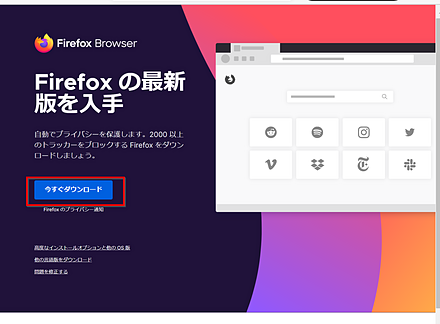
  1. ウェブページを開く

    https://www.mozilla.org/ja/firefox/new/
  2. ダウンロードした .exe ファイルを実行
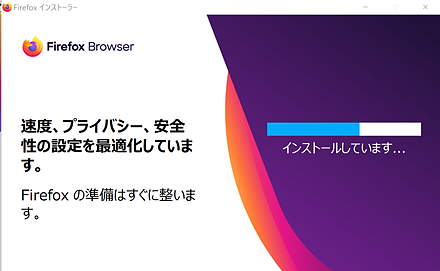
  3. インストールが始まる
  4. インストールが終了すると Firefox が開くので確認