![[kaneko lab.]](https://www.kkaneko.jp/info/logo_png.png)
Fashion MNIST データセットによる学習と分類(TensorFlow データセット,TensorFlow,Python を使用)(Windows 上,Google Colaboratory の両方を記載)
【目次】
- Google Colaboratory での実行
- Windows での実行
- Fashion MNIST データセットのロード
- Fashion MNIST データセットの確認
- Keras を用いたニューラルネットワークの作成
- ニューラルネットワークの学習と検証
説明資料: [パワーポイント]
【サイト内の関連ページ】
【関連する外部ページ】
- 「https://keras.io/ja/」の「30 秒で Keras に入門しましょう」
- TensorFlow のチュートリアルの Web ページ: https://www.tensorflow.org/tutorials/quickstart
TensorFlow のチュートリアルの Web ページに記載のソースコードを使用している.
1. Google Colaboratory での実行
Google Colaboratory のページ:
https://colab.research.google.com/drive/1D0r9WthikzMLWCVCBgLRFXjMkCg17kQs?usp=sharing
2. Windows での実行
Python 3.12 のインストール
Pythonのインストールを行い、Pythonのプログラムを実行する環境を整える。扱う環境は、Windows搭載パソコンである。金子研究室では、Python 3.12.10を推奨する。
[Windows での Python 3.12 のインストール手順を見るには、ここをクリック]
Windows での Python 3.12 のインストール
以下のいずれかの方法でPython 3.12をインストールする。Pythonがインストール済みの場合、この手順は不要である。
方法 1:winget によるインストール
【インストールコマンドの実行方法】
管理者権限でコマンドプロンプトを起動する(手順:Windowsキーまたはスタートメニュー → cmd と入力 → 右クリック → 「管理者として実行」)。そして、コマンド全体をコマンドプロンプトにコピー&ペーストする。
--scope machine を指定することで、システム全体(全ユーザー向け)にインストールされる。このオプションの実行には管理者権限が必要である。インストール完了後、コマンドプロンプトを再起動するとPATHが反映される。
REM Python 3.12 をシステム領域にインストール
winget install --id Python.Python.3.12 -e --scope machine --silent --accept-source-agreements --accept-package-agreements --override "/quiet InstallAllUsers=1 PrependPath=1 Include_test=0 Include_pip=1 Include_launcher=1 InstallLauncherAllUsers=1 TargetDir=\"C:\Program Files\Python312\""
if not "%ERRORLEVEL%"=="0" ( color 0c & echo Python 3.12 のインストールに失敗しました & ping 127.0.0.1 -n 6 >nul & color )

REM Python と Scripts を PATH 先頭に追加
powershell -NoProfile -Command "$p='C:\Program Files\Python312'; $s=\"$p\Scripts\"; if(Test-Path $p){$k=[Microsoft.Win32.Registry]::LocalMachine.OpenSubKey('SYSTEM\CurrentControlSet\Control\Session Manager\Environment',$true); $c=$k.GetValue('Path','',[Microsoft.Win32.RegistryValueOptions]::DoNotExpandEnvironmentNames); $t=$k.GetValueKind('Path'); $new=$c; if((';'+$new+';') -notlike \"*;$p;*\"){$new=$p+';'+$new}; if((';'+$new+';') -notlike \"*;$s;*\"){$new=$s+';'+$new}; if($new -ne $c){$k.SetValue('Path',$new,$t)}; $k.Close()}"

REM 現在のセッションにも反映(システムPATHを再取得して連結)
for /f "usebackq tokens=2,*" %A in (`reg query "HKLM\SYSTEM\CurrentControlSet\Control\Session Manager\Environment" /v Path`) do set "PATH=%B"

REM pip / wheel の更新
python -m pip install --no-user -U pip wheel
if not "%ERRORLEVEL%"=="0" ( color 0c & echo pip / wheel の更新に失敗しました & ping 127.0.0.1 -n 6 >nul & color )
方法 2:インストーラーによるインストール
- Python公式サイト(https://www.python.org/downloads/)にアクセスし、「Download Python 3.x.x」ボタンからWindows用インストーラーをダウンロードする。
- ダウンロードしたインストーラーを実行する。
- 初期画面の下部に表示される「Add python.exe to PATH」にチェックを入れてから「Customize installation」を選択する。このチェックを入れ忘れると、コマンドプロンプトから
pythonコマンドを実行できない。 - 「Install Python 3.xx for all users」にチェックを入れ、「Install」をクリックする。
インストールの確認
コマンドプロンプトで以下を実行する。
python --versionバージョン番号(例:Python 3.12.x)が表示されればインストール成功である。「'python' は、内部コマンドまたは外部コマンドとして認識されていません。」と表示される場合は、インストールが正常に完了していない。
Git のインストール
管理者権限のコマンドプロンプトで以下を実行する。管理者権限のコマンドプロンプトを起動するには、Windows キーまたはスタートメニューから「cmd」と入力し、表示された「コマンドプロンプト」を右クリックして「管理者として実行」を選択する。
REM Git をシステム領域にインストール
winget install --scope machine --id Git.Git -e --silent --disable-interactivity --force --accept-source-agreements --accept-package-agreements --override "/VERYSILENT /NORESTART /NOCANCEL /SP- /CLOSEAPPLICATIONS /RESTARTAPPLICATIONS /COMPONENTS=""icons,ext\reg\shellhere,assoc,assoc_sh"" /o:PathOption=Cmd /o:CRLFOption=CRLFCommitAsIs /o:BashTerminalOption=MinTTY /o:DefaultBranchOption=main /o:EditorOption=VIM /o:SSHOption=OpenSSH /o:UseCredentialManager=Enabled /o:PerformanceTweaksFSCache=Enabled /o:EnableSymlinks=Disabled /o:EnableFSMonitor=Disabled"
【関連する外部ページ】
- Git の公式ページ: https://git-scm.com/
TensorFlow 2.10.1 のインストール(Windows 上)
- 以下の手順を管理者権限のコマンドプロンプトで実行する
(手順:Windowsキーまたはスタートメニュー →
cmdと入力 → 右クリック → 「管理者として実行」)。 - TensorFlow 2.10.1 のインストール(Windows 上)
次のコマンドを実行することにより,TensorFlow 2.10.1 および関連パッケージ(tf_slim,tensorflow_datasets,tensorflow-hub,Keras,keras-tuner,keras-visualizer)がインストール(インストール済みのときは最新版に更新)される. そして,Pythonライブラリ(Pillow, pydot, matplotlib, seaborn, pandas, scipy, scikit-learn, scikit-learn-intelex, opencv-python, opencv-contrib-python)がインストール(インストール済みのときは最新版に更新)される.
python -m pip uninstall -y protobuf tensorflow tensorflow-cpu tensorflow-gpu tensorflow-intel tensorflow-text tensorflow-estimator tf-models-official tf_slim tensorflow_datasets tensorflow-hub keras keras-tuner keras-visualizer
python -m pip install -U protobuf tensorflow==2.10.1 tf_slim tensorflow_datasets==4.8.3 tensorflow-hub tf-keras keras keras_cv keras-tuner keras-visualizer
python -m pip install git+https://github.com/tensorflow/docs
python -m pip install git+https://github.com/tensorflow/examples.git
python -m pip install git+https://www.github.com/keras-team/keras-contrib.git
python -m pip install -U pillow pydot matplotlib seaborn pandas scipy scikit-learn scikit-learn-intelex opencv-python opencv-contrib-python
Graphviz のインストール
Windows での Graphviz のインストール: 別ページ »で説明
numpy,matplotlib, seaborn, scikit-learn, pandas, pydot のインストール
- 次のコマンドを管理者権限のコマンドプロンプトで実行する
(手順:Windowsキーまたはスタートメニュー →
cmdと入力 → 右クリック → 「管理者として実行」)。
python -m pip install -U numpy matplotlib seaborn scikit-learn pandas pydot
Fashion MNIST データセットのロード
- Fashion MNIST データセットのロード
- x_train: サイズ 28 × 28 の 60000枚の濃淡画像
- y_train: 60000枚の濃淡画像それぞれの,種類番号(0 から 9 のどれか)
- x_test: サイズ 28 × 28 の 10000枚の濃淡画像
- y_test: 10000枚の濃淡画像それぞれの,種類番号(0 から 9 のどれか)
結果は TensorFlow の Tensor である.
type は型,shape はサイズ,np.max と np.min は最大値と最小値である.
tensorflow_datasets の load で, 「batch_size = -1」を指定して,一括読み込みを行っている.
fashion_mnist, fashion_mnist_metadata = tfds.load('fashion_mnist', with_info = True, shuffle_files=True, as_supervised=True, batch_size = -1)
x_train, y_train, x_test, y_test = fashion_mnist['train'][0], fashion_mnist['train'][1], fashion_mnist['test'][0], fashion_mnist['test'][1]
print(fashion_mnist_metadata)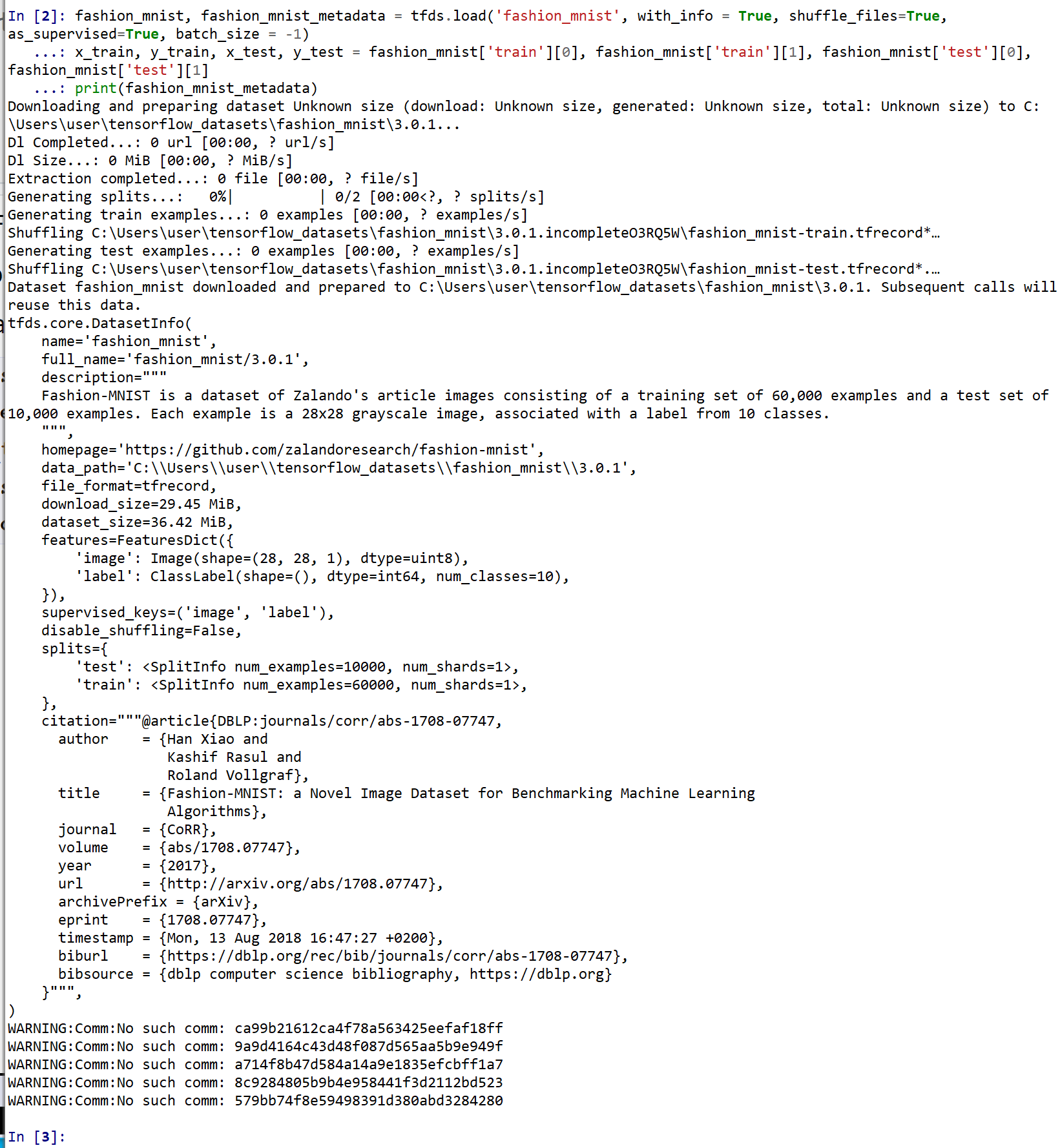
Fashion MNIST データセットの確認
- 型と形と最大値と最小値の確認
print(type(x_train), x_train.shape, np.max(x_train), np.min(x_train))
print(type(x_test), x_test.shape, np.max(x_test), np.min(x_test))
print(type(y_train), y_train.shape, np.max(y_train), np.min(y_train))
print(type(y_test), y_test.shape, np.max(y_test), np.min(y_test))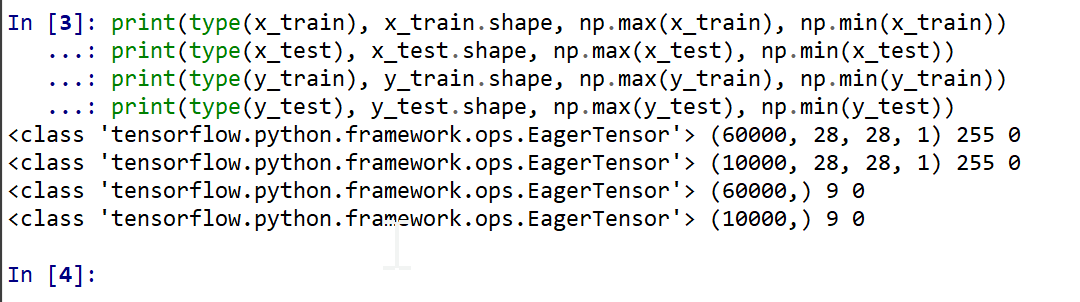
- データセットの中の画像を表示
MatplotLib を用いて,0 番目の画像を表示する
NUM = 0
plt.figure()
plt.imshow(x_train[NUM,:,:,0], cmap='gray')
plt.colorbar()
plt.gca().grid(False)
plt.show()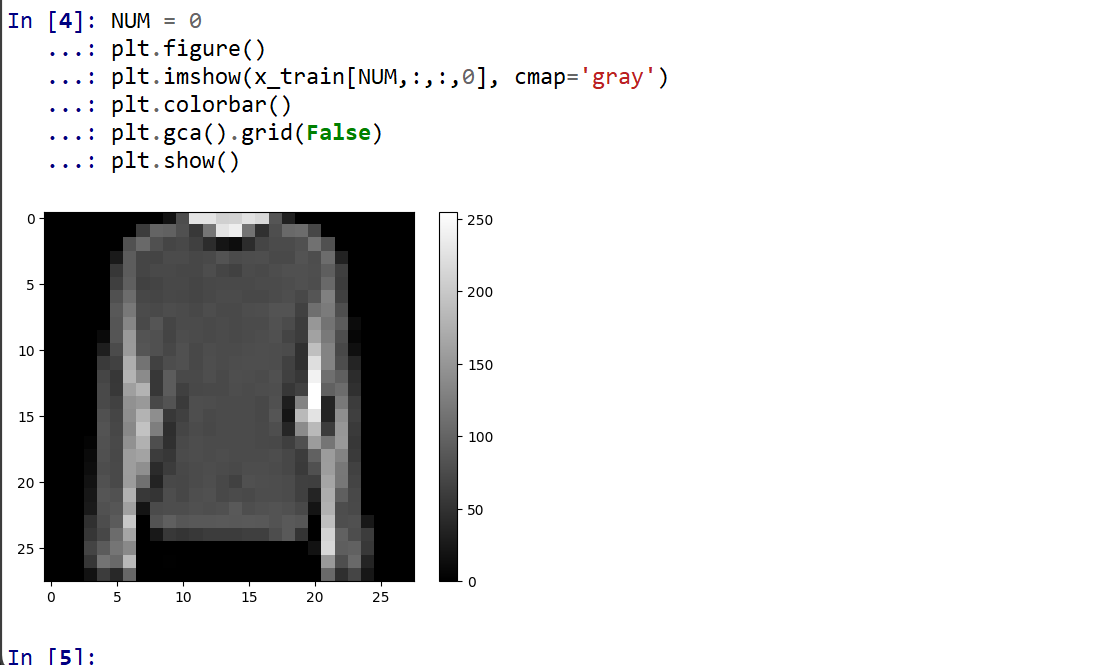
- データセットの情報を表示
print(fashion_mnist_metadata)
print(fashion_mnist_metadata.features["label"].num_classes)
print(fashion_mnist_metadata.features["label"].names)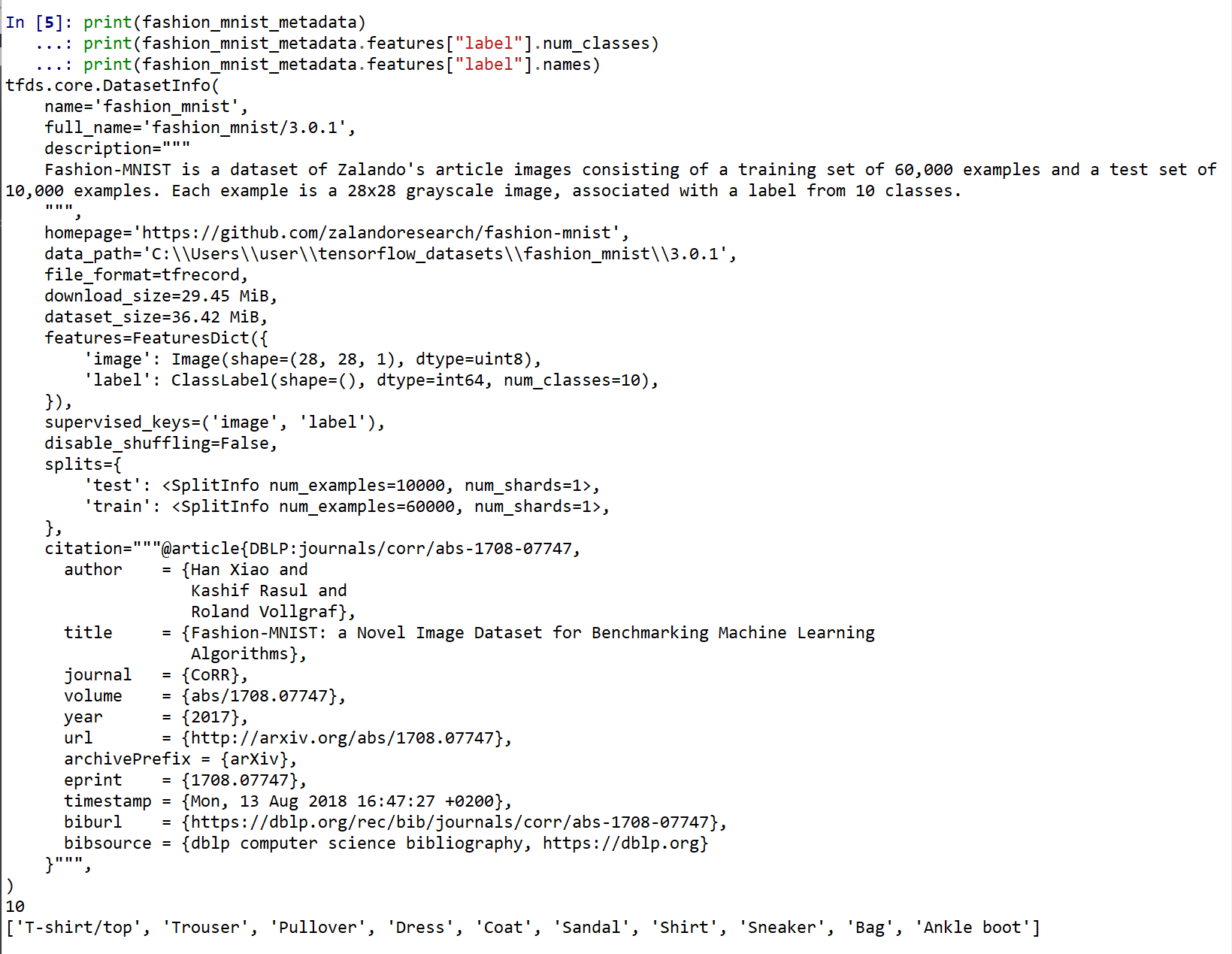
- 主成分分析の結果である主成分スコアのプロット
x_train, x_test は主成分分析で2次元にマッピング, y_train, y_test は色.
import pandas as pd
import seaborn as sns
sns.set()
import sklearn.decomposition
# 主成分分析
def prin(A, n):
    pca = sklearn.decomposition.PCA(n_components=n)
    return pca.fit_transform(A)

# 主成分分析で2つの成分を得る
def prin2(A):
    return prin(A, 2)

# M の最初の2列を,b で色を付けてプロット
def scatter_plot(M, b, alpha):
    a12 = pd.DataFrame( M[:,0:2], columns=['a1', 'a2'] )
    a12['target'] = b
    sns.scatterplot(x='a1', y='a2', hue='target', data=a12, palette=sns.color_palette("hls", np.max(b) + 1), legend="full", alpha=alpha)

# 主成分分析プロット
def pcaplot(A, b, alpha):
    scatter_plot(prin2(A), b, alpha)

pcaplot(np.reshape(x_train, (x_train.shape[0], -1)), y_train, 0.1)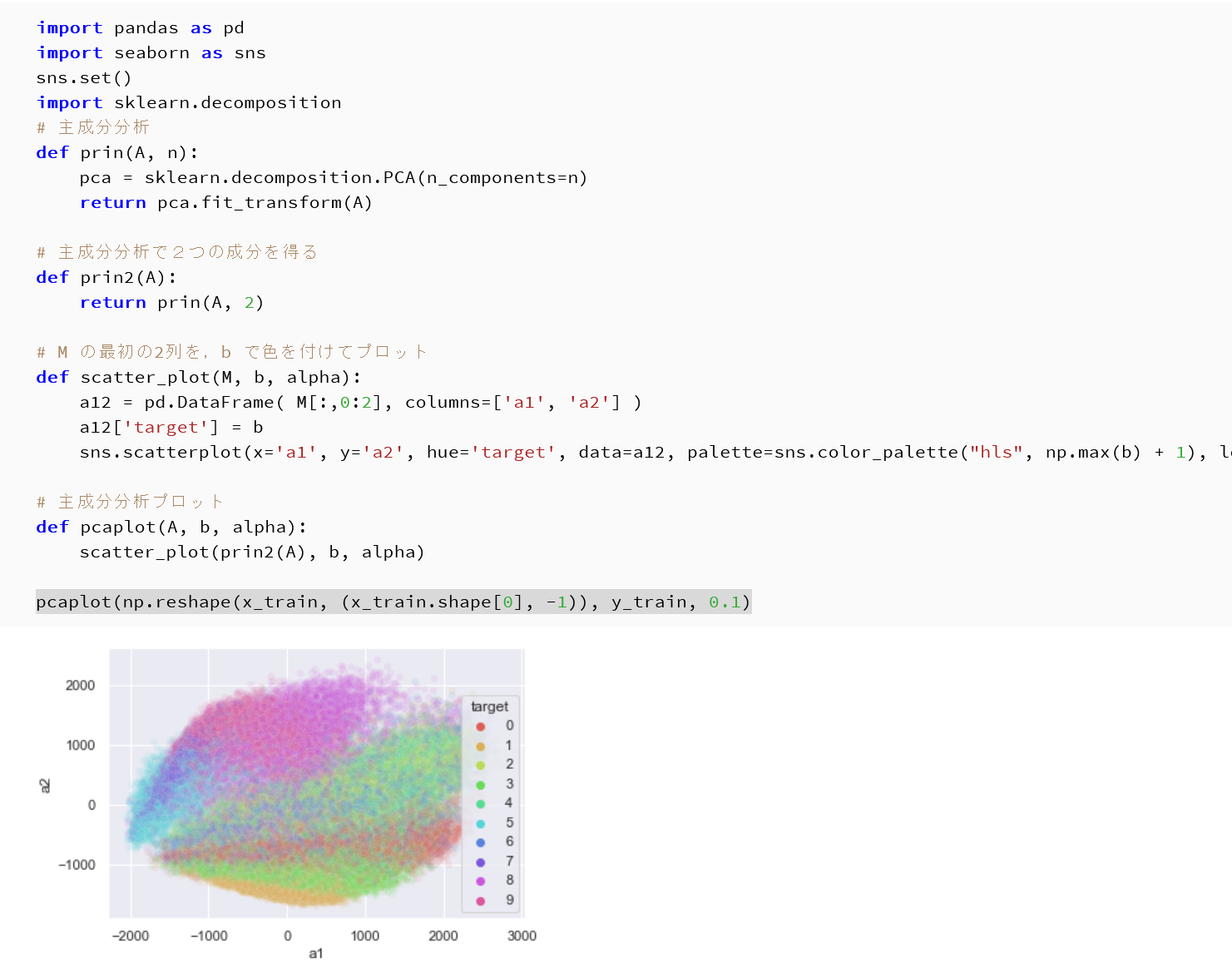
pcaplot(np.reshape(x_test, (x_test.shape[0], -1)), y_test, 0.1)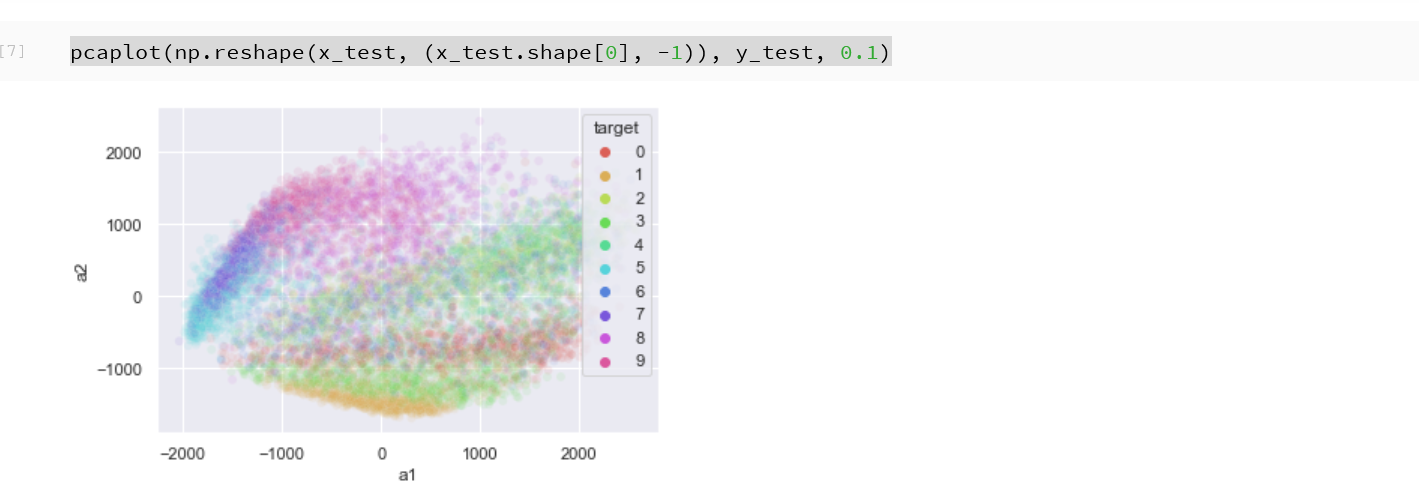
Keras を用いたニューラルネットワークの作成
- x_train, x_test, y_train, y_test の numpy ndarray への変換と,値の範囲の調整(値の範囲が 0 〜 255 であるのを,0 〜 1 に調整)
x_train = x_train.numpy().astype("float32") / 255.0
x_test = x_test.numpy().astype("float32") / 255.0
y_train = y_train.numpy()
y_test = y_test.numpy()
print(type(x_train), x_train.shape, np.max(x_train), np.min(x_train))
print(type(x_test), x_test.shape, np.max(x_test), np.min(x_test))
print(type(y_train), y_train.shape, np.max(y_train), np.min(y_train))
print(type(y_test), y_test.shape, np.max(y_test), np.min(y_test))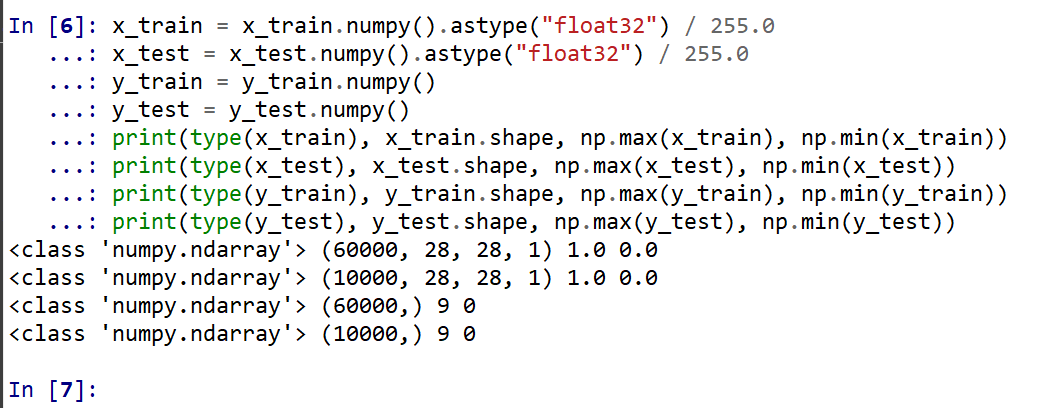
- データの確認表示
MatplotLib を用いて,複数の画像を並べて表示する.
plt.style.use('default')
plt.figure(figsize=(10,10))
for i in range(25):
  plt.subplot(5,5,i+1)
  plt.xticks([])
  plt.yticks([])
  plt.grid(False)
  plt.imshow(x_train[i], cmap=plt.cm.binary)
  plt.xlabel(y_train[i])

plt.show()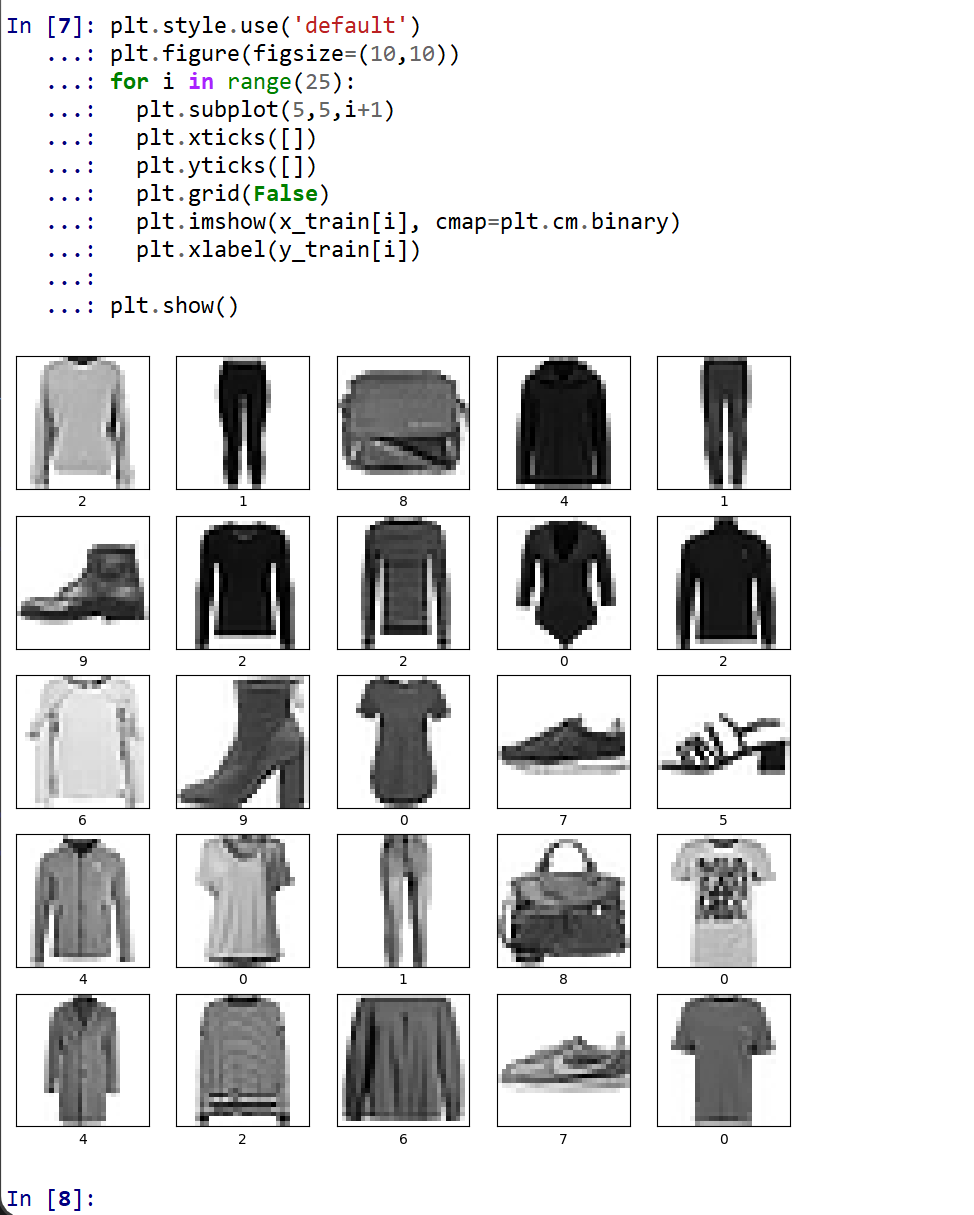
- モデルの作成と確認
num_classes = 10
input_shape = (28, 28)
m = tf.keras.Sequential(
    [
        tf.keras.Input(shape=input_shape),
        layers.Flatten(),
        layers.Dense(units=64, activation='relu'),
        layers.Dropout(0.5),
        layers.Dense(units=num_classes, activation='softmax')
    ]
)
print(m.summary())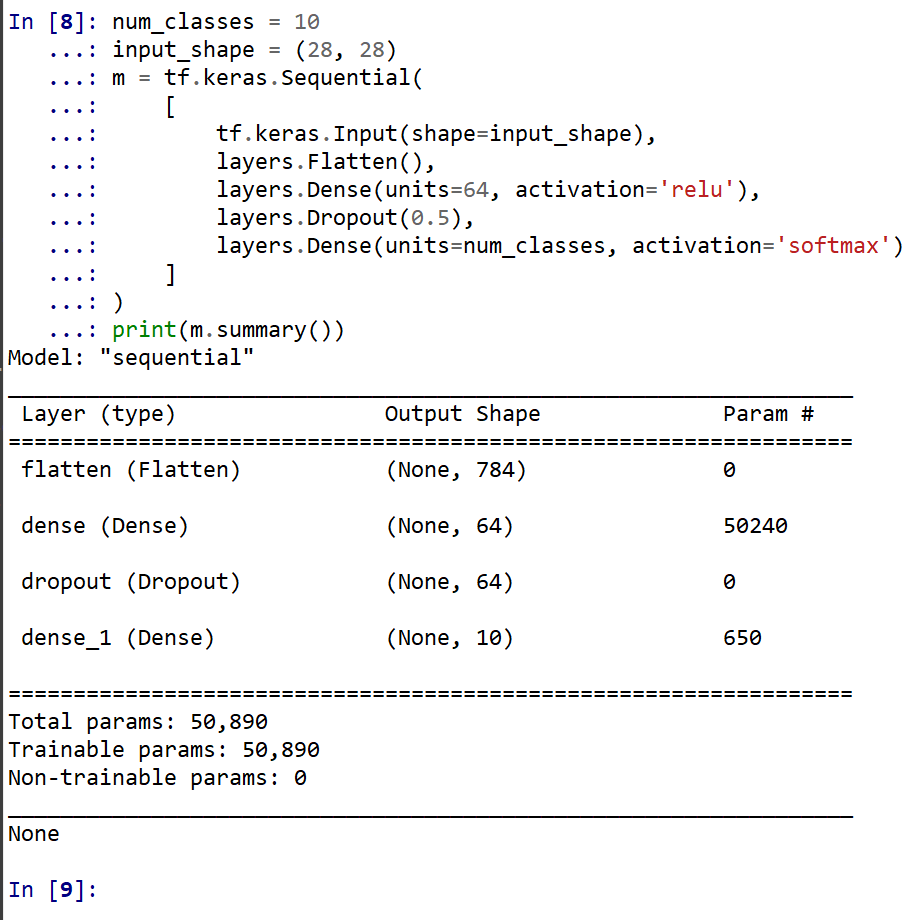
- モデルのビジュアライズ
Keras のモデルのビジュアライズについては: https://keras.io/ja/visualization/
from tensorflow.keras.utils import plot_model
import pydot
plot_model(m)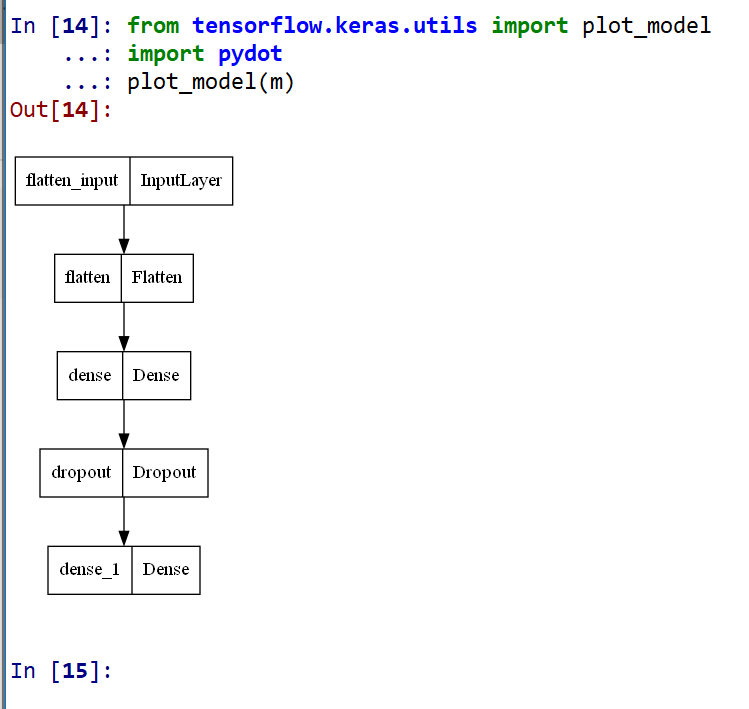
ニューラルネットワークの学習と検証
- コンパイル,学習を行う
ニューラルネットワークの学習は fit メソッドにより行う. 教師データを投入する.
EPOCHS = 20
m.compile(
    optimizer=tf.keras.optimizers.Adam(learning_rate=0.001),
    loss='sparse_categorical_crossentropy',
    metrics=['sparse_categorical_crossentropy', 'accuracy']
)
history = m.fit(x_train, y_train,
                    batch_size=128,
                    epochs=EPOCHS,
                    validation_data=(x_test, y_test),
                    verbose=1)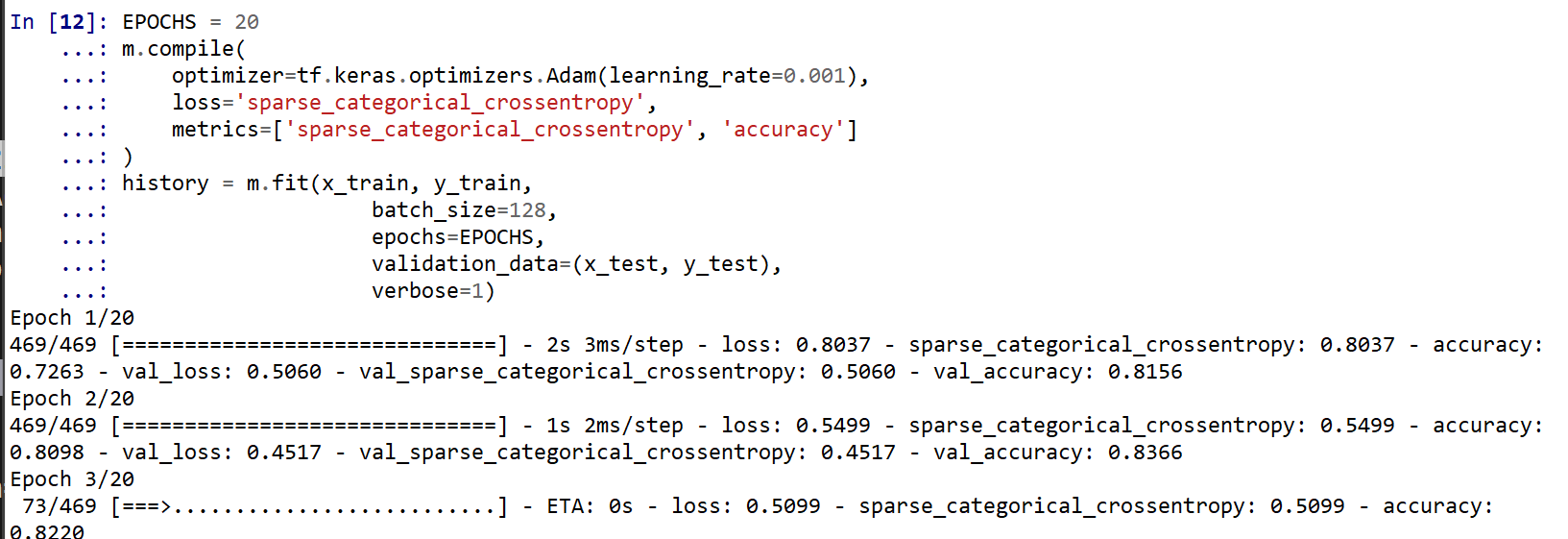
SGD を使う場合のプログラム例
m.compile(optimizer=tf.keras.optimizers.SGD(lr=0.01, momentum=0.9, nesterov=True), loss='sparse_categorical_crossentropy', metrics=['accuracy']) - ディープラーニングによるデータの分類
x_test を分類してみる.
print(m.predict(x_test))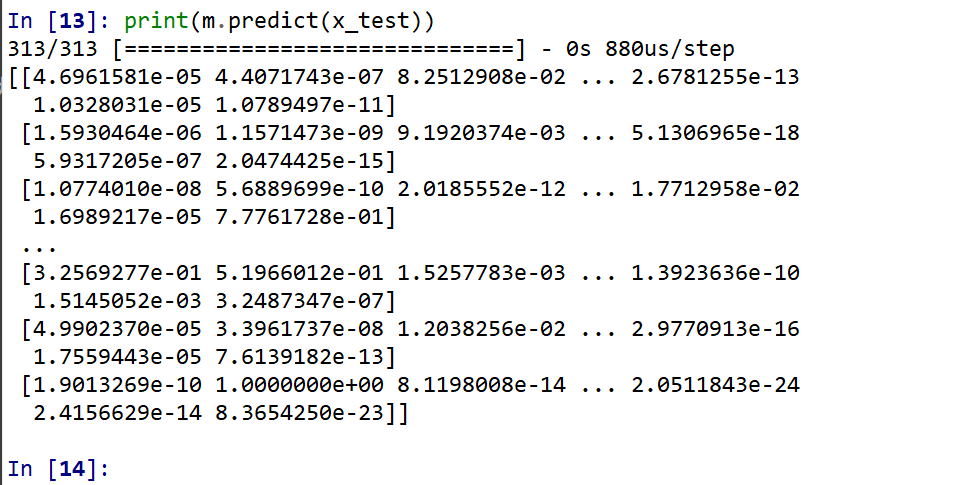
それぞれの数値の中で、一番大きいものはどれか?
m.predict(x_test).argmax(axis=1)
y_test 内にある正解のラベル(クラス名)を表示する(上の結果と比べるため)
print(y_test)
- 学習曲線の確認
過学習や学習不足について確認.
import pandas as pd
hist = pd.DataFrame(history.history)
hist['epoch'] = history.epoch
print(hist)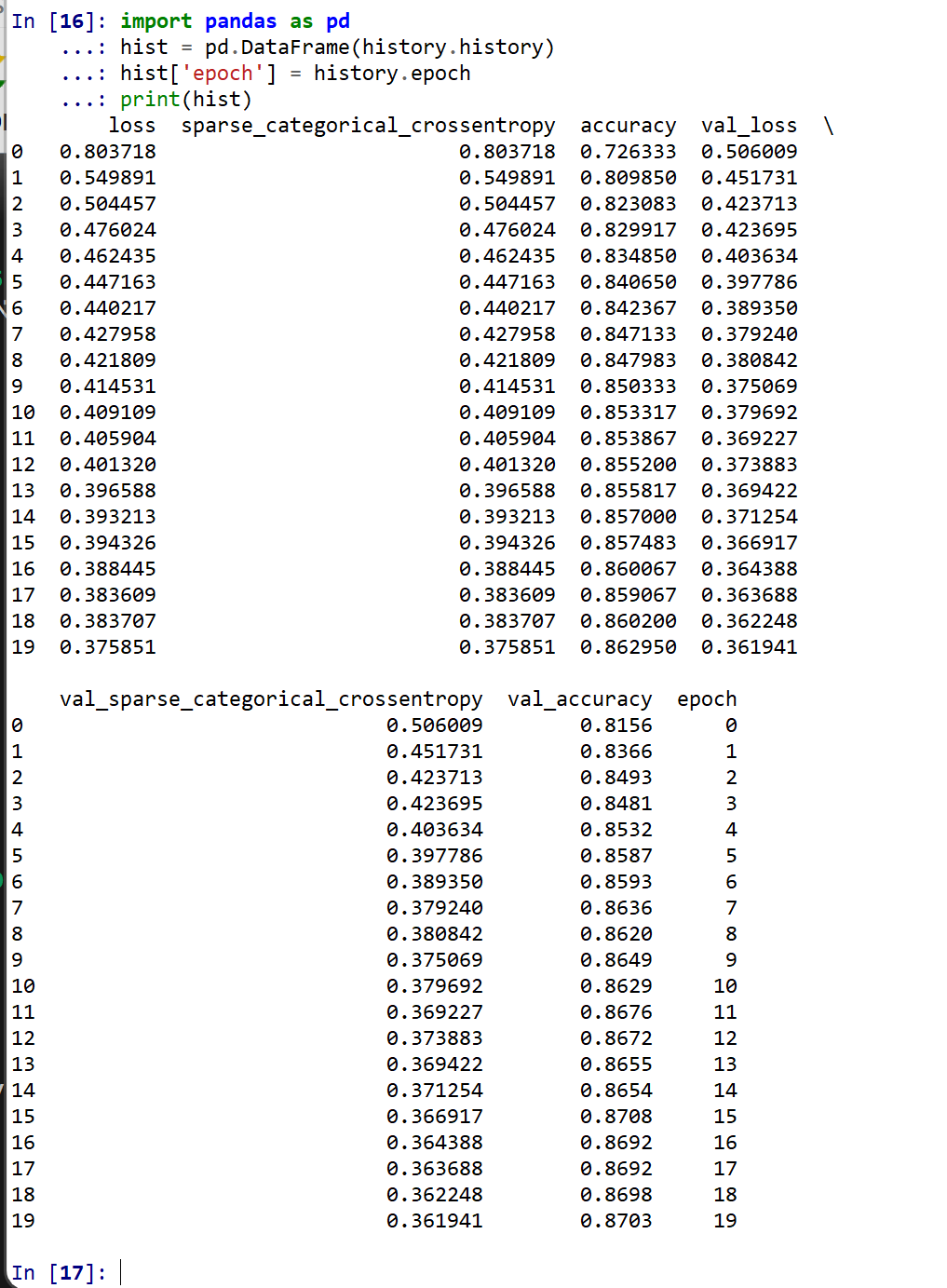
- 学習曲線のプロット
【関連する外部ページ】 訓練の履歴の可視化については,https://keras.io/ja/visualization/
- 学習時と検証時の,損失の違い
acc = history.history['accuracy']
val_acc = history.history['val_accuracy']
loss = history.history['loss']
val_loss = history.history['val_loss']

epochs = range(1, len(acc) + 1)

# "bo" は青いドット
plt.plot(epochs, loss, 'bo', label='Training loss')
# ”b" は青い実線
plt.plot(epochs, val_loss, 'b', label='Validation loss')
plt.title('Training and validation loss')
plt.xlabel('Epochs')
plt.ylabel('Loss')
plt.legend()

plt.show()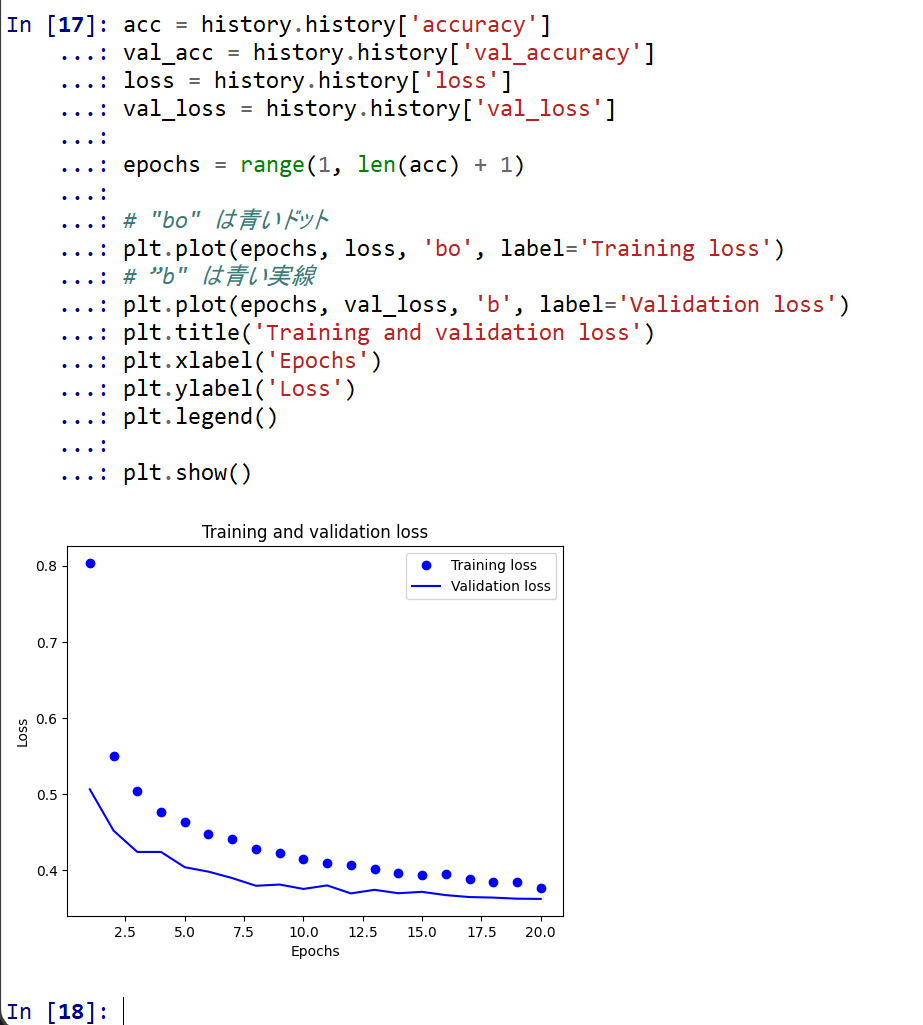
- 学習時と検証時の,精度の違い
acc = history.history['accuracy']
val_acc = history.history['val_accuracy']
loss = history.history['loss']
val_loss = history.history['val_loss']

plt.clf()   # 図のクリア
plt.plot(epochs, acc, 'bo', label='Training acc')
plt.plot(epochs, val_acc, 'b', label='Validation acc')
plt.title('Training and validation accuracy')
plt.xlabel('Epochs')
plt.ylabel('Accuracy')
plt.legend()

plt.show()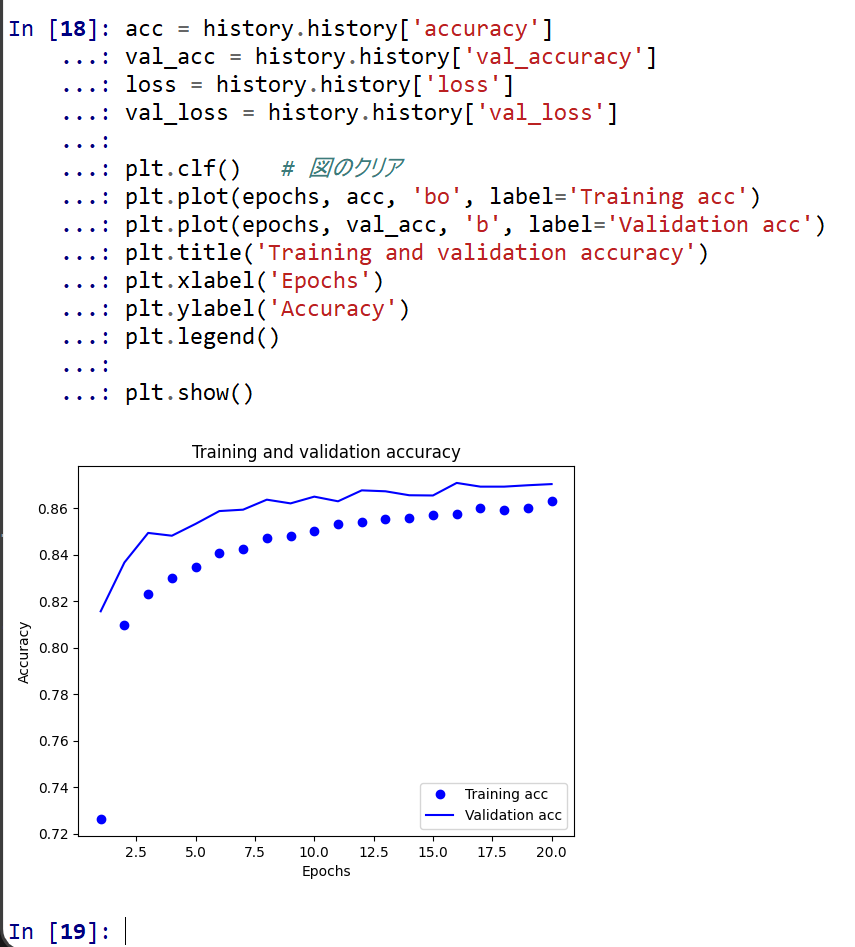
- 学習時と検証時の,損失の違い