![[kaneko lab.]](https://www.kkaneko.jp/info/logo_png.png)
Cocos2d で動きのシミュレーション
【概要】
Cocos2d は Python で動作する2次元ゲームのフレームワークである。このページでは、動きのシミュレーションの基本を、見本プログラムを用いた演習で学ぶ。
Cocos2d 上で、ゲームの登場物(MyActor クラス)に位置と速度の属性を持たせ、自動で動くシミュレーションを段階的に構築する。1つのオブジェクトの表示から始め、位置と速度によるシミュレーション、複数オブジェクトへの拡張、プレイヤー操作と当たり判定の追加、重力シミュレーションの導入へと進む。
【目次】
- 1. 前準備
- 2. 必要なライブラリのインストール
- 3. 実行手順
- 4. 演習1:ゲームの登場物とレイヤ
- 5. 演習2:位置と速度のシミュレーション
- 6. 演習3:MyActor クラスの複数のオブジェクト
- 7. 演習4:マウスクリックによるオブジェクトの追加
- 8. 演習5:Player クラスと当たり判定・重力シミュレーション
- 9. まとめ
【関連する外部ページ】
https://www.cocos.com/endoc.html
http://docplayer.net/62131747-Python-game-programming-by-example.html
【サイト内の関連情報】
1. 前準備
Python 3.12 のインストール
Pythonのインストールを行い、Pythonのプログラムを実行する環境を整える。扱う環境は、Windows搭載パソコンである。金子研究室では、Python 3.12.10を推奨する。
[Windows での Python 3.12 のインストール手順を見るには、ここをクリック]
Windows での Python 3.12 のインストール
以下のいずれかの方法でPython 3.12をインストールする。Pythonがインストール済みの場合、この手順は不要である。
方法 1:winget によるインストール
【インストールコマンドの実行方法】
管理者権限でコマンドプロンプトを起動する(手順:Windowsキーまたはスタートメニュー → cmd と入力 → 右クリック → 「管理者として実行」)。そして、コマンド全体をコマンドプロンプトにコピー&ペーストする。
--scope machine を指定することで、システム全体(全ユーザー向け)にインストールされる。このオプションの実行には管理者権限が必要である。インストール完了後、コマンドプロンプトを再起動するとPATHが反映される。
REM Python 3.12 をシステム領域にインストール
winget install --id Python.Python.3.12 -e --scope machine --silent --accept-source-agreements --accept-package-agreements --override "/quiet InstallAllUsers=1 PrependPath=1 Include_test=0 Include_pip=1 Include_launcher=1 InstallLauncherAllUsers=1 TargetDir=\"C:\Program Files\Python312\""
if not "%ERRORLEVEL%"=="0" ( color 0c & echo Python 3.12 のインストールに失敗しました & ping 127.0.0.1 -n 6 >nul & color )

REM Python と Scripts を PATH 先頭に追加
powershell -NoProfile -Command "$p='C:\Program Files\Python312'; $s=\"$p\Scripts\"; if(Test-Path $p){$k=[Microsoft.Win32.Registry]::LocalMachine.OpenSubKey('SYSTEM\CurrentControlSet\Control\Session Manager\Environment',$true); $c=$k.GetValue('Path','',[Microsoft.Win32.RegistryValueOptions]::DoNotExpandEnvironmentNames); $t=$k.GetValueKind('Path'); $new=$c; if((';'+$new+';') -notlike \"*;$p;*\"){$new=$p+';'+$new}; if((';'+$new+';') -notlike \"*;$s;*\"){$new=$s+';'+$new}; if($new -ne $c){$k.SetValue('Path',$new,$t)}; $k.Close()}"

REM 現在のセッションにも反映(システムPATHを再取得して連結)
for /f "usebackq tokens=2,*" %A in (`reg query "HKLM\SYSTEM\CurrentControlSet\Control\Session Manager\Environment" /v Path`) do set "PATH=%B"

REM pip / wheel の更新
python -m pip install --no-user -U pip wheel
if not "%ERRORLEVEL%"=="0" ( color 0c & echo pip / wheel の更新に失敗しました & ping 127.0.0.1 -n 6 >nul & color )
方法 2:インストーラーによるインストール
- Python公式サイト(https://www.python.org/downloads/)にアクセスし、「Download Python 3.x.x」ボタンからWindows用インストーラーをダウンロードする。
- ダウンロードしたインストーラーを実行する。
- 初期画面の下部に表示される「Add python.exe to PATH」にチェックを入れてから「Customize installation」を選択する。このチェックを入れ忘れると、コマンドプロンプトから
pythonコマンドを実行できない。 - 「Install Python 3.xx for all users」にチェックを入れ、「Install」をクリックする。
インストールの確認
コマンドプロンプトで以下を実行する。
python --versionバージョン番号(例:Python 3.12.x)が表示されればインストール成功である。「'python' は、内部コマンドまたは外部コマンドとして認識されていません。」と表示される場合は、インストールが正常に完了していない。
Python の開発環境 Visual Studio Code のインストールと Python 用の設定
Python の開発環境Visual Studio Code(プログラムを編集するソフトウェア。以下、VS Code)を整える。
[Windows での Visual Studio Code のインストールと Python 用の設定手順を見るには、ここをクリック]
Windows での Visual Studio Code のインストールと Python 用の設定手順
1. VS Code と拡張機能のインストール
以下のコマンドにより,既存の VS Code を削除し,全ユーザー共有の設定で再インストールしたうえで,拡張機能(VS Code に機能を追加するソフトウェア)をまとめて導入する.
【インストールコマンドの実行方法】
管理者権限でコマンドプロンプトを起動する(手順:Windows キーまたはスタートメニュー → cmd と入力 → 右クリック → 「管理者として実行」)。そして,コマンド全体をコマンドプロンプトにコピー&ペーストする。
インストールコマンド
REM ============================================================
REM Microsoft Visual Studio Code
REM ============================================================
REM Build Tools + Desktop development with C++(VCTools)+ 追加コンポーネント(一括)
REM 未インストール時: winget で新規インストール
REM インストール済み時: setup.exe modify でコンポーネント追加(バージョンは変更しない)
winget list --id Microsoft.VisualStudio.BuildTools 2>nul | findstr /i "BuildTools" >nul 2>&1
if %ERRORLEVEL% EQU 0 (
    for /f "usebackq delims=" %P in (`"C:\Program Files (x86)\Microsoft Visual Studio\Installer\vswhere.exe" -products Microsoft.VisualStudio.Product.BuildTools -property installationPath`) do start /wait "" "C:\Program Files (x86)\Microsoft Visual Studio\Installer\setup.exe" modify --installPath "%P" --add Microsoft.VisualStudio.Workload.VCTools --add Microsoft.VisualStudio.Workload.MSBuildTools --add Microsoft.VisualStudio.Component.VC.CMake.Project --add Microsoft.VisualStudio.Component.VC.Llvm.Clang --add Microsoft.VisualStudio.Component.VC.Llvm.ClangToolset --add Microsoft.VisualStudio.Component.Windows11SDK.26100 --add Microsoft.VisualStudio.Component.VC.v143.x86.x64 --includeRecommended --quiet --norestart --nocache
    if not "%ERRORLEVEL%"=="0" ( color 0c & echo Build Tools のコンポーネント追加に失敗しました & ping 127.0.0.1 -n 6 >nul & color )
) else (
    winget install --scope machine --id Microsoft.VisualStudio.BuildTools -e --silent --disable-interactivity --force --accept-source-agreements --accept-package-agreements --override "--quiet --wait --norestart --nocache --add Microsoft.VisualStudio.Workload.VCTools --includeRecommended --add Microsoft.VisualStudio.Workload.MSBuildTools --add Microsoft.VisualStudio.Component.VC.CMake.Project --add Microsoft.VisualStudio.Component.VC.Llvm.Clang --add Microsoft.VisualStudio.Component.VC.Llvm.ClangToolset --add Microsoft.VisualStudio.Component.Windows11SDK.26100 --add Microsoft.VisualStudio.Component.VC.v143.x86.x64"
    if not "%ERRORLEVEL%"=="0" ( color 0c & echo Build Tools のインストールに失敗しました & ping 127.0.0.1 -n 6 >nul & color )
)

REM 全ユーザー共有の拡張機能フォルダ
if not exist "C:\ProgramData\vscode-extensions" mkdir "C:\ProgramData\vscode-extensions"
icacls "C:\ProgramData\vscode-extensions" /grant "Everyone:(OI)(CI)M" /T

REM スタートメニューのショートカットを --extensions-dir 付きで再作成
if exist "C:\ProgramData\Microsoft\Windows\Start Menu\Programs\Visual Studio Code" rmdir /s /q "C:\ProgramData\Microsoft\Windows\Start Menu\Programs\Visual Studio Code"
if exist "C:\ProgramData\Microsoft\Windows\Start Menu\Programs\Visual Studio Code.lnk" del "C:\ProgramData\Microsoft\Windows\Start Menu\Programs\Visual Studio Code.lnk"
powershell -NoProfile -Command "$s=New-Object -ComObject WScript.Shell; $lnk=$s.CreateShortcut('C:\ProgramData\Microsoft\Windows\Start Menu\Programs\Visual Studio Code.lnk'); $lnk.TargetPath='C:\Program Files\Microsoft VS Code\Code.exe'; $lnk.Arguments='--extensions-dir \"C:\ProgramData\vscode-extensions\"'; $lnk.Save()"
REM ショートカットの検証
powershell -NoProfile -Command "$s=New-Object -ComObject WScript.Shell; $lnk=$s.CreateShortcut('C:\ProgramData\Microsoft\Windows\Start Menu\Programs\Visual Studio Code.lnk'); Write-Host 'TargetPath:' $lnk.TargetPath; Write-Host 'Arguments:' $lnk.Arguments"

REM ファイル / フォルダ右クリックの「Code で開く」を登録
reg add "HKLM\SOFTWARE\Classes\*\shell\VSCode\command" /ve /d "\"C:\Program Files\Microsoft VS Code\Code.exe\" --extensions-dir \"C:\ProgramData\vscode-extensions\" \"%1\"" /f
reg add "HKLM\SOFTWARE\Classes\Directory\shell\VSCode\command" /ve /d "\"C:\Program Files\Microsoft VS Code\Code.exe\" --extensions-dir \"C:\ProgramData\vscode-extensions\" \"%1\"" /f
reg add "HKLM\SOFTWARE\Classes\Directory\Background\shell\VSCode\command" /ve /d "\"C:\Program Files\Microsoft VS Code\Code.exe\" --extensions-dir \"C:\ProgramData\vscode-extensions\" \"%V\"" /f

REM --extensions-dir 付きで起動する code.cmd ラッパを作成
REM (%* を echo で書くと対話的 cmd で失われるため、PowerShell で [char]37+'*' を書き出す)
powershell -NoProfile -Command "$pct=[char]37; $q=[char]34; $c='@echo off'+[char]13+[char]10+$q+'C:\Program Files\Microsoft VS Code\bin\code.cmd'+$q+' --extensions-dir '+$q+'C:\ProgramData\vscode-extensions'+$q+' '+$pct+'*'+[char]13+[char]10; [IO.File]::WriteAllText('C:\ProgramData\vscode-extensions\vscode.cmd',$c,[Text.Encoding]::ASCII)"

REM 拡張機能のインストール
set "CODE=C:\Program Files\Microsoft VS Code\bin\code.cmd"
"%CODE%" --extensions-dir "C:\ProgramData\vscode-extensions" --uninstall-extension GitHub.copilot
"%CODE%" --extensions-dir "C:\ProgramData\vscode-extensions" --uninstall-extension GitHub.copilot-chat
"%CODE%" --extensions-dir "C:\ProgramData\vscode-extensions" --install-extension ms-python.python
"%CODE%" --extensions-dir "C:\ProgramData\vscode-extensions" --install-extension ms-python.vscode-pylance
"%CODE%" --extensions-dir "C:\ProgramData\vscode-extensions" --install-extension ms-python.debugpy
"%CODE%" --extensions-dir "C:\ProgramData\vscode-extensions" --install-extension MS-CEINTL.vscode-language-pack-ja
"%CODE%" --extensions-dir "C:\ProgramData\vscode-extensions" --install-extension saoudrizwan.claude-dev
"%CODE%" --extensions-dir "C:\ProgramData\vscode-extensions" --install-extension rust-lang.rust-analyzer
"%CODE%" --extensions-dir "C:\ProgramData\vscode-extensions" --install-extension tamasfe.even-better-toml
"%CODE%" --extensions-dir "C:\ProgramData\vscode-extensions" --install-extension anthropic.claude-code
"%CODE%" --extensions-dir "C:\ProgramData\vscode-extensions" --install-extension almenon.arepl
"%CODE%" --extensions-dir "C:\ProgramData\vscode-extensions" --list-extensions --show-versions

REM settings.json を作成(自動更新オフ、Python、Claude Code 設定)
if not exist "%APPDATA%\Code\User" mkdir "%APPDATA%\Code\User"
python -c "import json,os;data={'update.mode':'none','update.enableWindowsBackgroundUpdates':False,'extensions.autoUpdate':False,'python.defaultInterpreterPath':r'C:\Program Files\Python312\python.exe','claudeCode.environmentVariables':[{'name':'ANTHROPIC_API_KEY','value':'not-needed'},{'name':'ANTHROPIC_AUTH_TOKEN','value':'ollama'},{'name':'ANTHROPIC_BASE_URL','value':'http://localhost:11434'},{'name':'ANTHROPIC_MODEL','value':'glm-4.7-flash'},{'name':'CLAUDE_CODE_DISABLE_NONESSENTIAL_TRAFFIC','value':'1'}]};p=os.path.join(os.environ['APPDATA'],'Code','User','settings.json');open(p,'w',encoding='utf-8').write(json.dumps(data,indent=4));print('Done:',p)"

REM 自動更新の抑止ポリシー(settings.json に加えて、レジストリ側でも明示的にオフ)
reg add "HKLM\SOFTWARE\Policies\Microsoft\VSCode" /v "UpdateMode" /t REG_SZ /d "none" /f
echo === セットアップ完了 ===
2. Python インタプリタの選択
同一マシンに複数の Python がインストールされている場合,VS Code で使用する Python 本体(インタプリタ:Python プログラムを解釈・実行するソフトウェア)を選択する必要がある.
- コマンドパレット(コマンド名で機能を呼び出す VS Code の入力欄)を開く(
Ctrl+Shift+P) Python: Select Interpreterと入力する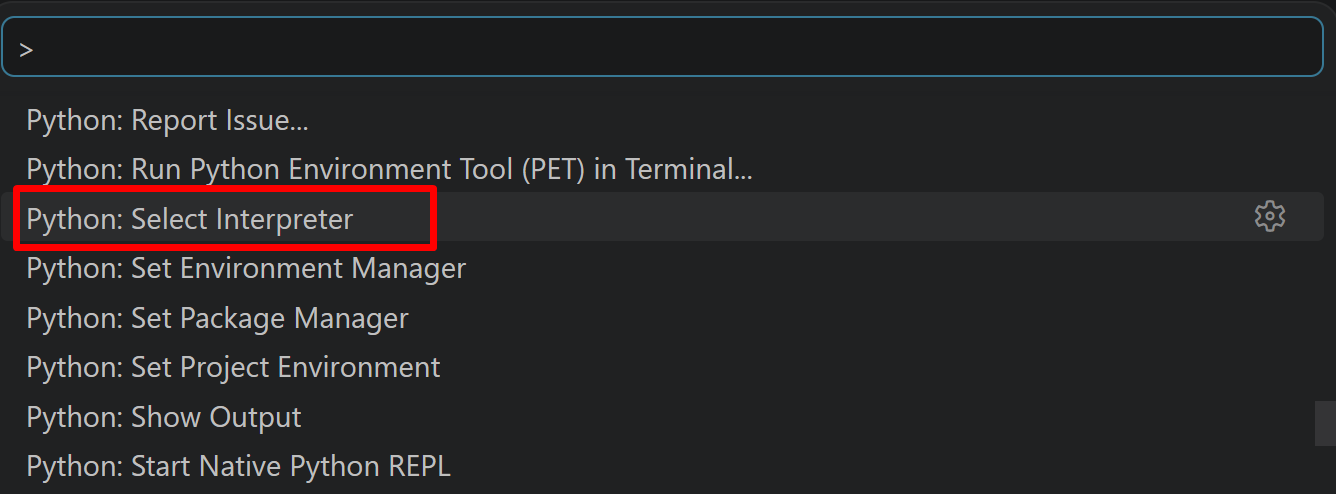
- 表示される一覧から,使用する Python(例:
C:\Program Files\Python312\python.exe)を選択する.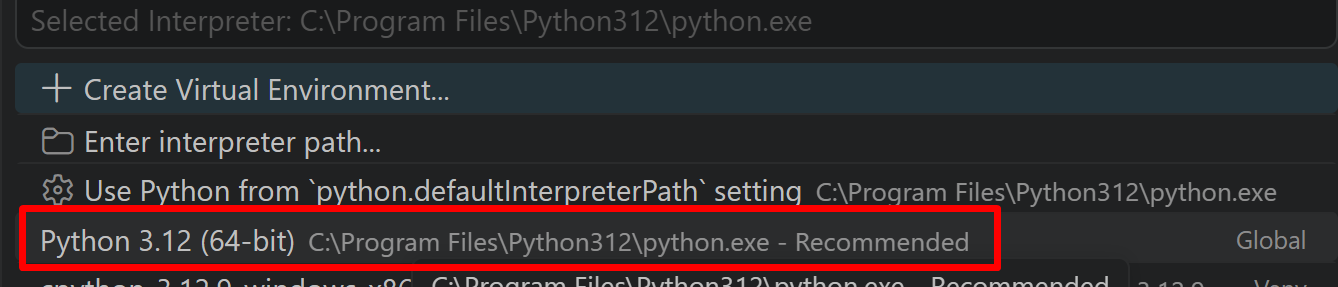
Python プログラム実行手順
[Windows での Python プログラム実行手順を見るには、ここをクリック]
Windows での Python 実行手順(Visual Studio Codeを使用)
プログラムファイルの作成と保存
- 左サイドバーの「エクスプローラー」アイコン(
Ctrl+Shift+E)をクリックする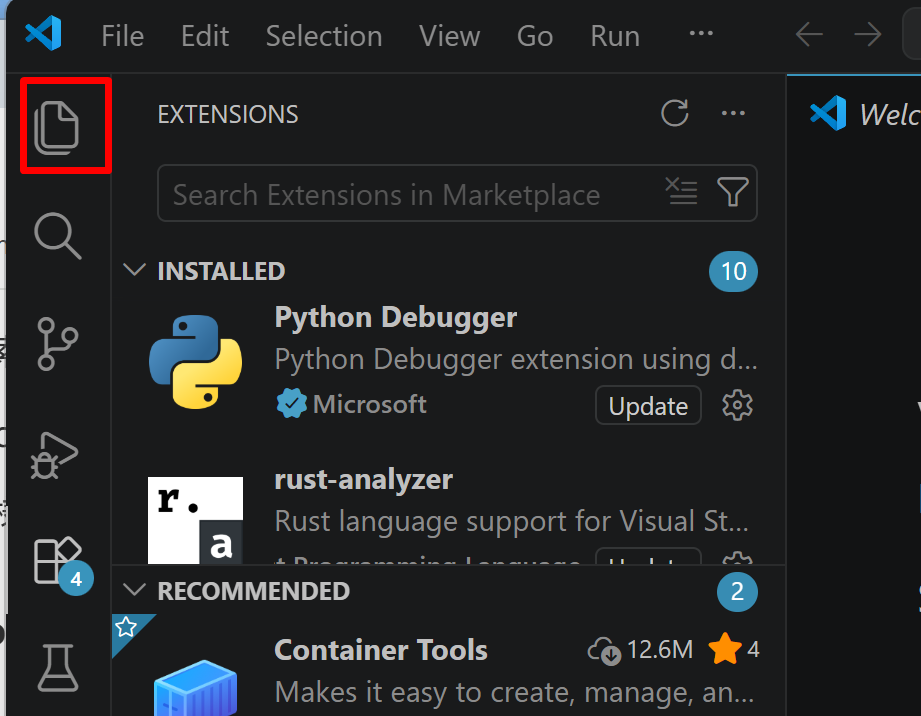
- 「NO FOLDER OPENED」(作業対象フォルダが未選択の状態)と表示される場合は,「Open Folder」をクリックし,プログラムを保存するフォルダを選択する
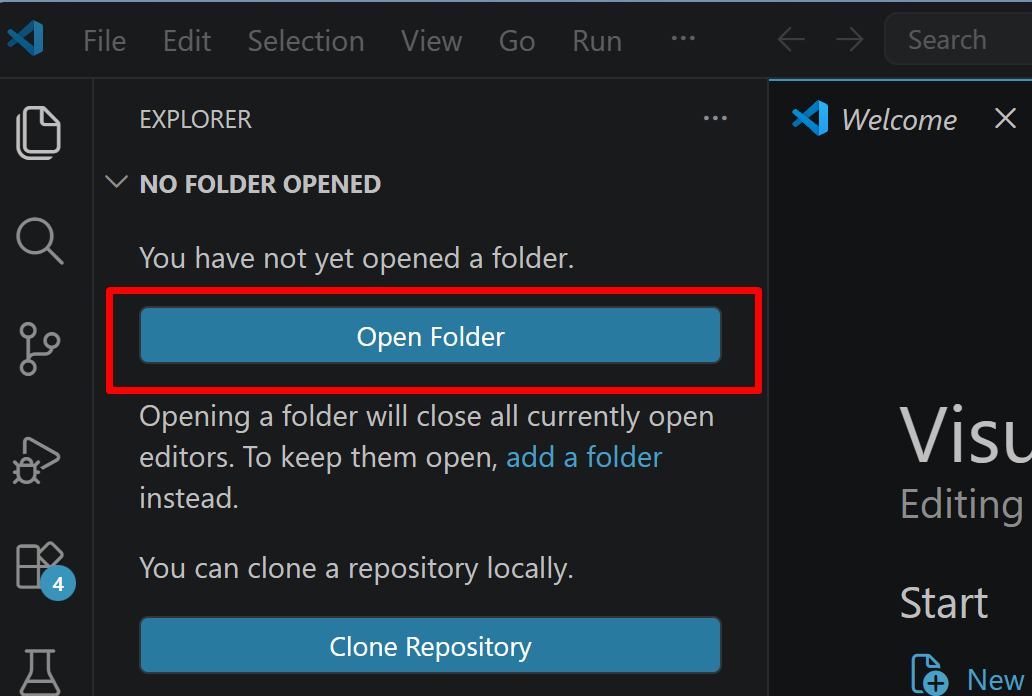
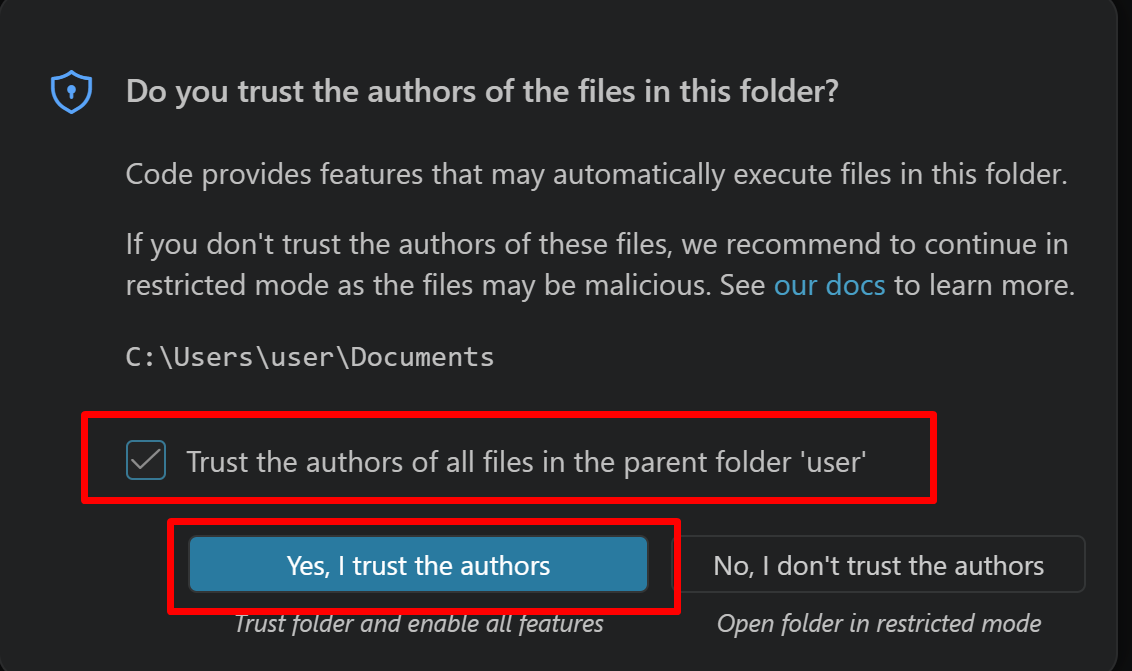
続いて「フォルダを信用するか」を確認する画面(フォルダ内のコードを実行してよいか確認する VS Code の仕組み)が表示されるので,チェックして Yes を選択する
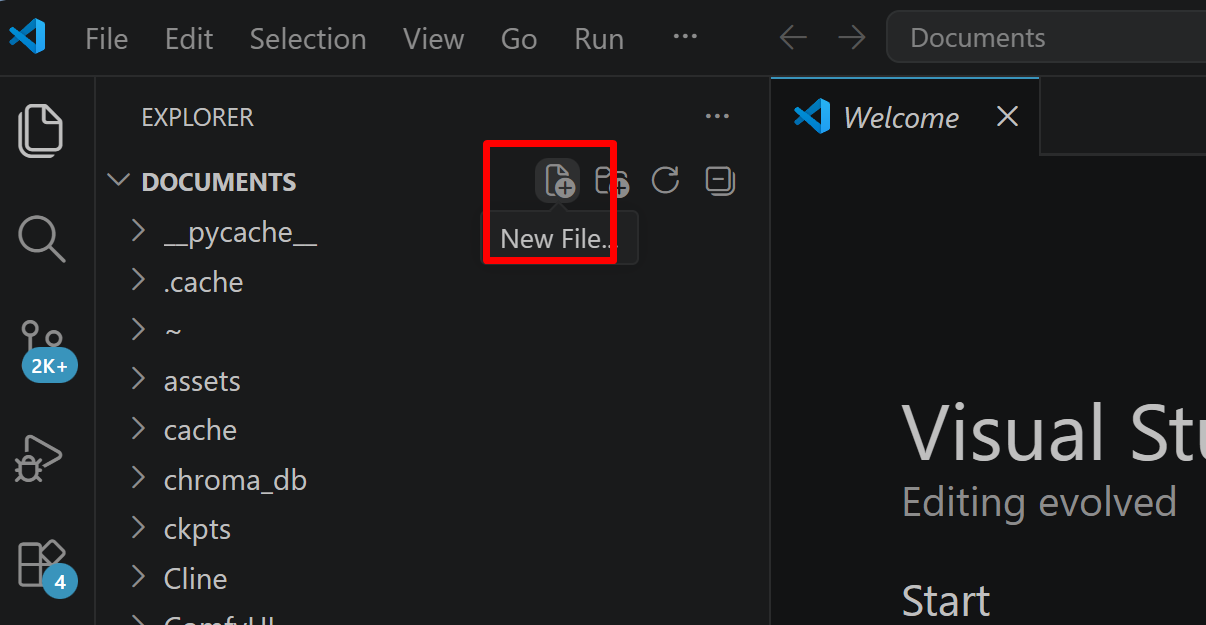
- フォルダ名の右側に表示される「新しいファイル」アイコンをクリックする
- ファイル名(例:
aitask.py.ファイル名は何でも良い)を入力しEnterを押す.拡張子は.py(Python ファイルを示す拡張子)とする
- 実行したいコードを選択し,
Ctrl+Cでコピーする.VS Code のエディタ領域にCtrl+Vで貼り付ける Ctrl+Sで保存する
プログラムの実行
- エディタ右上の三角形「▷」アイコン(Run Python File:現在開いている Python ファイルを実行するボタン)をクリックする.または,エディタ上で右クリックし「ターミナルで Python ファイルを実行」を選択する
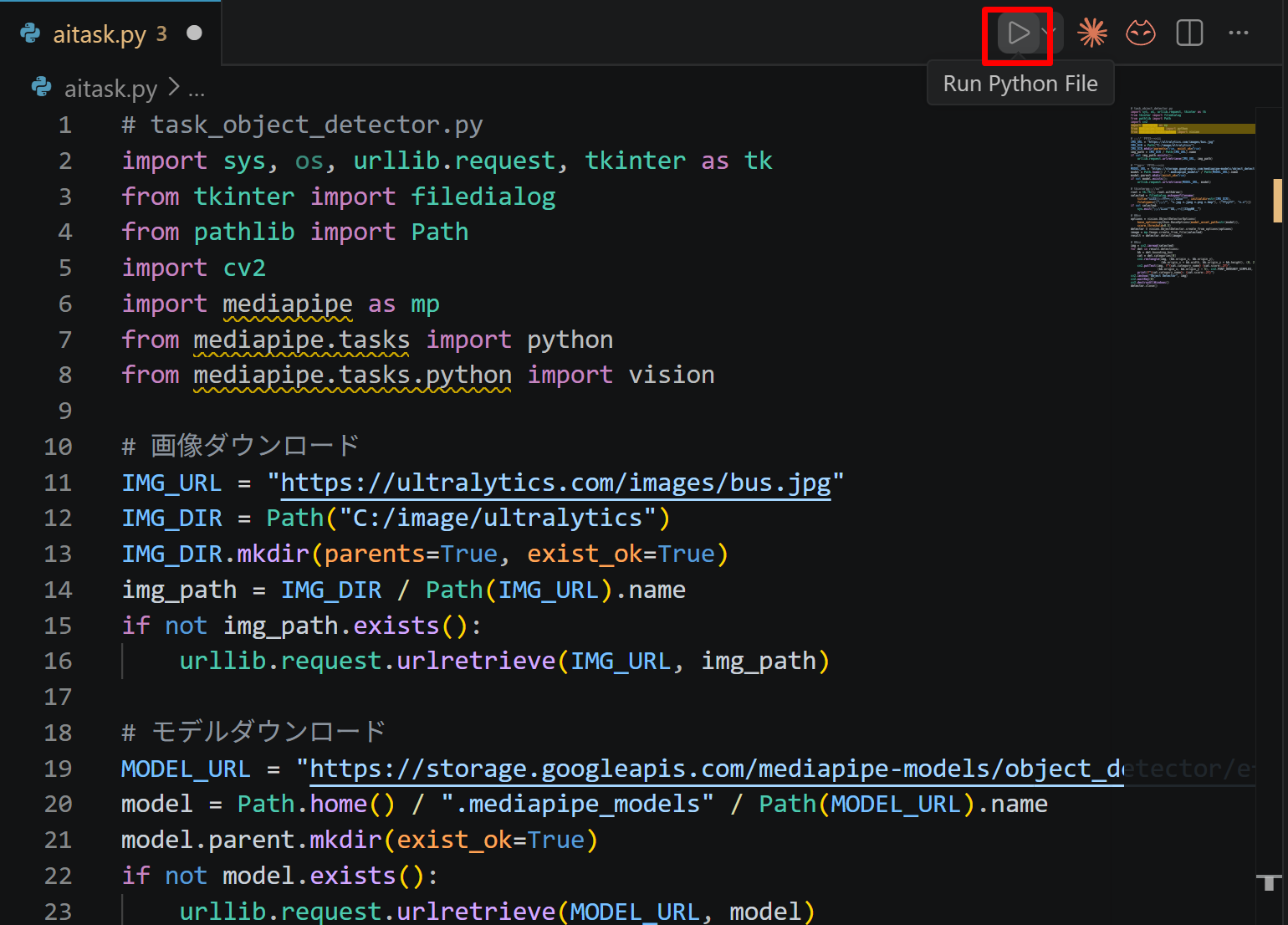
- VS Code 下部のターミナル(コマンドの入出力を表示する画面)に,実行結果(
print関数の出力等)が表示される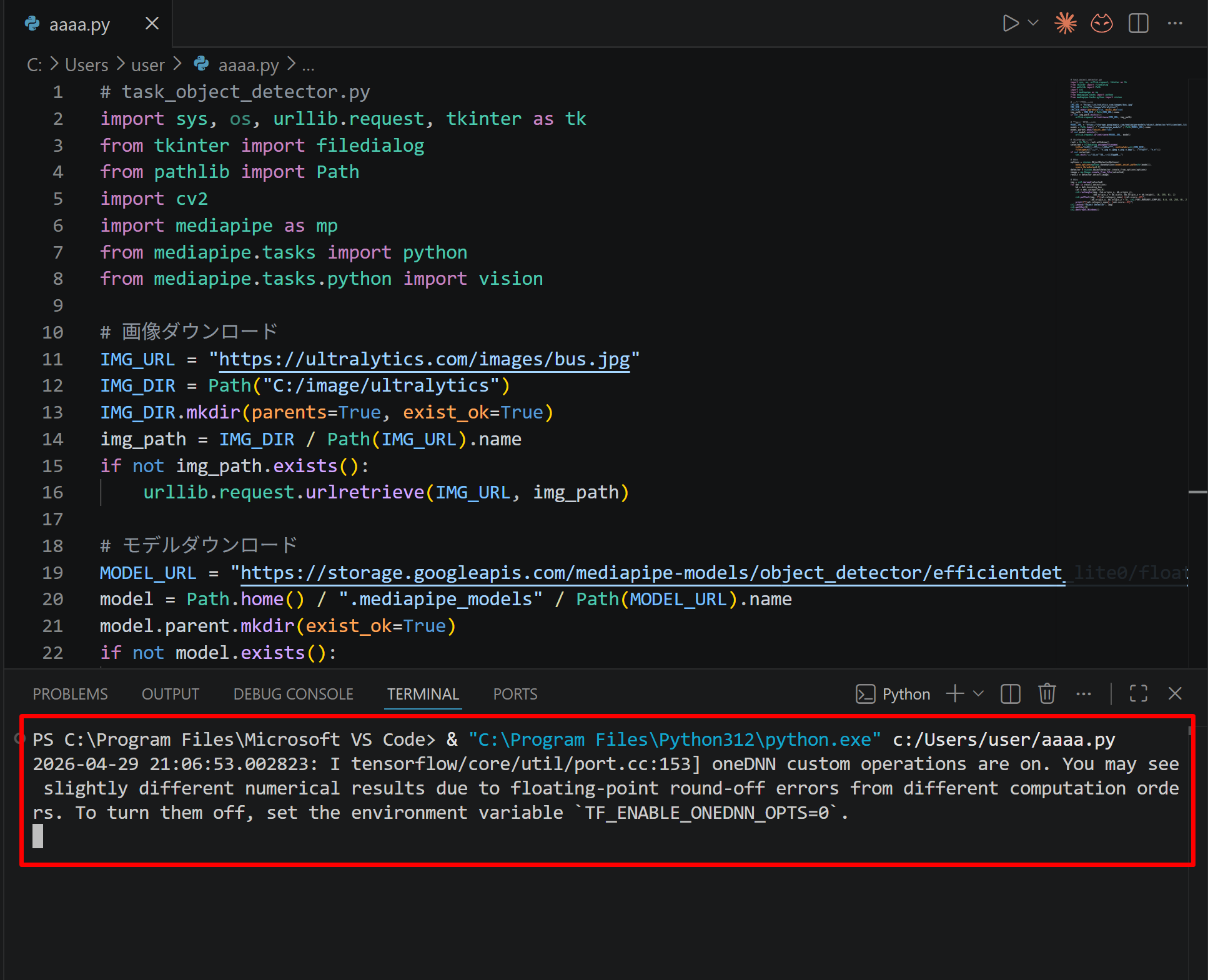
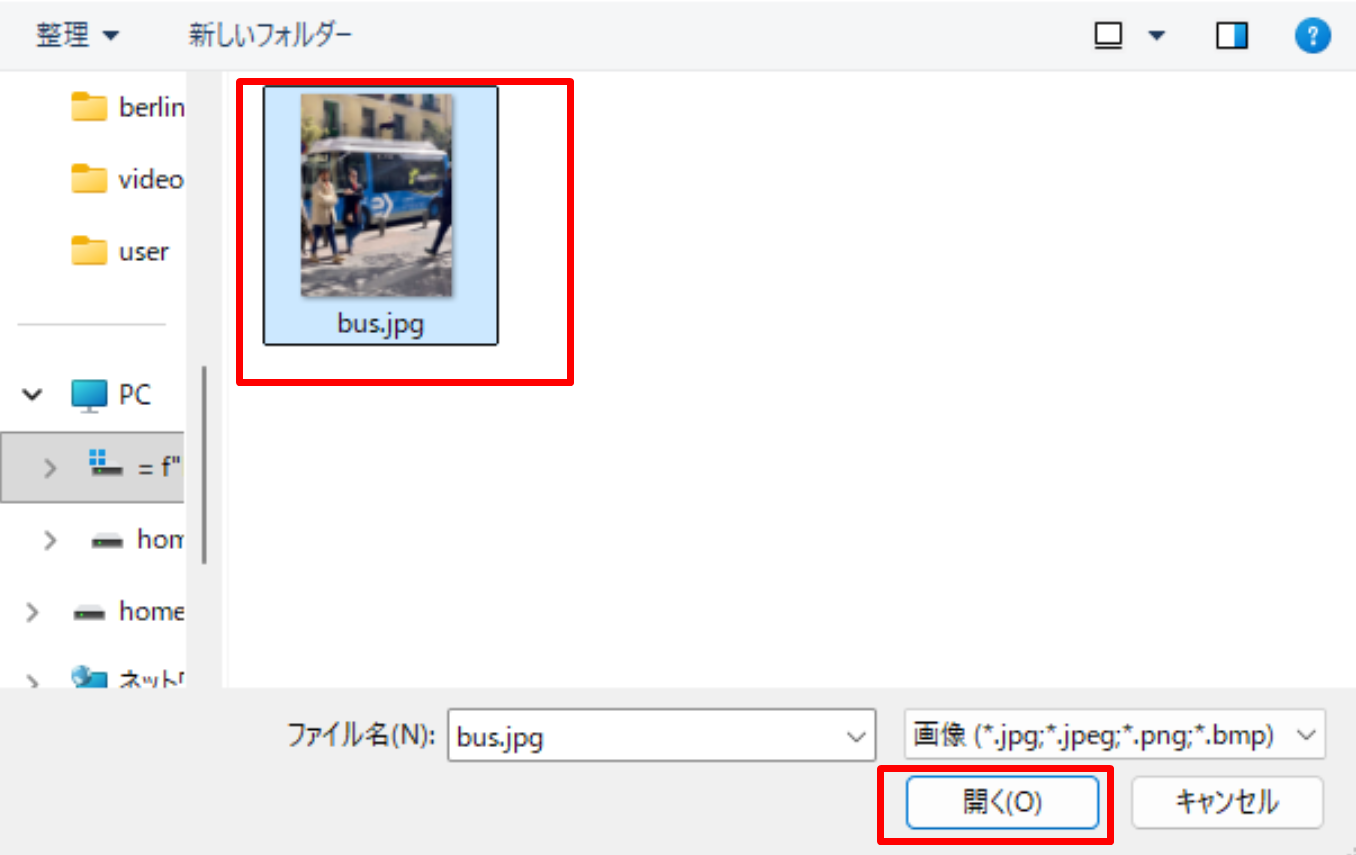
- tkinter(Python 標準の GUI ライブラリ)のファイル選択ダイアログを使うプログラムを実行した場合は,ダイアログが開くので対象画像を選択する
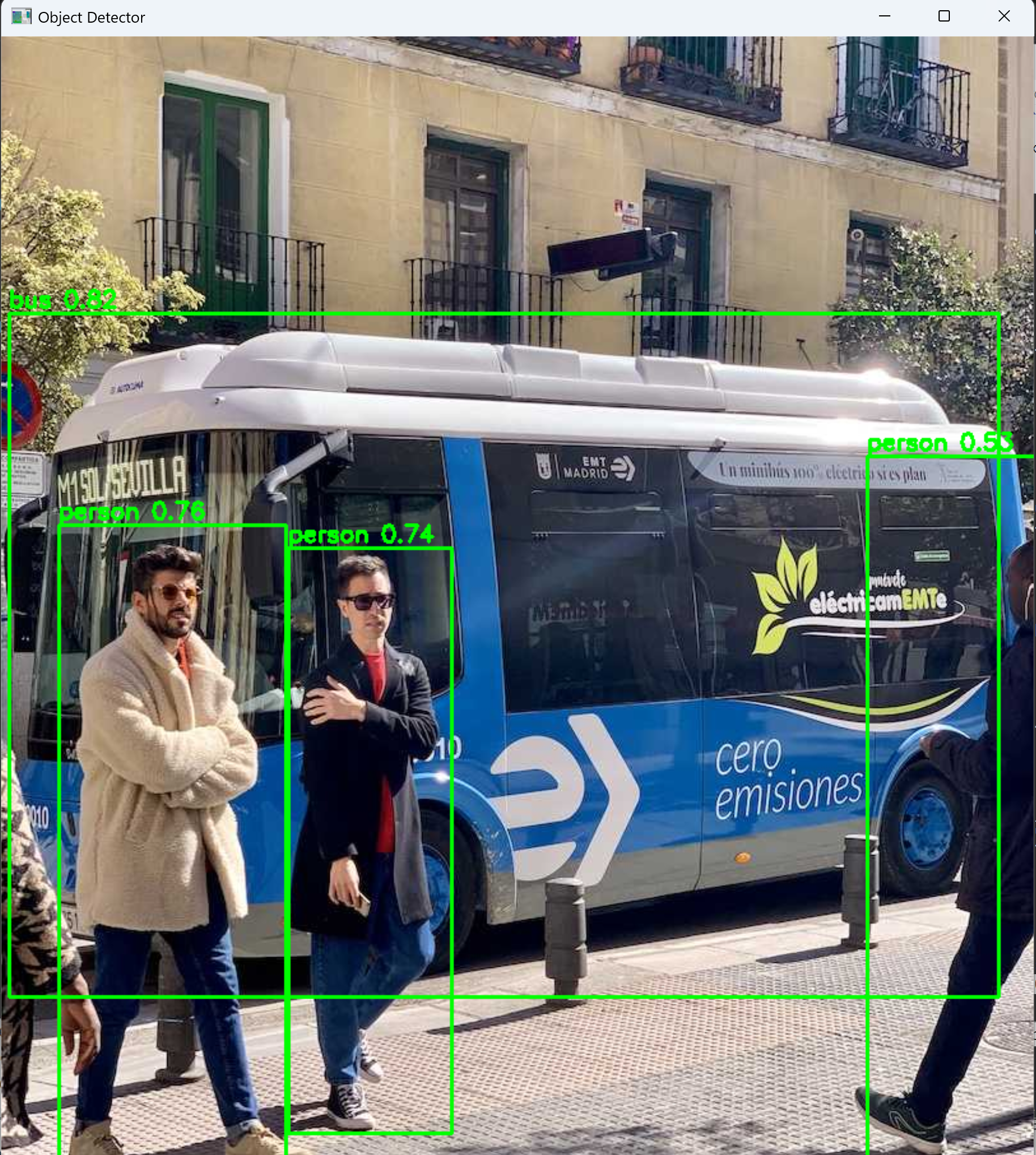
- VS Code 下部のターミナルで実行結果を確認する.OpenCV ウィンドウ(OpenCV が画像を表示するために開く専用ウィンドウ)が開いた場合はそちらも確認する.OpenCV ウィンドウは,マウスクリックでウィンドウをアクティブ(操作対象の状態)にしてからキーを押すと終了する

2. 必要なライブラリのインストール
管理者権限でコマンドプロンプトを起動する
(手順:Windowsキーまたはスタートメニュー → cmd と入力 → 右クリック → 「管理者として実行」)。
cocos2d は pyglet 1.4.10 以上 2.0 未満に依存する。次のコマンドで cocos2d, pyglet をインストールする。
pip uninstall pyglet -y
pip install -U --no-user cocos2d "pyglet<2.0,>=1.4.10"
3. 実行手順
コードを実行する(メモ帳を用いる場合は a.py のようなファイル名で保存して実行)。
動作確認チェックリスト
| 確認項目 | 期待される結果 |
|---|---|
| プログラム起動時 | 640×480 のウィンドウが表示される |
| 起動直後の画面 | 文字「o」が画面上に表示される(位置はランダムなので、画面が真っ黒になることがある。その場合は一度終了して再実行する) |
| 時間経過 | 文字「o」が少しずつ動く |
| ボールが画面端に到達 | 画面の境界(x: 0〜640、y: 0〜480)で反射する |
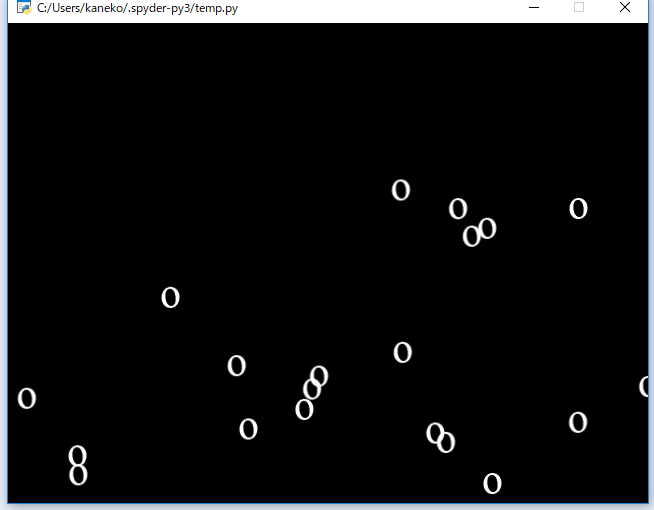
| マウスクリック(演習4以降) | オブジェクトが増える |
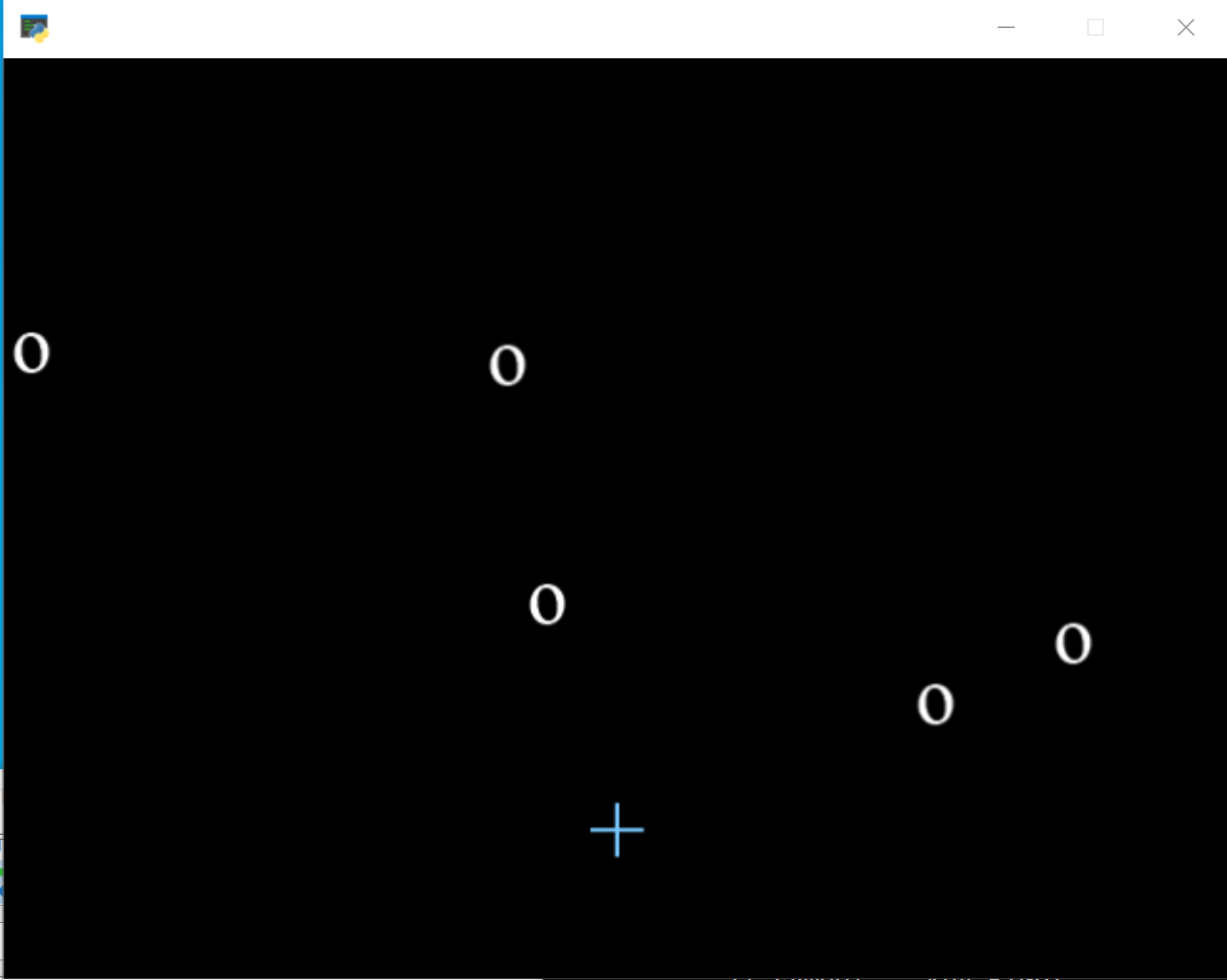
| 矢印キー操作(演習5) | Player(「+」)が上下左右に移動する |
| Player と MyActor の接近(演習5) | MyActor の色が赤 (255,10,10,255) に変化する |
| 終了操作 | 右上の「x」をクリックしてウィンドウを閉じる |
4. 演習1:ゲームの登場物とレイヤ
手順:次のコードを実行し、画面に文字「o」が1つ表示されることを確認する。確認したら、右上の「x」をクリックして終了する。
- ゲームの登場物: ball(MyActorクラス) ※ Label クラスのサブクラス
属性 vx, vy に値を設定している。これらはあとで使う。
- レイヤ: 名前無し(Layer00クラス) ※ Layer クラスのサブクラス
ヒント:MyActor クラス(Label クラスのサブクラス)のオブジェクト ball を作成し、レイヤ(Layer00 クラス)に追加して表示する。
考察ポイント:ball の位置はランダムに決まるため、実行のたびに表示位置が変わることを確かめる。位置がランダムなので、画面が真っ黒になることがある。その場合は一度終了して再実行する。
import random
import cocos
from cocos import scene
from cocos.layer import Layer
from cocos.director import director
import sys
import pyglet
setattr(sys.modules['pyglet'], 'mock_level', None)

class MyActor(cocos.text.Label):
    def __init__(self, text, x, y, vx, vy, size, rgba):
        super(MyActor, self).__init__(
            text,
            font_name = "Times New Roman",
            font_size = size,
            anchor_x = 'center',
            anchor_y = 'center',
            color = rgba
        )
        self.vx = vx
        self.vy = vy
        self.position = cocos.euclid.Vector2(x, y)

class Layer00(Layer):
    is_event_handler = True
    def __init__(self):
        super(Layer00, self).__init__()
        random.seed()
        self.ball = MyActor("o", random.random() * 640, random.random() * 360 + 80, random.random() * 100 - 50, - random.random() * 50, 32, (255, 255, 255, 255))
        self.add(self.ball)

director.init(width=640, height=480)
director.run( scene.Scene( Layer00() ) )
5. 演習2:位置と速度のシミュレーション
手順:次のコードを実行し、文字「o」が自動で動き、画面の境界で反射することを確認する。確認したら、右上の「x」をクリックして終了する。
- MyActor クラス: 速度の属性 vx, vy を持つ。これらはランダムに設定する。
位置と速度: 速度が大きいと、位置が大きく動く。2次元の世界では、位置は2つの数値(x, y)で表す。速度も同様に2つの数値になる。
- ここでは MyActor クラスのオブジェクトが自動で動くようにする(位置と速度のシミュレーション)。
ヒント:Layer00 クラスに update メソッドを追加し、self.schedule(self.update) で毎フレーム呼び出すことで、MyActor オブジェクトを自動で動かす。画面の境界では速度を反転させて反射させる。
考察ポイント:速度 vx, vy の大小と、1フレームあたりの移動量の関係を読み取る。ボールの位置をランダムに設定しているので、画面が真っ黒になることがある。その場合は一度終了して再実行する。
import random
import cocos
from cocos import scene
from cocos.layer import Layer
from cocos.director import director
import sys
import pyglet
setattr(sys.modules['pyglet'], 'mock_level', None)

class MyActor(cocos.text.Label):
    def __init__(self, text, x, y, vx, vy, size, rgba):
        super(MyActor, self).__init__(
            text,
            font_name = "Times New Roman",
            font_size = size,
            anchor_x = 'center',
            anchor_y = 'center',
            color = rgba
        )
        self.vx = vx
        self.vy = vy
        self.position = cocos.euclid.Vector2(x, y)

class Layer00(Layer):
    is_event_handler = True
    def __init__(self):
        super(Layer00, self).__init__()
        random.seed()
        self.ball = MyActor("o", random.random() * 640, random.random() * 360 + 80, random.random() * 100 - 50, - random.random() * 50, 32, (255, 255, 255, 255))
        self.add(self.ball)
        self.schedule(self.update)
    def update(self, dt):
        self.ball.x += self.ball.vx * dt
        self.ball.y += self.ball.vy * dt
        if self.ball.x >= 640 or self.ball.x < 0:
            self.ball.vx = -self.ball.vx
        if self.ball.y >= 480 or self.ball.y < 0:
            self.ball.vy = -self.ball.vy

director.init(width=640, height=480)
director.run( scene.Scene( Layer00() ) )
6. 演習3:MyActor クラスの複数のオブジェクト
手順:次のコードを実行し、複数の文字「o」が同時に動くことを確認する。確認したら、右上の「x」をクリックして終了する。
- MyActor クラス: 速度の属性 vx, vy を持つ。これらはランダムに設定する。
- ここでは MyActor クラスのオブジェクトを増やす。
ヒント:MyActor オブジェクトを5つに増やし、for ループで子ノードを走査して全オブジェクトを更新する。
考察ポイント:オブジェクトごとに速度が異なるため、動き方がばらつくことを読み取る。
import random
import cocos
from cocos import scene
from cocos.layer import Layer
from cocos.director import director
import sys
import pyglet
setattr(sys.modules['pyglet'], 'mock_level', None)

class MyActor(cocos.text.Label):
    def __init__(self, text, x, y, vx, vy, size, rgba):
        super(MyActor, self).__init__(
            text,
            font_name = "Times New Roman",
            font_size = size,
            anchor_x = 'center',
            anchor_y = 'center',
            color = rgba
        )
        self.vx = vx
        self.vy = vy
        self.position = cocos.euclid.Vector2(x, y)

class Layer00(Layer):
    is_event_handler = True
    def __init__(self):
        super(Layer00, self).__init__()
        random.seed()
        for i in range(5):
            self.add(MyActor("o", random.random() * 640, random.random() * 360 + 80, random.random() * 100 - 50, - random.random() * 50, 32, (255, 255, 255, 255)))
        self.schedule(self.update)
    def update(self, dt):
        for _, node in self.children:
            node.x += node.vx * dt
            node.y += node.vy * dt
            if node.x >= 640 or node.x < 0:
                node.vx = -node.vx
            if node.y >= 480 or node.y < 0:
                node.vy = -node.vy

director.init(width=640, height=480)
director.run( scene.Scene( Layer00() ) )
7. 演習4:マウスクリックによるオブジェクトの追加
手順:次のコードを実行し、マウスをクリックするとオブジェクトが増えることを確認する。確認したら、右上の「x」をクリックして終了する。
ヒント:Layer00 クラスに on_mouse_press メソッドを追加する。マウスクリックでオブジェクトが増える。
考察ポイント:クリックのたびに追加されるオブジェクトが、既存のオブジェクトと同じ規則で動くことを読み取る。
import random
import cocos
from cocos import scene
from cocos.layer import Layer
from cocos.director import director
import sys
import pyglet
setattr(sys.modules['pyglet'], 'mock_level', None)

class MyActor(cocos.text.Label):
    def __init__(self, text, x, y, vx, vy, size, rgba):
        super(MyActor, self).__init__(
            text,
            font_name = "Times New Roman",
            font_size = size,
            anchor_x = 'center',
            anchor_y = 'center',
            color = rgba
        )
        self.vx = vx
        self.vy = vy
        self.position = cocos.euclid.Vector2(x, y)

class Layer00(Layer):
    is_event_handler = True
    def __init__(self):
        super(Layer00, self).__init__()
        random.seed()
        for i in range(5):
            self.add(MyActor("o", random.random() * 640, random.random() * 360 + 80, random.random() * 100 - 50, - random.random() * 50, 32, (255, 255, 255, 255)))
        self.schedule(self.update)
    def update(self, dt):
        for _, node in self.children:
            node.x += node.vx * dt
            node.y += node.vy * dt
            if node.x >= 640 or node.x < 0:
                node.vx = -node.vx
            if node.y >= 480 or node.y < 0:
                node.vy = -node.vy
    def on_mouse_press(self, x, y, buttons, modifiers):
        self.add( MyActor("o", random.random() * 640, random.random() * 360 + 80, random.random() * 100 - 50, - random.random() * 50, 32, (255, 255, 255, 255)) )

director.init(width=640, height=480)
director.run( scene.Scene( Layer00() ) )
8. 演習5:Player クラスと当たり判定・重力シミュレーション
手順:次のコードを実行し、矢印キーで Player(「+」)を動かせること、Player が MyActor に近づくと MyActor の色が赤に変わること、MyActor が重力で下向きに加速することを確認する。確認したら、右上の「x」をクリックして終了する。
- MyActor クラス: 速度の属性 vx, vy を持つ。これらはランダムに設定する。
- Player クラス: キーボードの矢印キーで動かす(速度の属性はない)。
ヒント:Player クラスを追加し、キーボードの矢印キーで操作する。クラスの判定は「if ( isinstance(node, MyActor) ):」のように行う。当たり判定は「if ( ( ( self.player.x - 4 ) < node.x ) and ( node.x < ( self.player.x + 4 ) ) and ( ( self.player.y - 4 ) < node.y ) and ( node.y < ( self.player.y + 4 ) ) ):」のように行う。重力は GRAVITY 定数を vy に加算して表す。
考察ポイント:重力の加算により、MyActor の縦方向の動きが放物運動になることを読み取る。また、isinstance による判定で Player が更新対象から外れていることを確かめる。
import random
import cocos
from cocos import scene
from cocos.layer import Layer
from cocos.director import director
import sys
import pyglet
setattr(sys.modules['pyglet'], 'mock_level', None)
from pyglet.window import key

GRAVITY = -30

class MyActor(cocos.text.Label):
    def __init__(self, text, x, y, vx, vy, size, rgba):
        super(MyActor, self).__init__(
            text,
            font_name = "Times New Roman",
            font_size = size,
            anchor_x = 'center',
            anchor_y = 'center',
            color = rgba
        )
        self.vx = vx
        self.vy = vy
        self.position = cocos.euclid.Vector2(x, y)

class Player(cocos.text.Label):
    def __init__(self, text, x, y, size, rgba):
        super(Player, self).__init__(
            text,
            font_name = "Times New Roman",
            font_size = size,
            anchor_x = 'center',
            anchor_y = 'center',
            color = rgba
        )
        self.position = cocos.euclid.Vector2(x, y)

class Layer00(Layer):
    is_event_handler = True
    def __init__(self):
        super(Layer00, self).__init__()
        random.seed()
        for i in range(5):
            self.add(MyActor("o", random.random() * 640, random.random() * 360 + 80, random.random() * 100 - 50, - random.random() * 50, 32, (255, 255, 255, 255)))
        self.player = Player("+", 320, 80, 40, (120, 200, 255, 255))
        self.add(self.player)
        self.schedule(self.update)
    def update(self, dt):
        for _, node in self.children:
            if ( isinstance(node, MyActor) ):
                node.vy += GRAVITY * dt
                node.x += node.vx * dt
                node.y += node.vy * dt
                if node.x >= 640 or node.x < 0:
                    node.vx = -node.vx
                if node.y >= 480 or node.y < 0:
                    node.vy = -node.vy
                if ( ( ( self.player.x - 4 ) < node.x ) and ( node.x < ( self.player.x + 4 ) ) and ( ( self.player.y - 4 ) < node.y ) and ( node.y < ( self.player.y + 4 ) ) ):
                    node.element.color = (255,10,10,255)
    def on_mouse_press(self, x, y, buttons, modifiers):
        self.add( MyActor("o", random.random() * 640, random.random() * 360 + 80, random.random() * 100 - 50, - random.random() * 50, 32, (255, 255, 255, 255)) )
    def on_key_press(self, symbol, modifiers):
        if symbol == key.RIGHT:
            self.player.x += 8
        elif symbol == key.LEFT:
            self.player.x -= 8
        elif symbol == key.UP:
            self.player.y += 8
        elif symbol == key.DOWN:
            self.player.y -= 8

director.init(width=640, height=480)
director.run( scene.Scene( Layer00() ) )
9. まとめ
- MyActor クラスとゲームの登場物:MyActor クラスは Label クラスのサブクラスで、ゲームの登場物を表す。属性 vx, vy にランダムな速度を設定する。
- 位置と速度のシミュレーション:速度が大きいと位置が大きく動く。update メソッドを self.schedule で毎フレーム呼び出すことで、オブジェクトが自動で動く。
- 画面境界での反射:オブジェクトが画面端(x: 0〜640、y: 0〜480)に到達すると、速度を反転させて反射する。
- 複数オブジェクトとマウスによる追加:MyActor オブジェクトを複数作成し、for ループで子ノードを走査して全オブジェクトを更新する。on_mouse_press によりマウスクリックでオブジェクトを追加できる。
- Player クラスと当たり判定・重力シミュレーション:Player クラスは矢印キーで動かす。isinstance によるクラス判定で MyActor のみを更新対象とし、Player との近接時に色を変化させる当たり判定を実装する。GRAVITY 定数による重力で MyActor が下方向に加速する放物運動を行う。