![[kaneko lab.]](https://www.kkaneko.jp/info/logo_png.png)
MediaPipe による15種類のAIタスク実行(Windows)
【概要】
- MediaPipe Tasks APIを用いて,物体検出,画像分類,画像セグメンテーション,姿勢・手・顔・ジェスチャー認識,音声分類,テキスト処理等のAIタスクを実行する
- Pythonプログラムは,処理対象ファイルの自動ダウンロード,モデル自動ダウンロード,ファイル選択ダイアログ,AIによる推論,結果表示の手順で統一する
- Windowsマシンでのローカル実行に対応する.繰り返し検証,Webカメラによるリアルタイム処理等への発展に適する
- 期待した精度・性能が得られない場合,設定変更,モデル選択,前処理,追加学習等を検討する
【説明資料】
【目次】
- Python の実行環境を整える
- MediaPipe の概要、インストール、動作確認
- プログラム実行手順
- Pythonプログラムの共通構造
- 下記の15プログラムの実行時の留意事項
- タスク1:物体検出
- タスク2:画像分類
- タスク3:画像セグメンテーション
- タスク4:姿勢推定
- タスク5:手のランドマーク検出
- タスク6:ジェスチャー認識
- タスク7:顔ランドマーク検出
- タスク8:顔検出
- タスク9:画像埋め込み
- タスク10:音声分類
- タスク11:テキスト分類
- タスク12:言語検出
- タスク13:ホリスティック検出
- タスク14:手の3D可視化
- タスク15:姿勢の3D可視化
- MediaPipe の用途例
- 修正リスト
前準備
Python 3.12 のインストール
Pythonのインストールを行い、Pythonのプログラムを実行する環境を整える。扱う環境は、Windows搭載パソコンである。金子研究室では、Python 3.12.10を推奨する。
[Windows での Python 3.12 のインストール手順を見るには、ここをクリック]
Windows での Python 3.12 のインストール
以下のいずれかの方法でPython 3.12をインストールする。Pythonがインストール済みの場合、この手順は不要である。
方法 1:winget によるインストール
【インストールコマンドの実行方法】
管理者権限でコマンドプロンプトを起動する(手順:Windowsキーまたはスタートメニュー → cmd と入力 → 右クリック → 「管理者として実行」)。そして、コマンド全体をコマンドプロンプトにコピー&ペーストする。
--scope machine を指定することで、システム全体(全ユーザー向け)にインストールされる。このオプションの実行には管理者権限が必要である。インストール完了後、コマンドプロンプトを再起動するとPATHが反映される。
REM Python 3.12 をシステム領域にインストール
winget install --id Python.Python.3.12 -e --scope machine --silent --accept-source-agreements --accept-package-agreements --override "/quiet InstallAllUsers=1 PrependPath=1 Include_test=0 Include_pip=1 Include_launcher=1 InstallLauncherAllUsers=1 TargetDir=\"C:\Program Files\Python312\""
if not "%ERRORLEVEL%"=="0" ( color 0c & echo Python 3.12 のインストールに失敗しました & ping 127.0.0.1 -n 6 >nul & color )

REM Python と Scripts を PATH 先頭に追加
powershell -NoProfile -Command "$p='C:\Program Files\Python312'; $s=\"$p\Scripts\"; if(Test-Path $p){$k=[Microsoft.Win32.Registry]::LocalMachine.OpenSubKey('SYSTEM\CurrentControlSet\Control\Session Manager\Environment',$true); $c=$k.GetValue('Path','',[Microsoft.Win32.RegistryValueOptions]::DoNotExpandEnvironmentNames); $t=$k.GetValueKind('Path'); $new=$c; if((';'+$new+';') -notlike \"*;$p;*\"){$new=$p+';'+$new}; if((';'+$new+';') -notlike \"*;$s;*\"){$new=$s+';'+$new}; if($new -ne $c){$k.SetValue('Path',$new,$t)}; $k.Close()}"

REM 現在のセッションにも反映(システムPATHを再取得して連結)
for /f "usebackq tokens=2,*" %A in (`reg query "HKLM\SYSTEM\CurrentControlSet\Control\Session Manager\Environment" /v Path`) do set "PATH=%B"

REM pip / wheel の更新
python -m pip install --no-user -U pip wheel
if not "%ERRORLEVEL%"=="0" ( color 0c & echo pip / wheel の更新に失敗しました & ping 127.0.0.1 -n 6 >nul & color )
方法 2:インストーラーによるインストール
- Python公式サイト(https://www.python.org/downloads/)にアクセスし、「Download Python 3.x.x」ボタンからWindows用インストーラーをダウンロードする。
- ダウンロードしたインストーラーを実行する。
- 初期画面の下部に表示される「Add python.exe to PATH」にチェックを入れてから「Customize installation」を選択する。このチェックを入れ忘れると、コマンドプロンプトから
pythonコマンドを実行できない。 - 「Install Python 3.xx for all users」にチェックを入れ、「Install」をクリックする。
インストールの確認
コマンドプロンプトで以下を実行する。
python --versionバージョン番号(例:Python 3.12.x)が表示されればインストール成功である。「'python' は、内部コマンドまたは外部コマンドとして認識されていません。」と表示される場合は、インストールが正常に完了していない。
Python の開発環境 Visual Studio Code のインストールと Python 用の設定
Python の開発環境Visual Studio Code(プログラムを編集するソフトウェア。以下、VS Code)を整える。
[Windows での Visual Studio Code のインストールと Python 用の設定手順を見るには、ここをクリック]
Windows での Visual Studio Code のインストールと Python 用の設定手順
1. VS Code と拡張機能のインストール
以下のコマンドにより,既存の VS Code を削除し,全ユーザー共有の設定で再インストールしたうえで,拡張機能(VS Code に機能を追加するソフトウェア)をまとめて導入する.
【インストールコマンドの実行方法】
管理者権限でコマンドプロンプトを起動する(手順:Windows キーまたはスタートメニュー → cmd と入力 → 右クリック → 「管理者として実行」)。そして,コマンド全体をコマンドプロンプトにコピー&ペーストする。
インストールコマンド
REM ============================================================
REM Microsoft Visual Studio Code
REM ============================================================
REM Build Tools + Desktop development with C++(VCTools)+ 追加コンポーネント(一括)
REM 未インストール時: winget で新規インストール
REM インストール済み時: setup.exe modify でコンポーネント追加(バージョンは変更しない)
winget list --id Microsoft.VisualStudio.BuildTools 2>nul | findstr /i "BuildTools" >nul 2>&1
if %ERRORLEVEL% EQU 0 (
    for /f "usebackq delims=" %P in (`"C:\Program Files (x86)\Microsoft Visual Studio\Installer\vswhere.exe" -products Microsoft.VisualStudio.Product.BuildTools -property installationPath`) do start /wait "" "C:\Program Files (x86)\Microsoft Visual Studio\Installer\setup.exe" modify --installPath "%P" --add Microsoft.VisualStudio.Workload.VCTools --add Microsoft.VisualStudio.Workload.MSBuildTools --add Microsoft.VisualStudio.Component.VC.CMake.Project --add Microsoft.VisualStudio.Component.VC.Llvm.Clang --add Microsoft.VisualStudio.Component.VC.Llvm.ClangToolset --add Microsoft.VisualStudio.Component.Windows11SDK.26100 --add Microsoft.VisualStudio.Component.VC.v143.x86.x64 --includeRecommended --quiet --norestart --nocache
    if not "%ERRORLEVEL%"=="0" ( color 0c & echo Build Tools のコンポーネント追加に失敗しました & ping 127.0.0.1 -n 6 >nul & color )
) else (
    winget install --scope machine --id Microsoft.VisualStudio.BuildTools -e --silent --disable-interactivity --force --accept-source-agreements --accept-package-agreements --override "--quiet --wait --norestart --nocache --add Microsoft.VisualStudio.Workload.VCTools --includeRecommended --add Microsoft.VisualStudio.Workload.MSBuildTools --add Microsoft.VisualStudio.Component.VC.CMake.Project --add Microsoft.VisualStudio.Component.VC.Llvm.Clang --add Microsoft.VisualStudio.Component.VC.Llvm.ClangToolset --add Microsoft.VisualStudio.Component.Windows11SDK.26100 --add Microsoft.VisualStudio.Component.VC.v143.x86.x64"
    if not "%ERRORLEVEL%"=="0" ( color 0c & echo Build Tools のインストールに失敗しました & ping 127.0.0.1 -n 6 >nul & color )
)

REM 全ユーザー共有の拡張機能フォルダ
if not exist "C:\ProgramData\vscode-extensions" mkdir "C:\ProgramData\vscode-extensions"
icacls "C:\ProgramData\vscode-extensions" /grant "Everyone:(OI)(CI)M" /T

REM スタートメニューのショートカットを --extensions-dir 付きで再作成
if exist "C:\ProgramData\Microsoft\Windows\Start Menu\Programs\Visual Studio Code" rmdir /s /q "C:\ProgramData\Microsoft\Windows\Start Menu\Programs\Visual Studio Code"
if exist "C:\ProgramData\Microsoft\Windows\Start Menu\Programs\Visual Studio Code.lnk" del "C:\ProgramData\Microsoft\Windows\Start Menu\Programs\Visual Studio Code.lnk"
powershell -NoProfile -Command "$s=New-Object -ComObject WScript.Shell; $lnk=$s.CreateShortcut('C:\ProgramData\Microsoft\Windows\Start Menu\Programs\Visual Studio Code.lnk'); $lnk.TargetPath='C:\Program Files\Microsoft VS Code\Code.exe'; $lnk.Arguments='--extensions-dir \"C:\ProgramData\vscode-extensions\"'; $lnk.Save()"
REM ショートカットの検証
powershell -NoProfile -Command "$s=New-Object -ComObject WScript.Shell; $lnk=$s.CreateShortcut('C:\ProgramData\Microsoft\Windows\Start Menu\Programs\Visual Studio Code.lnk'); Write-Host 'TargetPath:' $lnk.TargetPath; Write-Host 'Arguments:' $lnk.Arguments"

REM ファイル / フォルダ右クリックの「Code で開く」を登録
reg add "HKLM\SOFTWARE\Classes\*\shell\VSCode\command" /ve /d "\"C:\Program Files\Microsoft VS Code\Code.exe\" --extensions-dir \"C:\ProgramData\vscode-extensions\" \"%1\"" /f
reg add "HKLM\SOFTWARE\Classes\Directory\shell\VSCode\command" /ve /d "\"C:\Program Files\Microsoft VS Code\Code.exe\" --extensions-dir \"C:\ProgramData\vscode-extensions\" \"%1\"" /f
reg add "HKLM\SOFTWARE\Classes\Directory\Background\shell\VSCode\command" /ve /d "\"C:\Program Files\Microsoft VS Code\Code.exe\" --extensions-dir \"C:\ProgramData\vscode-extensions\" \"%V\"" /f

REM --extensions-dir 付きで起動する code.cmd ラッパを作成
REM (%* を echo で書くと対話的 cmd で失われるため、PowerShell で [char]37+'*' を書き出す)
powershell -NoProfile -Command "$pct=[char]37; $q=[char]34; $c='@echo off'+[char]13+[char]10+$q+'C:\Program Files\Microsoft VS Code\bin\code.cmd'+$q+' --extensions-dir '+$q+'C:\ProgramData\vscode-extensions'+$q+' '+$pct+'*'+[char]13+[char]10; [IO.File]::WriteAllText('C:\ProgramData\vscode-extensions\vscode.cmd',$c,[Text.Encoding]::ASCII)"

REM 拡張機能のインストール
set "CODE=C:\Program Files\Microsoft VS Code\bin\code.cmd"
"%CODE%" --extensions-dir "C:\ProgramData\vscode-extensions" --uninstall-extension GitHub.copilot
"%CODE%" --extensions-dir "C:\ProgramData\vscode-extensions" --uninstall-extension GitHub.copilot-chat
"%CODE%" --extensions-dir "C:\ProgramData\vscode-extensions" --install-extension ms-python.python
"%CODE%" --extensions-dir "C:\ProgramData\vscode-extensions" --install-extension ms-python.vscode-pylance
"%CODE%" --extensions-dir "C:\ProgramData\vscode-extensions" --install-extension ms-python.debugpy
"%CODE%" --extensions-dir "C:\ProgramData\vscode-extensions" --install-extension MS-CEINTL.vscode-language-pack-ja
"%CODE%" --extensions-dir "C:\ProgramData\vscode-extensions" --install-extension saoudrizwan.claude-dev
"%CODE%" --extensions-dir "C:\ProgramData\vscode-extensions" --install-extension rust-lang.rust-analyzer
"%CODE%" --extensions-dir "C:\ProgramData\vscode-extensions" --install-extension tamasfe.even-better-toml
"%CODE%" --extensions-dir "C:\ProgramData\vscode-extensions" --install-extension anthropic.claude-code
"%CODE%" --extensions-dir "C:\ProgramData\vscode-extensions" --install-extension almenon.arepl
"%CODE%" --extensions-dir "C:\ProgramData\vscode-extensions" --list-extensions --show-versions

REM settings.json を作成(自動更新オフ、Python、Claude Code 設定)
if not exist "%APPDATA%\Code\User" mkdir "%APPDATA%\Code\User"
python -c "import json,os;data={'update.mode':'none','update.enableWindowsBackgroundUpdates':False,'extensions.autoUpdate':False,'python.defaultInterpreterPath':r'C:\Program Files\Python312\python.exe','claudeCode.environmentVariables':[{'name':'ANTHROPIC_API_KEY','value':'not-needed'},{'name':'ANTHROPIC_AUTH_TOKEN','value':'ollama'},{'name':'ANTHROPIC_BASE_URL','value':'http://localhost:11434'},{'name':'ANTHROPIC_MODEL','value':'glm-4.7-flash'},{'name':'CLAUDE_CODE_DISABLE_NONESSENTIAL_TRAFFIC','value':'1'}]};p=os.path.join(os.environ['APPDATA'],'Code','User','settings.json');open(p,'w',encoding='utf-8').write(json.dumps(data,indent=4));print('Done:',p)"

REM 自動更新の抑止ポリシー(settings.json に加えて、レジストリ側でも明示的にオフ)
reg add "HKLM\SOFTWARE\Policies\Microsoft\VSCode" /v "UpdateMode" /t REG_SZ /d "none" /f
echo === セットアップ完了 ===
2. Python インタプリタの選択
同一マシンに複数の Python がインストールされている場合,VS Code で使用する Python 本体(インタプリタ:Python プログラムを解釈・実行するソフトウェア)を選択する必要がある.
- コマンドパレット(コマンド名で機能を呼び出す VS Code の入力欄)を開く(
Ctrl+Shift+P) Python: Select Interpreterと入力する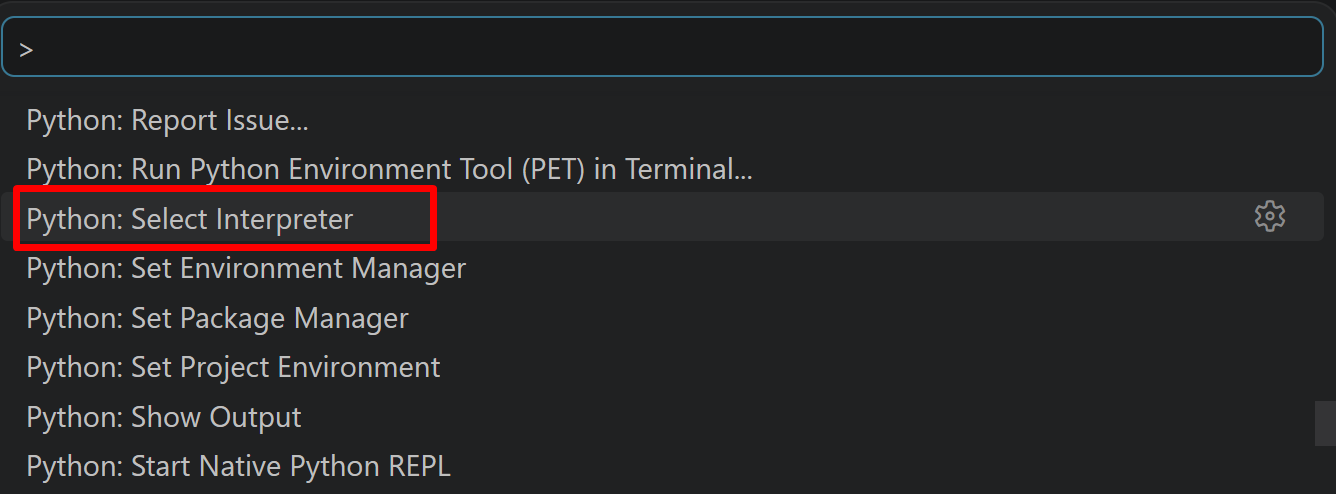
- 表示される一覧から,使用する Python(例:
C:\Program Files\Python312\python.exe)を選択する.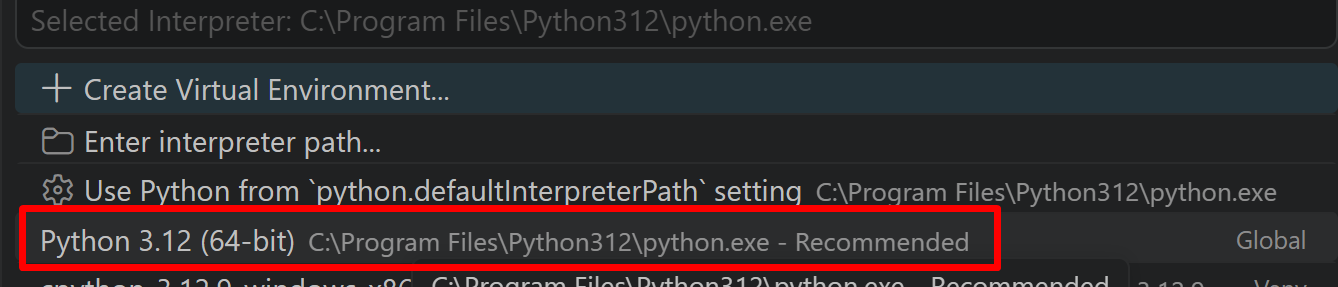
Python プログラム実行手順
[Windows での Python プログラム実行手順を見るには、ここをクリック]
Windows での Python 実行手順(Visual Studio Codeを使用)
プログラムファイルの作成と保存
- 左サイドバーの「エクスプローラー」アイコン(
Ctrl+Shift+E)をクリックする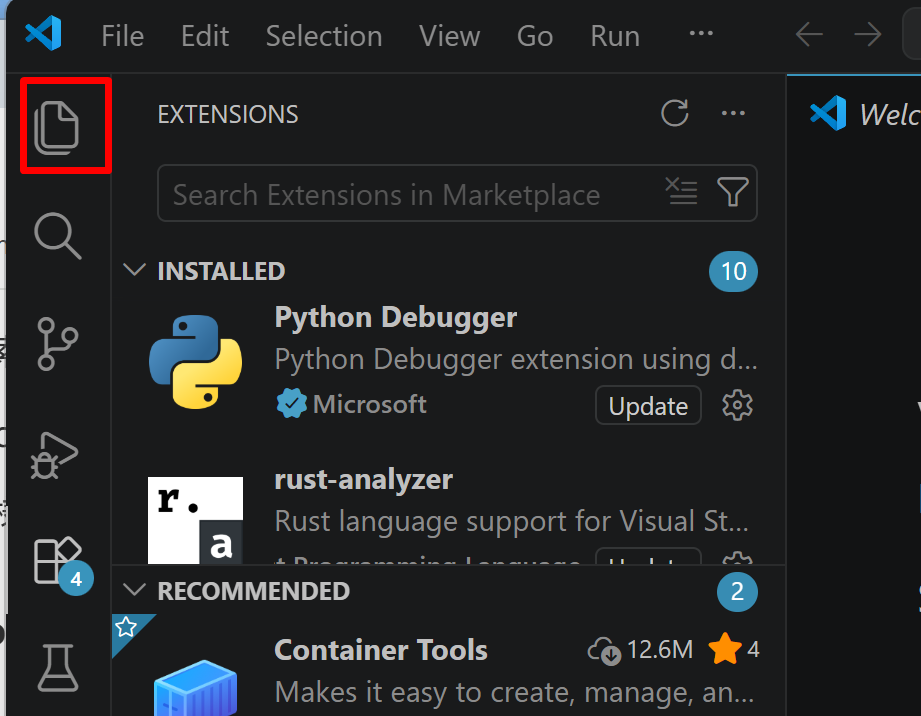
- 「NO FOLDER OPENED」(作業対象フォルダが未選択の状態)と表示される場合は,「Open Folder」をクリックし,プログラムを保存するフォルダを選択する
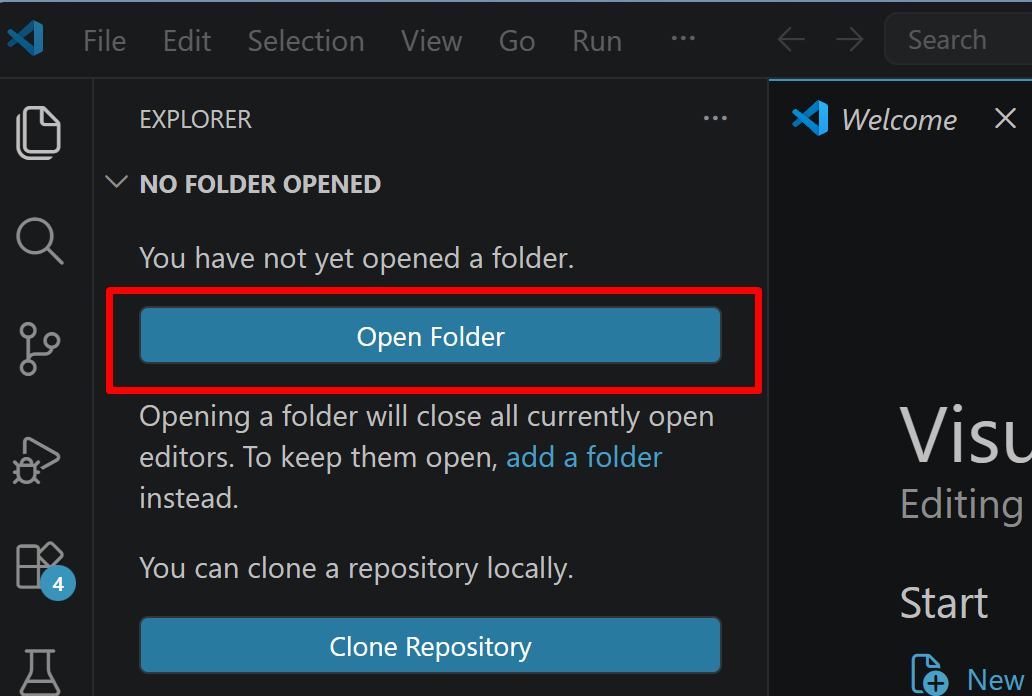
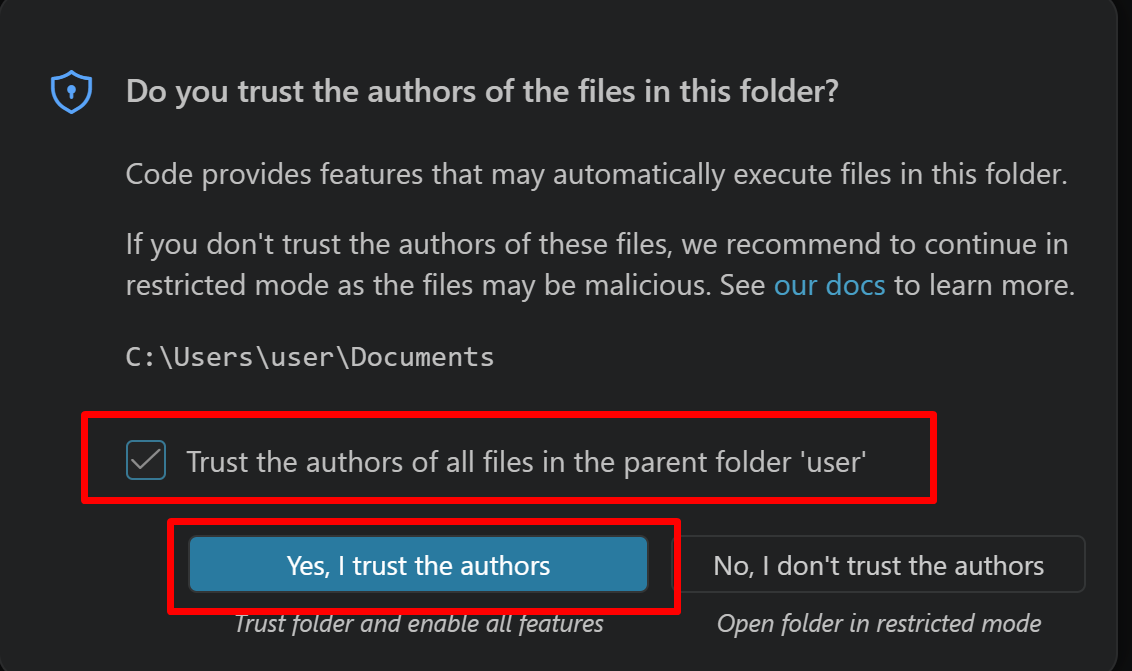
続いて「フォルダを信用するか」を確認する画面(フォルダ内のコードを実行してよいか確認する VS Code の仕組み)が表示されるので,チェックして Yes を選択する
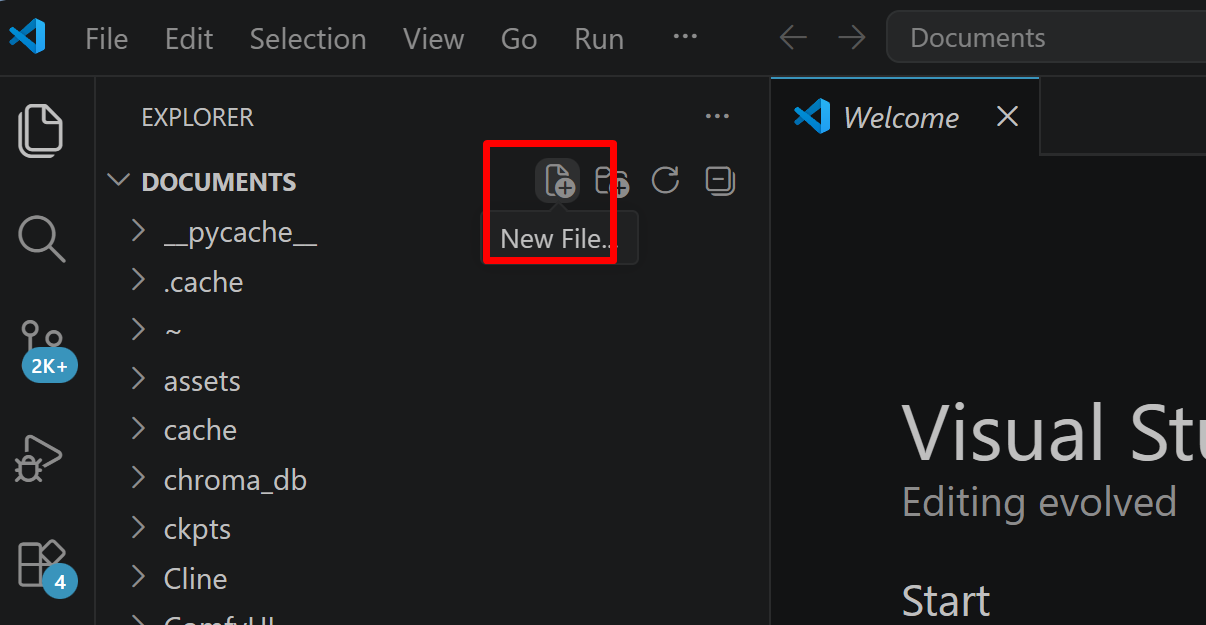
- フォルダ名の右側に表示される「新しいファイル」アイコンをクリックする
- ファイル名(例:
aitask.py.ファイル名は何でも良い)を入力しEnterを押す.拡張子は.py(Python ファイルを示す拡張子)とする
- 実行したいコードを選択し,
Ctrl+Cでコピーする.VS Code のエディタ領域にCtrl+Vで貼り付ける Ctrl+Sで保存する
プログラムの実行
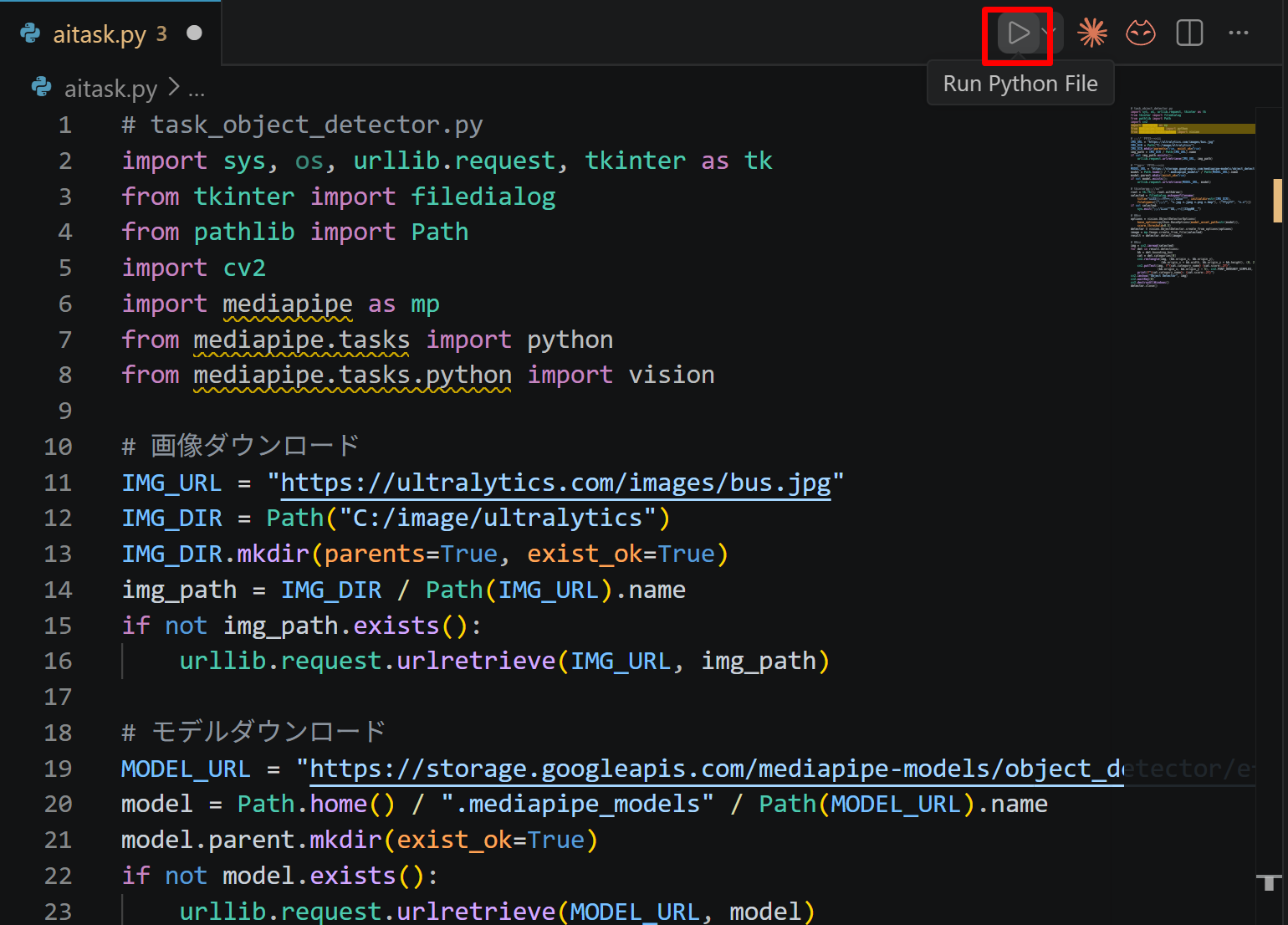
- エディタ右上の三角形「▷」アイコン(Run Python File:現在開いている Python ファイルを実行するボタン)をクリックする.または,エディタ上で右クリックし「ターミナルで Python ファイルを実行」を選択する
- VS Code 下部のターミナル(コマンドの入出力を表示する画面)に,実行結果(
print関数の出力等)が表示される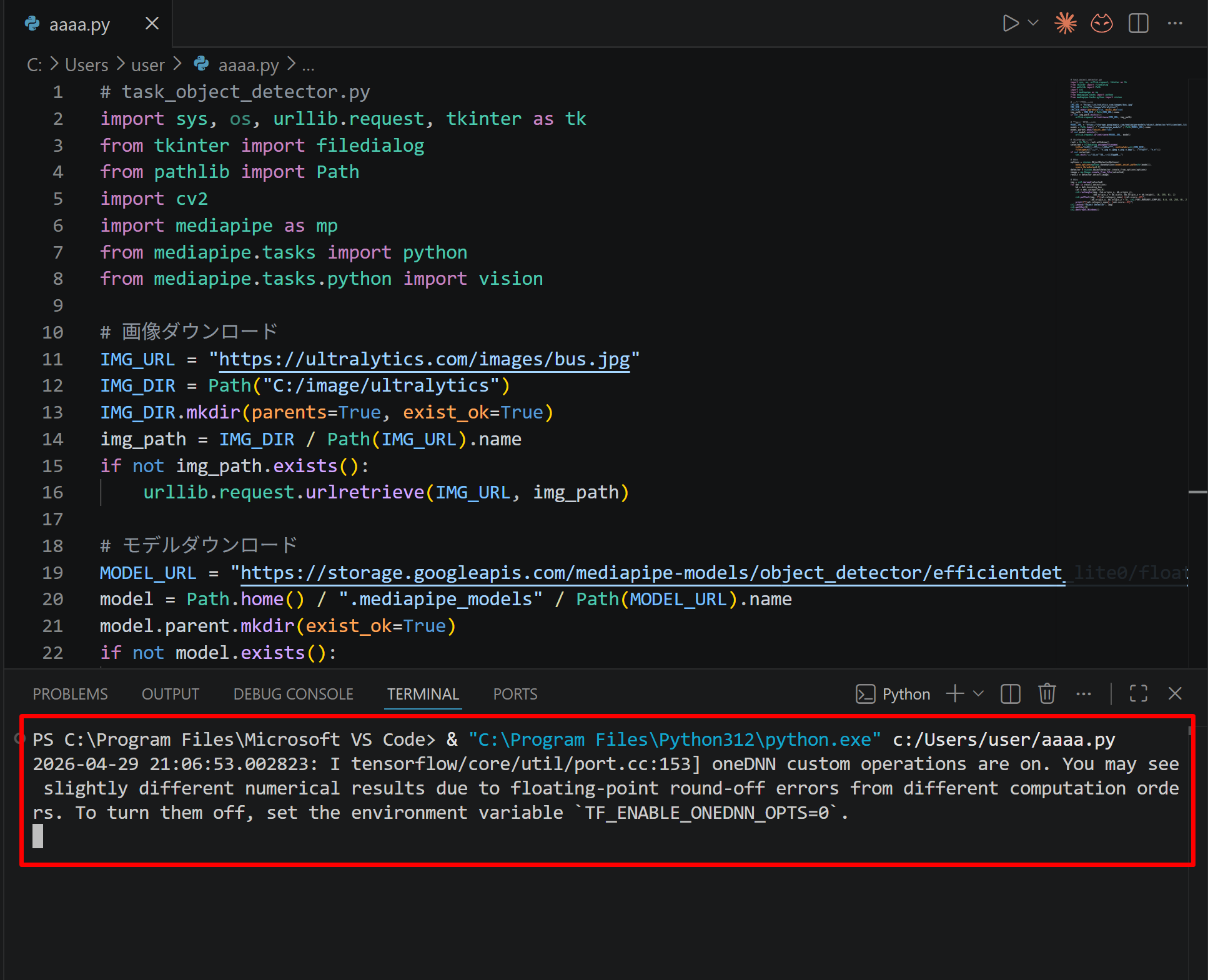
- tkinter(Python 標準の GUI ライブラリ)のファイル選択ダイアログを使うプログラムを実行した場合は,ダイアログが開くので対象画像を選択する
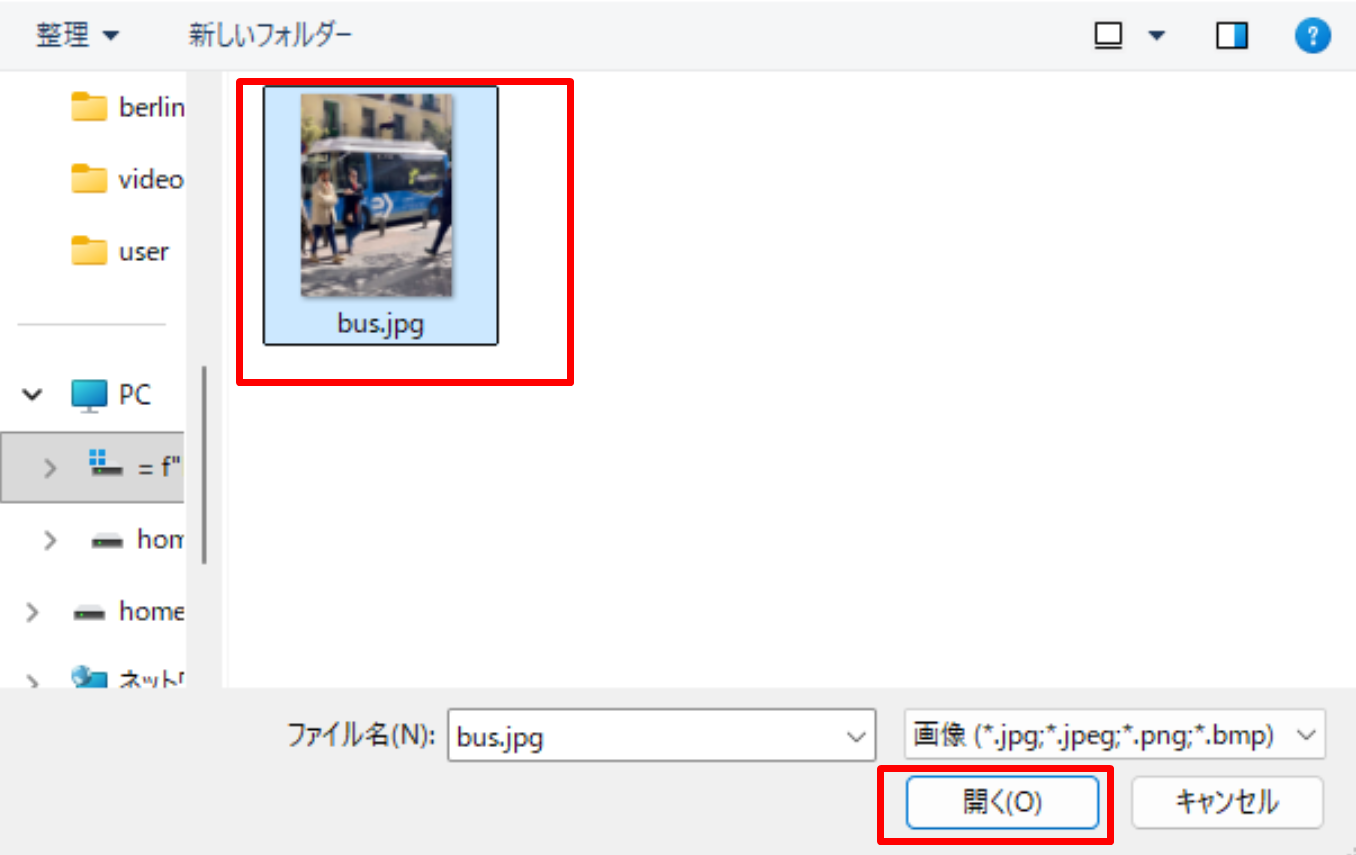
- VS Code 下部のターミナルで実行結果を確認する.OpenCV ウィンドウ(OpenCV が画像を表示するために開く専用ウィンドウ)が開いた場合はそちらも確認する.OpenCV ウィンドウは,マウスクリックでウィンドウをアクティブ(操作対象の状態)にしてからキーを押すと終了する

Windows での MediaPipe のインストールと動作確認
REM MediaPipe 標準機能のインストール
pip uninstall -y opencv-python-headless opencv-contrib-python-headless opencv-python
pip install -U --no-user mediapipe opencv-contrib-python matplotlib sounddevice

python -c "import mediapipe as mp; print('mediapipe:', mp.__version__)"
python -c "import cv2; print('opencv:', cv2.__version__)"
python -c "from mediapipe.tasks import python as mp_py; from mediapipe.tasks.python import vision; print('tasks API OK')"
onnxruntime-gpu は本資料のMediaPipe Tasks APIコードでは使用しないためインストール対象から外す。protobuf はMediaPipeの依存関係として自動的に適切な版が選択されるため,個別に固定しない。
Pythonプログラムの共通構造
- 処理対象ファイルの自動ダウンロードを行う。保存先は
C:\image\配下のサブフォルダである - 学習済みモデルをスクリプトと同じディレクトリに自動ダウンロードする
- 画像・音声ファイルは tkinter filedialog で選択する。テキスト系タスクでは simpledialog による文字列入力を用いる
- 結果表示は OpenCV ウィンドウ,matplotlib,または print により行う
下記の15プログラムの実行時の留意事項
- 初回実行時はインターネット接続が必要である
- 初回実行時はモデルやサンプル画像のダウンロードにより処理開始まで時間がかかる場合がある
- モデル保存先はスクリプトと同じディレクトリ,処理対象ファイルの保存先は
C:\image\配下である - OpenCV ウィンドウが画面奥に隠れる場合はタスクバーから前面に出す
- tkinter ダイアログが応答しなくなった場合は,VSCode下部のターミナルで
Ctrl+Cを押して中断する - タスク14およびタスク15では matplotlib を使用する
【MediaPipe版】タスク1:物体検出(Object Detector)
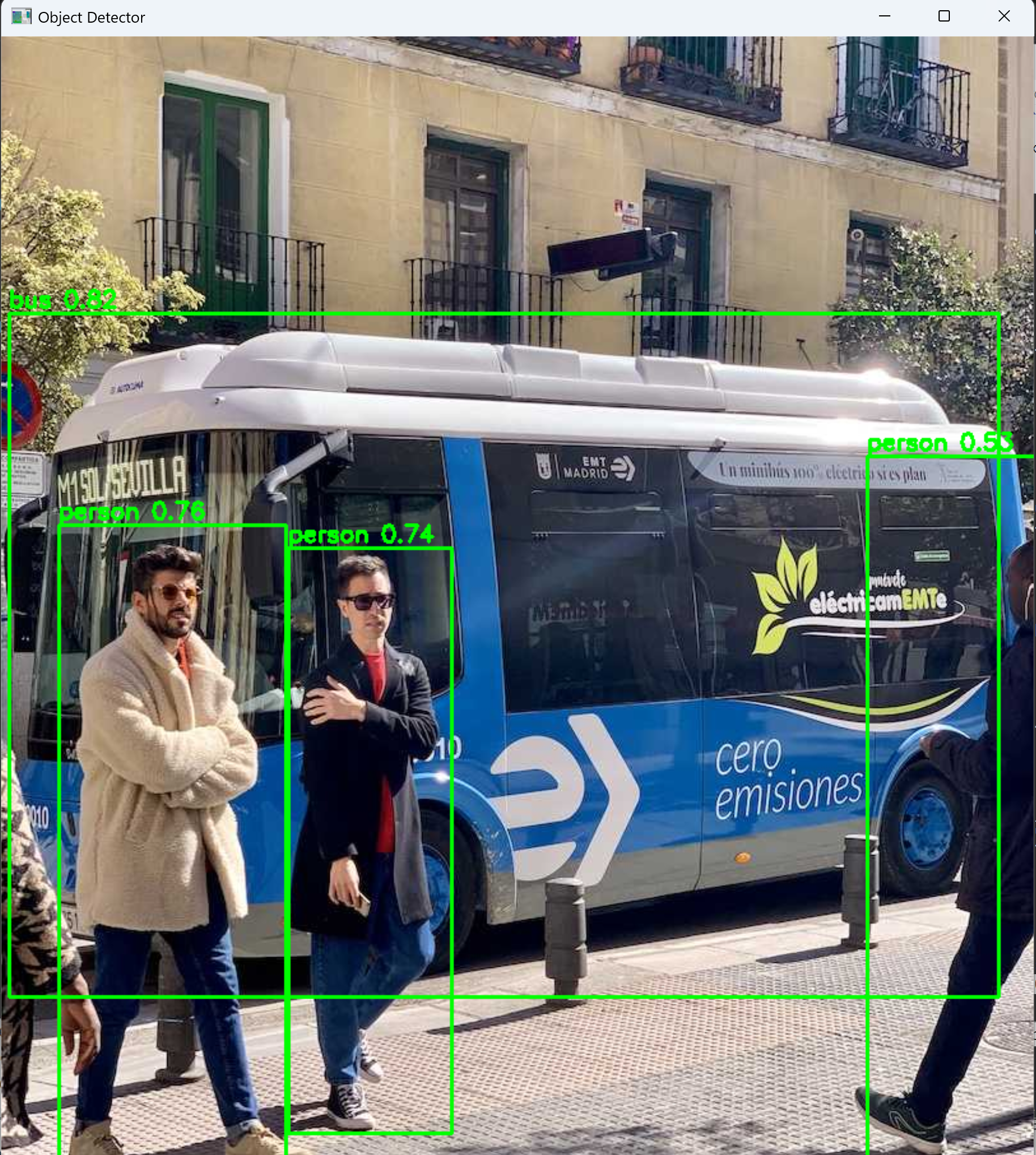
画像内の物体を矩形で検出し,COCO 80クラスから分類する。
# task_object_detector
import os, urllib.request
from pathlib import Path
import cv2
import mediapipe as mp
from mediapipe.tasks import python
from mediapipe.tasks.python import vision

def get_script_dir():
    return Path(os.path.dirname(os.path.abspath(__file__)))

def get_image_dir(subdir):
    d = Path("C:/image") / subdir
    d.mkdir(parents=True, exist_ok=True)
    return d

def select_file(title, initialdir, filetypes):
    import tkinter as tk
    from tkinter import filedialog
    root = tk.Tk(); root.withdraw()
    path = filedialog.askopenfilename(title=title, initialdir=str(initialdir), filetypes=filetypes)
    root.destroy()
    return path

def show_image(window_name, img):
    cv2.imshow(window_name, img)
    cv2.waitKey(0)
    cv2.destroyAllWindows()

opener = urllib.request.build_opener()
opener.addheaders = [("User-Agent", "Mozilla/5.0")]
urllib.request.install_opener(opener)

IMG_URL = "https://ultralytics.com/images/bus.jpg"
IMG_DIR = get_image_dir("ultralytics")
img_path = IMG_DIR / Path(IMG_URL).name
if not img_path.exists():
    urllib.request.urlretrieve(IMG_URL, img_path)

SCRIPT_DIR = get_script_dir()
MODEL_URL = "https://storage.googleapis.com/mediapipe-models/object_detector/efficientdet_lite2/float16/latest/efficientdet_lite2.tflite"
model = SCRIPT_DIR / Path(MODEL_URL).name
if not model.exists():
    urllib.request.urlretrieve(MODEL_URL, model)

selected = select_file(
    title="物体検出する画像を選択", initialdir=IMG_DIR,
    filetypes=[("画像", "*.jpg *.jpeg *.png *.bmp"), ("すべて", "*.*")]
)

options = vision.ObjectDetectorOptions(
    base_options=python.BaseOptions(model_asset_path=str(model)),
    score_threshold=0.5
)
detector = vision.ObjectDetector.create_from_options(options)

image = mp.Image.create_from_file(selected)
result = detector.detect(image)

img = cv2.imread(selected)
for det in result.detections:
    bb = det.bounding_box
    cat = det.categories[0]
    cv2.rectangle(img, (bb.origin_x, bb.origin_y),
                  (bb.origin_x + bb.width, bb.origin_y + bb.height), (0, 255, 0), 2)
    cv2.putText(img, f"{cat.category_name} {cat.score:.2f}",
                (bb.origin_x, bb.origin_y - 5), cv2.FONT_HERSHEY_SIMPLEX, 0.6, (0, 255, 0), 2)
    print(f"{cat.category_name}: {cat.score:.2f}")

show_image("Object Detector", img)
detector.close()
【MediaPipe版】タスク2:画像分類(Image Classifier)
画像全体に対して分類ラベルを推定する。
# task_image_classifier
import os, urllib.request
from pathlib import Path
import mediapipe as mp
from mediapipe.tasks import python
from mediapipe.tasks.python import vision

def get_script_dir():
    return Path(os.path.dirname(os.path.abspath(__file__)))

def get_image_dir(subdir):
    d = Path("C:/image") / subdir
    d.mkdir(parents=True, exist_ok=True)
    return d

def select_file(title, initialdir, filetypes):
    import tkinter as tk
    from tkinter import filedialog
    root = tk.Tk(); root.withdraw()
    path = filedialog.askopenfilename(title=title, initialdir=str(initialdir), filetypes=filetypes)
    root.destroy()
    return path

opener = urllib.request.build_opener()
opener.addheaders = [("User-Agent", "Mozilla/5.0")]
urllib.request.install_opener(opener)

IMG_URL = "https://raw.githubusercontent.com/opencv/opencv/4.x/samples/data/squirrel_cls.jpg"
IMG_DIR = get_image_dir("opencv")
img_path = IMG_DIR / Path(IMG_URL).name
if not img_path.exists():
    urllib.request.urlretrieve(IMG_URL, img_path)

SCRIPT_DIR = get_script_dir()
MODEL_URL = "https://storage.googleapis.com/mediapipe-models/image_classifier/efficientnet_lite2/float32/latest/efficientnet_lite2.tflite"
model = SCRIPT_DIR / Path(MODEL_URL).name
if not model.exists():
    urllib.request.urlretrieve(MODEL_URL, model)

selected = select_file(
    title="分類する画像を選択", initialdir=IMG_DIR,
    filetypes=[("画像", "*.jpg *.jpeg *.png *.bmp"), ("すべて", "*.*")]
)

options = vision.ImageClassifierOptions(
    base_options=python.BaseOptions(model_asset_path=str(model)),
    max_results=5
)
classifier = vision.ImageClassifier.create_from_options(options)
result = classifier.classify(mp.Image.create_from_file(selected))

print("分類結果(上位5件):")
for cat in result.classifications[0].categories:
    print(f"  {cat.category_name}: {cat.score:.4f}")

classifier.close()
【MediaPipe版】タスク3:画像セグメンテーション(Image Segmenter)
画像を画素単位で領域分割する。カテゴリマスクと確信度マスクを取得し,低確信度領域を背景化して表示する。
# task_image_segmenter
import os, urllib.request
from pathlib import Path
import cv2, numpy as np
import mediapipe as mp
from mediapipe.tasks import python
from mediapipe.tasks.python import vision

def get_script_dir():
    return Path(os.path.dirname(os.path.abspath(__file__)))

def get_image_dir(subdir):
    d = Path("C:/image") / subdir
    d.mkdir(parents=True, exist_ok=True)
    return d

def select_file(title, initialdir, filetypes):
    import tkinter as tk
    from tkinter import filedialog
    root = tk.Tk(); root.withdraw()
    path = filedialog.askopenfilename(title=title, initialdir=str(initialdir), filetypes=filetypes)
    root.destroy()
    return path

def show_image(window_name, img):
    cv2.imshow(window_name, img)
    cv2.waitKey(0)
    cv2.destroyAllWindows()

opener = urllib.request.build_opener()
opener.addheaders = [("User-Agent", "Mozilla/5.0")]
urllib.request.install_opener(opener)

IMG_URL = "https://ultralytics.com/images/zidane.jpg"
IMG_DIR = get_image_dir("ultralytics")
img_path = IMG_DIR / Path(IMG_URL).name
if not img_path.exists():
    urllib.request.urlretrieve(IMG_URL, img_path)

SCRIPT_DIR = get_script_dir()
MODEL_URL = "https://storage.googleapis.com/mediapipe-models/image_segmenter/deeplab_v3/float32/latest/deeplab_v3.tflite"
model = SCRIPT_DIR / Path(MODEL_URL).name
if not model.exists():
    urllib.request.urlretrieve(MODEL_URL, model)

selected = select_file(
    title="セグメンテーションする画像を選択", initialdir=IMG_DIR,
    filetypes=[("画像", "*.jpg *.jpeg *.png *.bmp"), ("すべて", "*.*")]
)

options = vision.ImageSegmenterOptions(
    base_options=python.BaseOptions(model_asset_path=str(model)),
    output_category_mask=True,
    output_confidence_masks=True
)
segmenter = vision.ImageSegmenter.create_from_options(options)
result = segmenter.segment(mp.Image.create_from_file(selected))

mask = result.category_mask.numpy_view().astype(np.uint8)
print(f"検出クラス: {np.unique(mask)}")

confidence_threshold = 0.5
refined = mask.copy()
for cls in np.unique(mask):
    cls_id = int(cls)
    if cls_id == 0:
        continue
    conf = result.confidence_masks[cls_id].numpy_view()
    refined[(mask == cls_id) & (conf < confidence_threshold)] = 0

colored = cv2.applyColorMap((refined * 12 % 255).astype(np.uint8), cv2.COLORMAP_JET)
img = cv2.resize(cv2.imread(selected), (colored.shape[1], colored.shape[0]))
overlay = cv2.addWeighted(img, 0.5, colored, 0.5, 0)

show_image("Image Segmenter", overlay)
segmenter.close()
【MediaPipe版】タスク4:姿勢推定(Pose Landmarker)
人体の33個のランドマークを検出し,2D描画と代表点のx, y, z値を表示する。
# task_pose_landmarker
import os, urllib.request
from pathlib import Path
import cv2
import mediapipe as mp
from mediapipe.tasks import python
from mediapipe.tasks.python import vision

def get_script_dir():
    return Path(os.path.dirname(os.path.abspath(__file__)))

def get_image_dir(subdir):
    d = Path("C:/image") / subdir
    d.mkdir(parents=True, exist_ok=True)
    return d

def select_file(title, initialdir, filetypes):
    import tkinter as tk
    from tkinter import filedialog
    root = tk.Tk(); root.withdraw()
    path = filedialog.askopenfilename(title=title, initialdir=str(initialdir), filetypes=filetypes)
    root.destroy()
    return path

def show_image(window_name, img):
    cv2.imshow(window_name, img)
    cv2.waitKey(0)
    cv2.destroyAllWindows()

opener = urllib.request.build_opener()
opener.addheaders = [("User-Agent", "Mozilla/5.0")]
urllib.request.install_opener(opener)

IMG_URL = "https://ultralytics.com/images/bus.jpg"
IMG_DIR = get_image_dir("ultralytics")
img_path = IMG_DIR / Path(IMG_URL).name
if not img_path.exists():
    urllib.request.urlretrieve(IMG_URL, img_path)

SCRIPT_DIR = get_script_dir()
MODEL_URL = "https://storage.googleapis.com/mediapipe-models/pose_landmarker/pose_landmarker_heavy/float16/latest/pose_landmarker_heavy.task"
model = SCRIPT_DIR / Path(MODEL_URL).name
if not model.exists():
    urllib.request.urlretrieve(MODEL_URL, model)

POSE_CONNECTIONS = [
    (0, 1), (1, 2), (2, 3), (3, 7), (0, 4), (4, 5), (5, 6), (6, 8),
    (9, 10), (11, 12), (11, 13), (13, 15), (15, 17), (15, 19), (15, 21),
    (17, 19), (12, 14), (14, 16), (16, 18), (16, 20), (16, 22), (18, 20),
    (11, 23), (12, 24), (23, 24), (23, 25), (24, 26), (25, 27), (26, 28),
    (27, 29), (28, 30), (29, 31), (30, 32), (27, 31), (28, 32)
]

POSE_KEY_POINTS = [
    (0, "Nose"), (11, "L-Shoulder"), (12, "R-Shoulder"),
    (15, "L-Wrist"), (16, "R-Wrist")
]

selected = select_file(
    title="姿勢推定する画像を選択", initialdir=IMG_DIR,
    filetypes=[("画像", "*.jpg *.jpeg *.png *.bmp"), ("すべて", "*.*")]
)

options = vision.PoseLandmarkerOptions(
    base_options=python.BaseOptions(model_asset_path=str(model)),
    min_pose_detection_confidence=0.7,
    min_pose_presence_confidence=0.7,
    min_tracking_confidence=0.7
)
landmarker = vision.PoseLandmarker.create_from_options(options)
image = mp.Image.create_from_file(selected)
result = landmarker.detect(image)

img = cv2.imread(selected)
h, w = img.shape[:2]

for pose_landmarks in result.pose_landmarks:
    points = [(int(lm.x * w), int(lm.y * h)) for lm in pose_landmarks]

    for s, e in POSE_CONNECTIONS:
        cv2.line(img, points[s], points[e], (0, 255, 0), 2)
    for p in points:
        cv2.circle(img, p, 4, (0, 0, 255), -1)

    print("33個のランドマーク検出完了")

    y_offset = 25
    for idx, name in POSE_KEY_POINTS:
        lm = pose_landmarks[idx]
        text = f"{name}: x={lm.x:.2f} y={lm.y:.2f} z={lm.z:.2f}"
        cv2.putText(img, text, (10, y_offset), cv2.FONT_HERSHEY_SIMPLEX, 0.5, (0, 0, 0), 3)
        cv2.putText(img, text, (10, y_offset), cv2.FONT_HERSHEY_SIMPLEX, 0.5, (255, 255, 255), 1)
        print(f"  {text}")
        y_offset += 22

show_image("Pose Landmarker", img)
landmarker.close()
【MediaPipe版】タスク5:手のランドマーク検出(Hand Landmarker)
両手それぞれについて21個のランドマークと左右判定を取得する。
# task_hand_landmarker
import os, urllib.request
from pathlib import Path
import cv2
import mediapipe as mp
from mediapipe.tasks import python
from mediapipe.tasks.python import vision

def get_script_dir():
    return Path(os.path.dirname(os.path.abspath(__file__)))

def get_image_dir(subdir):
    d = Path("C:/image") / subdir
    d.mkdir(parents=True, exist_ok=True)
    return d

def select_file(title, initialdir, filetypes):
    import tkinter as tk
    from tkinter import filedialog
    root = tk.Tk(); root.withdraw()
    path = filedialog.askopenfilename(title=title, initialdir=str(initialdir), filetypes=filetypes)
    root.destroy()
    return path

def show_image(window_name, img):
    cv2.imshow(window_name, img)
    cv2.waitKey(0)
    cv2.destroyAllWindows()

opener = urllib.request.build_opener()
opener.addheaders = [("User-Agent", "Mozilla/5.0")]
urllib.request.install_opener(opener)

IMG_URL = "https://storage.googleapis.com/mediapipe-tasks/hand_landmarker/woman_hands.jpg"
IMG_DIR = get_image_dir("mediapipe")
img_path = IMG_DIR / Path(IMG_URL).name
if not img_path.exists():
    urllib.request.urlretrieve(IMG_URL, img_path)

SCRIPT_DIR = get_script_dir()
MODEL_URL = "https://storage.googleapis.com/mediapipe-models/hand_landmarker/hand_landmarker/float16/latest/hand_landmarker.task"
model = SCRIPT_DIR / Path(MODEL_URL).name
if not model.exists():
    urllib.request.urlretrieve(MODEL_URL, model)

HAND_CONNECTIONS = [
    (0, 1), (1, 2), (2, 3), (3, 4),
    (0, 5), (5, 6), (6, 7), (7, 8),
    (5, 9), (9, 10), (10, 11), (11, 12),
    (9, 13), (13, 14), (14, 15), (15, 16),
    (13, 17), (0, 17), (17, 18), (18, 19), (19, 20)
]

HAND_KEY_POINTS = [
    (4, "Thumb"), (8, "Index"), (12, "Middle"),
    (16, "Ring"), (20, "Pinky")
]

selected = select_file(
    title="手の画像を選択", initialdir=IMG_DIR,
    filetypes=[("画像", "*.jpg *.jpeg *.png *.bmp"), ("すべて", "*.*")]
)

options = vision.HandLandmarkerOptions(
    base_options=python.BaseOptions(model_asset_path=str(model)),
    num_hands=2,
    min_hand_detection_confidence=0.7,
    min_hand_presence_confidence=0.7,
    min_tracking_confidence=0.7
)
landmarker = vision.HandLandmarker.create_from_options(options)

image = mp.Image.create_from_file(selected)
result = landmarker.detect(image)

img = cv2.imread(selected)
h, w = img.shape[:2]
y_offset = 25

for hand_landmarks, handedness in zip(result.hand_landmarks, result.handedness):
    points = [(int(lm.x * w), int(lm.y * h)) for lm in hand_landmarks]

    for s, e in HAND_CONNECTIONS:
        cv2.line(img, points[s], points[e], (0, 255, 0), 2)
    for p in points:
        cv2.circle(img, p, 4, (0, 0, 255), -1)

    label = handedness[0].category_name
    print(f"{label} の手を検出(信頼度: {handedness[0].score:.2f})")

    for idx, name in HAND_KEY_POINTS:
        lm = hand_landmarks[idx]
        text = f"{label[0]}-{name}: x={lm.x:.2f} y={lm.y:.2f} z={lm.z:.2f}"
        cv2.putText(img, text, (10, y_offset), cv2.FONT_HERSHEY_SIMPLEX, 0.5, (0, 0, 0), 3)
        cv2.putText(img, text, (10, y_offset), cv2.FONT_HERSHEY_SIMPLEX, 0.5, (255, 255, 255), 1)
        print(f"  {text}")
        y_offset += 22

show_image("Hand Landmarker", img)
landmarker.close()
【MediaPipe版】タスク6:ジェスチャー認識(Gesture Recognizer)
手の形状を組み込みジェスチャークラスに分類する。標準ジェスチャー以外では None に近い結果となる場合がある。
# task_gesture_recognizer
import os, urllib.request
from pathlib import Path
import cv2
import mediapipe as mp
from mediapipe.tasks import python
from mediapipe.tasks.python import vision
from mediapipe.tasks.python.components import processors

def get_script_dir():
    return Path(os.path.dirname(os.path.abspath(__file__)))

def get_image_dir(subdir):
    d = Path("C:/image") / subdir
    d.mkdir(parents=True, exist_ok=True)
    return d

def select_file(title, initialdir, filetypes):
    import tkinter as tk
    from tkinter import filedialog
    root = tk.Tk(); root.withdraw()
    path = filedialog.askopenfilename(title=title, initialdir=str(initialdir), filetypes=filetypes)
    root.destroy()
    return path

def show_image(window_name, img):
    cv2.imshow(window_name, img)
    cv2.waitKey(0)
    cv2.destroyAllWindows()

opener = urllib.request.build_opener()
opener.addheaders = [("User-Agent", "Mozilla/5.0")]
urllib.request.install_opener(opener)

IMG_URL = "https://storage.googleapis.com/mediapipe-tasks/gesture_recognizer/thumbs_up.jpg"
IMG_DIR = get_image_dir("mediapipe")
img_path = IMG_DIR / Path(IMG_URL).name
if not img_path.exists():
    urllib.request.urlretrieve(IMG_URL, img_path)

SCRIPT_DIR = get_script_dir()
MODEL_URL = "https://storage.googleapis.com/mediapipe-models/gesture_recognizer/gesture_recognizer/float16/latest/gesture_recognizer.task"
model = SCRIPT_DIR / Path(MODEL_URL).name
if not model.exists():
    urllib.request.urlretrieve(MODEL_URL, model)

selected = select_file(
    title="ジェスチャー画像を選択", initialdir=IMG_DIR,
    filetypes=[("画像", "*.jpg *.jpeg *.png *.bmp"), ("すべて", "*.*")]
)

options = vision.GestureRecognizerOptions(
    base_options=python.BaseOptions(model_asset_path=str(model)),
    num_hands=2,
    min_hand_detection_confidence=0.7,
    canned_gesture_classifier_options=processors.ClassifierOptions(score_threshold=0.5)
)
recognizer = vision.GestureRecognizer.create_from_options(options)

image = mp.Image.create_from_file(selected)
result = recognizer.recognize(image)

img = cv2.cvtColor(image.numpy_view(), cv2.COLOR_RGB2BGR).copy()

for i, gestures in enumerate(result.gestures):
    gesture = gestures[0]
    handedness = result.handedness[i][0].category_name
    text = f"{handedness}: {gesture.category_name} ({gesture.score:.2f})"
    cv2.putText(img, text, (10, 30 + i * 30), cv2.FONT_HERSHEY_SIMPLEX, 0.7, (0, 255, 0), 2)
    print(text)

show_image("Gesture Recognizer", img)
recognizer.close()
【MediaPipe版】タスク7:顔ランドマーク検出(Face Landmarker)
顔ランドマーク,表情ブレンドシェイプ,頭部姿勢行列を取得する。
# task_face_landmarker
import os, urllib.request
from pathlib import Path
import cv2, numpy as np
import mediapipe as mp
from mediapipe.tasks import python
from mediapipe.tasks.python import vision

def get_script_dir():
    return Path(os.path.dirname(os.path.abspath(__file__)))

def get_image_dir(subdir):
    d = Path("C:/image") / subdir
    d.mkdir(parents=True, exist_ok=True)
    return d

def select_file(title, initialdir, filetypes):
    import tkinter as tk
    from tkinter import filedialog
    root = tk.Tk(); root.withdraw()
    path = filedialog.askopenfilename(title=title, initialdir=str(initialdir), filetypes=filetypes)
    root.destroy()
    return path

def show_image(window_name, img):
    cv2.imshow(window_name, img)
    cv2.waitKey(0)
    cv2.destroyAllWindows()

opener = urllib.request.build_opener()
opener.addheaders = [("User-Agent", "Mozilla/5.0")]
urllib.request.install_opener(opener)

IMG_URL = "https://storage.googleapis.com/mediapipe-assets/portrait.jpg"
IMG_DIR = get_image_dir("mediapipe")
img_path = IMG_DIR / Path(IMG_URL).name
if not img_path.exists():
    urllib.request.urlretrieve(IMG_URL, img_path)

SCRIPT_DIR = get_script_dir()
MODEL_URL = "https://storage.googleapis.com/mediapipe-models/face_landmarker/face_landmarker/float16/latest/face_landmarker.task"
model = SCRIPT_DIR / Path(MODEL_URL).name
if not model.exists():
    urllib.request.urlretrieve(MODEL_URL, model)

selected = select_file(
    title="顔の画像を選択", initialdir=IMG_DIR,
    filetypes=[("画像", "*.jpg *.jpeg *.png *.bmp"), ("すべて", "*.*")]
)

options = vision.FaceLandmarkerOptions(
    base_options=python.BaseOptions(model_asset_path=str(model)),
    output_face_blendshapes=True,
    output_facial_transformation_matrixes=True,
    num_faces=1,
    min_face_detection_confidence=0.7,
    min_face_presence_confidence=0.7,
    min_tracking_confidence=0.7
)
landmarker = vision.FaceLandmarker.create_from_options(options)

image = mp.Image.create_from_file(selected)
result = landmarker.detect(image)

img = cv2.imread(selected)
h, w = img.shape[:2]

for face_landmarks in result.face_landmarks:
    for lm in face_landmarks:
        cv2.circle(img, (int(lm.x * w), int(lm.y * h)), 1, (0, 255, 0), -1)

if result.face_blendshapes:
    print("ブレンドシェイプ(上位5件):")
    for bs in sorted(result.face_blendshapes[0], key=lambda x: x.score, reverse=True)[:5]:
        print(f"  {bs.category_name}: {bs.score:.4f}")

if result.facial_transformation_matrixes:
    print("頭部姿勢の変換行列(4×4):")
    print(np.array(result.facial_transformation_matrixes[0]))

show_image("Face Landmarker", img)
landmarker.close()
【MediaPipe版】タスク8:顔検出(Face Detector)
顔の矩形と6個のキーポイントを検出する。
# task_face_detector
import os, urllib.request
from pathlib import Path
import cv2
import mediapipe as mp
from mediapipe.tasks import python
from mediapipe.tasks.python import vision

def get_script_dir():
    return Path(os.path.dirname(os.path.abspath(__file__)))

def get_image_dir(subdir):
    d = Path("C:/image") / subdir
    d.mkdir(parents=True, exist_ok=True)
    return d

def select_file(title, initialdir, filetypes):
    import tkinter as tk
    from tkinter import filedialog
    root = tk.Tk(); root.withdraw()
    path = filedialog.askopenfilename(title=title, initialdir=str(initialdir), filetypes=filetypes)
    root.destroy()
    return path

def show_image(window_name, img):
    cv2.imshow(window_name, img)
    cv2.waitKey(0)
    cv2.destroyAllWindows()

opener = urllib.request.build_opener()
opener.addheaders = [("User-Agent", "Mozilla/5.0")]
urllib.request.install_opener(opener)

IMG_URL = "https://storage.googleapis.com/mediapipe-assets/portrait.jpg"
IMG_DIR = get_image_dir("mediapipe")
img_path = IMG_DIR / Path(IMG_URL).name
if not img_path.exists():
    urllib.request.urlretrieve(IMG_URL, img_path)

SCRIPT_DIR = get_script_dir()
MODEL_URL = "https://storage.googleapis.com/mediapipe-models/face_detector/blaze_face_full_range/float16/latest/blaze_face_full_range.tflite"
model = SCRIPT_DIR / Path(MODEL_URL).name
if not model.exists():
    urllib.request.urlretrieve(MODEL_URL, model)

selected = select_file(
    title="顔の画像を選択", initialdir=IMG_DIR,
    filetypes=[("画像", "*.jpg *.jpeg *.png *.bmp"), ("すべて", "*.*")]
)

options = vision.FaceDetectorOptions(
    base_options=python.BaseOptions(model_asset_path=str(model))
)
detector = vision.FaceDetector.create_from_options(options)

result = detector.detect(mp.Image.create_from_file(selected))

img = cv2.imread(selected)
for det in result.detections:
    bb = det.bounding_box
    cv2.rectangle(img, (bb.origin_x, bb.origin_y),
                  (bb.origin_x + bb.width, bb.origin_y + bb.height), (0, 255, 0), 2)
    for kp in det.keypoints:
        cv2.circle(img, (int(kp.x * img.shape[1]), int(kp.y * img.shape[0])), 3, (0, 0, 255), -1)
    print(f"顔検出: スコア {det.categories[0].score:.2f}")

show_image("Face Detector", img)
detector.close()
【MediaPipe版】タスク9:画像埋め込み(Image Embedder)
画像を特徴ベクトルへ変換し,2画像間のコサイン類似度を求める。
# task_image_embedder
import os, urllib.request
from pathlib import Path
import mediapipe as mp
from mediapipe.tasks import python
from mediapipe.tasks.python import vision

def get_script_dir():
    return Path(os.path.dirname(os.path.abspath(__file__)))

def get_image_dir(subdir):
    d = Path("C:/image") / subdir
    d.mkdir(parents=True, exist_ok=True)
    return d

def select_file(title, initialdir, filetypes):
    import tkinter as tk
    from tkinter import filedialog
    root = tk.Tk(); root.withdraw()
    path = filedialog.askopenfilename(title=title, initialdir=str(initialdir), filetypes=filetypes)
    root.destroy()
    return path

opener = urllib.request.build_opener()
opener.addheaders = [("User-Agent", "Mozilla/5.0")]
urllib.request.install_opener(opener)

IMG_URLS = [
    "https://raw.githubusercontent.com/opencv/opencv/4.x/samples/data/aero1.jpg",
    "https://raw.githubusercontent.com/opencv/opencv/4.x/samples/data/aero3.jpg"
]
IMG_DIR = get_image_dir("opencv")
for url in IMG_URLS:
    p = IMG_DIR / Path(url).name
    if not p.exists():
        urllib.request.urlretrieve(url, p)

SCRIPT_DIR = get_script_dir()
MODEL_URL = "https://storage.googleapis.com/mediapipe-models/image_embedder/mobilenet_v3_large/float32/latest/mobilenet_v3_large.tflite"
model = SCRIPT_DIR / Path(MODEL_URL).name
if not model.exists():
    urllib.request.urlretrieve(MODEL_URL, model)

path1 = select_file(
    title="比較する1枚目の画像を選択", initialdir=IMG_DIR,
    filetypes=[("画像", "*.jpg *.jpeg *.png *.bmp"), ("すべて", "*.*")]
)
path2 = select_file(
    title="比較する2枚目の画像を選択", initialdir=IMG_DIR,
    filetypes=[("画像", "*.jpg *.jpeg *.png *.bmp"), ("すべて", "*.*")]
)

options = vision.ImageEmbedderOptions(
    base_options=python.BaseOptions(model_asset_path=str(model)),
    l2_normalize=True
)
embedder = vision.ImageEmbedder.create_from_options(options)

emb1 = embedder.embed(mp.Image.create_from_file(path1))
emb2 = embedder.embed(mp.Image.create_from_file(path2))

similarity = vision.ImageEmbedder.cosine_similarity(emb1.embeddings[0], emb2.embeddings[0])

print(f"画像間のコサイン類似度: {similarity:.4f}")
print("(1.0に近いほど類似)")

embedder.close()
【MediaPipe版】タスク10:音声分類(Audio Classifier)
YAMNetにより音響イベントを分類する。入力WAVは16ビットPCMを想定する。ステレオ音声はモノラル化し,サンプリング周波数が16kHz以外の場合は,コード内で16kHzへリサンプリングしてから入力する。
# task_audio_classifier
import os, urllib.request, wave
from collections import defaultdict
from pathlib import Path
import numpy as np
from mediapipe.tasks import python
from mediapipe.tasks.python import audio
from mediapipe.tasks.python.components.containers.audio_data import AudioData

def get_script_dir():
    return Path(os.path.dirname(os.path.abspath(__file__)))

def get_image_dir(subdir):
    d = Path("C:/image") / subdir
    d.mkdir(parents=True, exist_ok=True)
    return d

def select_file(title, initialdir, filetypes):
    import tkinter as tk
    from tkinter import filedialog
    root = tk.Tk(); root.withdraw()
    path = filedialog.askopenfilename(title=title, initialdir=str(initialdir), filetypes=filetypes)
    root.destroy()
    return path

opener = urllib.request.build_opener()
opener.addheaders = [("User-Agent", "Mozilla/5.0")]
urllib.request.install_opener(opener)

WAV_URL = "https://storage.googleapis.com/audioset/miaow_16k.wav"
WAV_DIR = get_image_dir("audioset")
wav_path = WAV_DIR / Path(WAV_URL).name
if not wav_path.exists():
    urllib.request.urlretrieve(WAV_URL, wav_path)

SCRIPT_DIR = get_script_dir()
MODEL_URL = "https://storage.googleapis.com/mediapipe-models/audio_classifier/yamnet/float32/latest/yamnet.tflite"
model = SCRIPT_DIR / Path(MODEL_URL).name
if not model.exists():
    urllib.request.urlretrieve(MODEL_URL, model)

selected = select_file(
    title="WAVファイルを選択", initialdir=WAV_DIR,
    filetypes=[("WAV", "*.wav"), ("すべて", "*.*")]
)

TARGET_SR = 16000

with wave.open(selected, "rb") as wf:
    n_channels = wf.getnchannels()
    sr = wf.getframerate()
    frames = wf.readframes(wf.getnframes())

samples = np.frombuffer(frames, dtype=np.int16)

if n_channels > 1:
    samples = samples.reshape(-1, n_channels).mean(axis=1)

samples = samples.astype(np.float32) / 32768.0

if sr != TARGET_SR:
    duration = len(samples) / sr
    old_t = np.arange(len(samples)) / sr
    new_t = np.arange(int(round(duration * TARGET_SR))) / TARGET_SR
    samples = np.interp(new_t, old_t, samples).astype(np.float32)
    sr = TARGET_SR

options = audio.AudioClassifierOptions(
    base_options=python.BaseOptions(model_asset_path=str(model)),
    max_results=5
)
classifier = audio.AudioClassifier.create_from_options(options)

result = classifier.classify(AudioData.create_from_array(samples, sr))

sums = defaultdict(float)
frame_count = len(result)

for frame_result in result:
    for cat in frame_result.classifications[0].categories:
        sums[cat.category_name] += cat.score

averaged = sorted(
    ((name, sums[name] / frame_count) for name in sums),
    key=lambda x: x[1],
    reverse=True
)

print("音声分類結果(全フレーム平均上位5件):")
for name, score in averaged[:5]:
    print(f"  {name}: {score:.4f}")

classifier.close()
【MediaPipe版】タスク11:テキスト分類(Text Classifier)
英語テキストの感情を分類する。
# task_text_classifier
import os, re, urllib.request
from pathlib import Path
from mediapipe.tasks import python
from mediapipe.tasks.python import text

def get_script_dir():
    return Path(os.path.dirname(os.path.abspath(__file__)))

def input_text(title, prompt, initialvalue=""):
    import tkinter as tk
    from tkinter import simpledialog
    root = tk.Tk(); root.withdraw()
    s = simpledialog.askstring(title, prompt, initialvalue=initialvalue)
    root.destroy()
    return s

opener = urllib.request.build_opener()
opener.addheaders = [("User-Agent", "Mozilla/5.0")]
urllib.request.install_opener(opener)

SCRIPT_DIR = get_script_dir()
MODEL_URL = "https://storage.googleapis.com/mediapipe-models/text_classifier/bert_classifier/float32/latest/bert_classifier.tflite"
model = SCRIPT_DIR / Path(MODEL_URL).name
if not model.exists():
    urllib.request.urlretrieve(MODEL_URL, model)

input_str = input_text(
    "テキスト分類",
    "分類したい英語テキストを入力:",
    initialvalue="I love this product!"
)

normalized_text = re.sub(r"\s+", " ", input_str).strip()

options = text.TextClassifierOptions(
    base_options=python.BaseOptions(model_asset_path=str(model))
)
classifier = text.TextClassifier.create_from_options(options)

result = classifier.classify(normalized_text)

print(f"入力: {normalized_text}")
print("分類結果:")
for cat in result.classifications[0].categories:
    print(f"  {cat.category_name}: {cat.score:.4f}")

classifier.close()
【MediaPipe版】タスク12:言語検出(Language Detector)
入力テキストの言語を判定する。
# task_language_detector
import os, urllib.request
from pathlib import Path
from mediapipe.tasks import python
from mediapipe.tasks.python import text

def get_script_dir():
    return Path(os.path.dirname(os.path.abspath(__file__)))

def input_text(title, prompt, initialvalue=""):
    import tkinter as tk
    from tkinter import simpledialog
    root = tk.Tk(); root.withdraw()
    s = simpledialog.askstring(title, prompt, initialvalue=initialvalue)
    root.destroy()
    return s

opener = urllib.request.build_opener()
opener.addheaders = [("User-Agent", "Mozilla/5.0")]
urllib.request.install_opener(opener)

SCRIPT_DIR = get_script_dir()
MODEL_URL = "https://storage.googleapis.com/mediapipe-models/language_detector/language_detector/float32/1/language_detector.tflite"
model = SCRIPT_DIR / Path(MODEL_URL).name
if not model.exists():
    urllib.request.urlretrieve(MODEL_URL, model)

input_str = input_text(
    "言語検出",
    "言語を判定したいテキストを入力:",
    initialvalue="今日は良い天気です。"
)

if len(input_str) < 20:
    print(f"注意: 入力が短い({len(input_str)}文字)ため判定精度が低下する場合があります")

options = text.LanguageDetectorOptions(
    base_options=python.BaseOptions(model_asset_path=str(model))
)
detector = text.LanguageDetector.create_from_options(options)

result = detector.detect(input_str)

print(f"入力: {input_str}")
print("言語検出結果(上位):")
for d in result.detections[:5]:
    print(f"  {d.language_code}: {d.probability:.4f}")

detector.close()
【MediaPipe版】タスク13:ホリスティック検出(Holistic Landmarker)
単一人物に対し,顔,ポーズ,左右の手のランドマークを統合検出する。顔ランドマークの点数はモデルおよびMediaPipeの版により468点または478点として扱われる場合があるため,本コードでは実際に取得した点数を表示する。
# task_holistic_landmarker
import os, urllib.request
from pathlib import Path
import cv2
import mediapipe as mp
from mediapipe.tasks import python
from mediapipe.tasks.python.vision.holistic_landmarker import (
    HolisticLandmarker, HolisticLandmarkerOptions)

def get_script_dir():
    return Path(os.path.dirname(os.path.abspath(__file__)))

def get_image_dir(subdir):
    d = Path("C:/image") / subdir
    d.mkdir(parents=True, exist_ok=True)
    return d

def select_file(title, initialdir, filetypes):
    import tkinter as tk
    from tkinter import filedialog
    root = tk.Tk(); root.withdraw()
    path = filedialog.askopenfilename(title=title, initialdir=str(initialdir), filetypes=filetypes)
    root.destroy()
    return path

def show_image(window_name, img):
    cv2.imshow(window_name, img)
    cv2.waitKey(0)
    cv2.destroyAllWindows()

opener = urllib.request.build_opener()
opener.addheaders = [("User-Agent", "Mozilla/5.0")]
urllib.request.install_opener(opener)

IMG_URL = "https://cdn.pixabay.com/photo/2019/03/12/20/39/girl-4051811_960_720.jpg"
IMG_DIR = get_image_dir("pixabay")
img_path = IMG_DIR / Path(IMG_URL).name
if not img_path.exists():
    urllib.request.urlretrieve(IMG_URL, img_path)

SCRIPT_DIR = get_script_dir()
MODEL_URL = "https://storage.googleapis.com/mediapipe-models/holistic_landmarker/holistic_landmarker/float16/latest/holistic_landmarker.task"
model = SCRIPT_DIR / Path(MODEL_URL).name
if not model.exists():
    urllib.request.urlretrieve(MODEL_URL, model)

POSE_CONNECTIONS = [
    (0, 1), (1, 2), (2, 3), (3, 7), (0, 4), (4, 5), (5, 6), (6, 8),
    (9, 10), (11, 12), (11, 13), (13, 15), (15, 17), (15, 19), (15, 21),
    (17, 19), (12, 14), (14, 16), (16, 18), (16, 20), (16, 22), (18, 20),
    (11, 23), (12, 24), (23, 24), (23, 25), (24, 26), (25, 27), (26, 28),
    (27, 29), (28, 30), (29, 31), (30, 32), (27, 31), (28, 32)
]

HAND_CONNECTIONS = [
    (0, 1), (1, 2), (2, 3), (3, 4),
    (0, 5), (5, 6), (6, 7), (7, 8),
    (5, 9), (9, 10), (10, 11), (11, 12),
    (9, 13), (13, 14), (14, 15), (15, 16),
    (13, 17), (0, 17), (17, 18), (18, 19), (19, 20)
]

selected = select_file(
    title="ホリスティック検出する画像を選択", initialdir=IMG_DIR,
    filetypes=[("画像", "*.jpg *.jpeg *.png *.bmp"), ("すべて", "*.*")]
)

options = HolisticLandmarkerOptions(
    base_options=python.BaseOptions(model_asset_path=str(model)),
    min_pose_detection_confidence=0.7,
    min_pose_landmarks_confidence=0.7,
    min_face_detection_confidence=0.7,
    min_face_landmarks_confidence=0.7,
    min_hand_landmarks_confidence=0.7
)
landmarker = HolisticLandmarker.create_from_options(options)

image = mp.Image.create_from_file(selected)
result = landmarker.detect(image)

img = cv2.imread(selected)
h, w = img.shape[:2]

if result.face_landmarks:
    for lm in result.face_landmarks:
        cv2.circle(img, (int(lm.x * w), int(lm.y * h)), 1, (0, 255, 0), -1)
    print(f"顔ランドマーク: {len(result.face_landmarks)}点検出")

if result.pose_landmarks:
    points = [(int(lm.x * w), int(lm.y * h)) for lm in result.pose_landmarks]
    for s, e in POSE_CONNECTIONS:
        cv2.line(img, points[s], points[e], (0, 255, 0), 2)
    for p in points:
        cv2.circle(img, p, 4, (0, 0, 255), -1)
    print("ポーズランドマーク: 33点検出")

for hand_landmarks, label in [
    (result.left_hand_landmarks, "Left"),
    (result.right_hand_landmarks, "Right")
]:
    if hand_landmarks:
        points = [(int(lm.x * w), int(lm.y * h)) for lm in hand_landmarks]
        for s, e in HAND_CONNECTIONS:
            cv2.line(img, points[s], points[e], (255, 0, 0), 2)
        for p in points:
            cv2.circle(img, p, 4, (0, 0, 255), -1)
        print(f"{label}手ランドマーク: {len(hand_landmarks)}点検出")

show_image("Holistic Landmarker", img)
landmarker.close()
【MediaPipe版】タスク14:手の3D可視化(Hand Landmarker world landmarks)
手の world landmarks を3D表示する。
# task_hand_landmarker_3d
import os, urllib.request
from pathlib import Path
import matplotlib.pyplot as plt
import mediapipe as mp
from mediapipe.tasks import python
from mediapipe.tasks.python import vision

def get_script_dir():
    return Path(os.path.dirname(os.path.abspath(__file__)))

def get_image_dir(subdir):
    d = Path("C:/image") / subdir
    d.mkdir(parents=True, exist_ok=True)
    return d

def select_file(title, initialdir, filetypes):
    import tkinter as tk
    from tkinter import filedialog
    root = tk.Tk(); root.withdraw()
    path = filedialog.askopenfilename(title=title, initialdir=str(initialdir), filetypes=filetypes)
    root.destroy()
    return path

opener = urllib.request.build_opener()
opener.addheaders = [("User-Agent", "Mozilla/5.0")]
urllib.request.install_opener(opener)

IMG_URL = "https://storage.googleapis.com/mediapipe-tasks/hand_landmarker/woman_hands.jpg"
IMG_DIR = get_image_dir("mediapipe")
img_path = IMG_DIR / Path(IMG_URL).name
if not img_path.exists():
    urllib.request.urlretrieve(IMG_URL, img_path)

SCRIPT_DIR = get_script_dir()
MODEL_URL = "https://storage.googleapis.com/mediapipe-models/hand_landmarker/hand_landmarker/float16/latest/hand_landmarker.task"
model = SCRIPT_DIR / Path(MODEL_URL).name
if not model.exists():
    urllib.request.urlretrieve(MODEL_URL, model)

HAND_CONNECTIONS = [
    (0, 1), (1, 2), (2, 3), (3, 4),
    (0, 5), (5, 6), (6, 7), (7, 8),
    (5, 9), (9, 10), (10, 11), (11, 12),
    (9, 13), (13, 14), (14, 15), (15, 16),
    (13, 17), (0, 17), (17, 18), (18, 19), (19, 20)
]

selected = select_file(
    title="手の画像を選択", initialdir=IMG_DIR,
    filetypes=[("画像", "*.jpg *.jpeg *.png *.bmp"), ("すべて", "*.*")]
)

options = vision.HandLandmarkerOptions(
    base_options=python.BaseOptions(model_asset_path=str(model)),
    num_hands=2,
    min_hand_detection_confidence=0.7,
    min_hand_presence_confidence=0.7,
    min_tracking_confidence=0.7
)
landmarker = vision.HandLandmarker.create_from_options(options)

image = mp.Image.create_from_file(selected)
result = landmarker.detect(image)

fig = plt.figure(figsize=(8, 8))
ax = fig.add_subplot(111, projection="3d")

colors = ["r", "b"]
for i, (hand_world, handedness) in enumerate(zip(result.hand_world_landmarks, result.handedness)):
    label = handedness[0].category_name
    xs = [lm.x for lm in hand_world]
    ys = [lm.y for lm in hand_world]
    zs = [lm.z for lm in hand_world]

    c = colors[i % len(colors)]
    ax.scatter(xs, ys, zs, c=c, marker="o", label=label)

    for s, e in HAND_CONNECTIONS:
        ax.plot([xs[s], xs[e]], [ys[s], ys[e]], [zs[s], zs[e]], c=c)

    print(f"{label} hand: 21 world landmarks (meters)")

ax.set_xlabel("X (m)")
ax.set_ylabel("Y (m)")
ax.set_zlabel("Z (m)")
ax.set_title("Hand 3D (hand_world_landmarks)")
ax.legend()
plt.show()

landmarker.close()
【MediaPipe版】タスク15:姿勢の3D可視化(Pose Landmarker world landmarks)
姿勢の world landmarks を3D表示する。
# task_pose_landmarker_3d
import os, urllib.request
from pathlib import Path
import matplotlib.pyplot as plt
import mediapipe as mp
from mediapipe.tasks import python
from mediapipe.tasks.python import vision

def get_script_dir():
    return Path(os.path.dirname(os.path.abspath(__file__)))

def get_image_dir(subdir):
    d = Path("C:/image") / subdir
    d.mkdir(parents=True, exist_ok=True)
    return d

def select_file(title, initialdir, filetypes):
    import tkinter as tk
    from tkinter import filedialog
    root = tk.Tk(); root.withdraw()
    path = filedialog.askopenfilename(title=title, initialdir=str(initialdir), filetypes=filetypes)
    root.destroy()
    return path

opener = urllib.request.build_opener()
opener.addheaders = [("User-Agent", "Mozilla/5.0")]
urllib.request.install_opener(opener)

IMG_URL = "https://cdn.pixabay.com/photo/2019/03/12/20/39/girl-4051811_960_720.jpg"
IMG_DIR = get_image_dir("pixabay")
img_path = IMG_DIR / Path(IMG_URL).name
if not img_path.exists():
    urllib.request.urlretrieve(IMG_URL, img_path)

SCRIPT_DIR = get_script_dir()
MODEL_URL = "https://storage.googleapis.com/mediapipe-models/pose_landmarker/pose_landmarker_heavy/float16/latest/pose_landmarker_heavy.task"
model = SCRIPT_DIR / Path(MODEL_URL).name
if not model.exists():
    urllib.request.urlretrieve(MODEL_URL, model)

POSE_CONNECTIONS = [
    (0, 1), (1, 2), (2, 3), (3, 7), (0, 4), (4, 5), (5, 6), (6, 8),
    (9, 10), (11, 12), (11, 13), (13, 15), (15, 17), (15, 19), (15, 21),
    (17, 19), (12, 14), (14, 16), (16, 18), (16, 20), (16, 22), (18, 20),
    (11, 23), (12, 24), (23, 24), (23, 25), (24, 26), (25, 27), (26, 28),
    (27, 29), (28, 30), (29, 31), (30, 32), (27, 31), (28, 32)
]

selected = select_file(
    title="姿勢推定する画像を選択", initialdir=IMG_DIR,
    filetypes=[("画像", "*.jpg *.jpeg *.png *.bmp"), ("すべて", "*.*")]
)

options = vision.PoseLandmarkerOptions(
    base_options=python.BaseOptions(model_asset_path=str(model)),
    min_pose_detection_confidence=0.7,
    min_pose_presence_confidence=0.7,
    min_tracking_confidence=0.7
)
landmarker = vision.PoseLandmarker.create_from_options(options)

image = mp.Image.create_from_file(selected)
result = landmarker.detect(image)

fig = plt.figure(figsize=(8, 8))
ax = fig.add_subplot(111, projection="3d")

for pose_world in result.pose_world_landmarks:
    xs = [lm.x for lm in pose_world]
    ys = [lm.y for lm in pose_world]
    zs = [lm.z for lm in pose_world]

    ax.scatter(xs, ys, zs, c="r", marker="o")
    for s, e in POSE_CONNECTIONS:
        ax.plot([xs[s], xs[e]], [ys[s], ys[e]], [zs[s], zs[e]], c="g")

    print("33 world landmarks 検出 (meters)")

ax.set_xlabel("X (m)")
ax.set_ylabel("Y (m)")
ax.set_zlabel("Z (m)")
ax.set_title("Pose 3D (pose_world_landmarks)")
plt.show()

landmarker.close()
MediaPipe の用途例
以下では,MediaPipe Tasks APIを組み合わせた応用例を示す。Webカメラやマイクを用いるコードでは,モデルを初回のみ自動ダウンロードし,VIDEOモードまたはAUDIO_CLIPSモードで連続処理を行う。
1. WebVTuberスタジオ
Face Landmarker,Pose Landmarker,Hand Landmarker を併用し,顔表情,頭部姿勢,肩位置,指先位置を取得する。yaw,pitch,roll は回転行列の角度化規約に依存する。本コードでは R = Rz(roll) @ Ry(yaw) @ Rx(pitch) とみなして角度を算出する。
import os
import urllib.request
import cv2
import numpy as np
import mediapipe as mp
from mediapipe.tasks import python
from mediapipe.tasks.python import vision

MODELS = {
    "face_landmarker.task":
        "https://storage.googleapis.com/mediapipe-models/face_landmarker/face_landmarker/float16/1/face_landmarker.task",
    "pose_landmarker_lite.task":
        "https://storage.googleapis.com/mediapipe-models/pose_landmarker/pose_landmarker_lite/float16/1/pose_landmarker_lite.task",
    "hand_landmarker.task":
        "https://storage.googleapis.com/mediapipe-models/hand_landmarker/hand_landmarker/float16/1/hand_landmarker.task",
}
for name, url in MODELS.items():
    if not os.path.exists(name):
        urllib.request.urlretrieve(url, name)

BLENDSHAPES = [
    "jawOpen",
    "mouthSmileLeft", "mouthSmileRight",
    "eyeBlinkLeft", "eyeBlinkRight",
    "eyeLookInLeft", "eyeLookOutLeft", "eyeLookUpLeft", "eyeLookDownLeft",
    "eyeLookInRight", "eyeLookOutRight", "eyeLookUpRight", "eyeLookDownRight",
]

def rotation_matrix_to_yaw_pitch_roll(R):
    sy = np.sqrt(R[0, 0] ** 2 + R[1, 0] ** 2)
    pitch = np.degrees(np.arctan2(R[2, 1], R[2, 2]))
    yaw = np.degrees(np.arctan2(-R[2, 0], sy))
    roll = np.degrees(np.arctan2(R[1, 0], R[0, 0]))
    return yaw, pitch, roll

face = vision.FaceLandmarker.create_from_options(vision.FaceLandmarkerOptions(
    base_options=python.BaseOptions(model_asset_path="face_landmarker.task"),
    running_mode=vision.RunningMode.VIDEO,
    output_face_blendshapes=True,
    output_facial_transformation_matrixes=True,
    num_faces=1
))
pose = vision.PoseLandmarker.create_from_options(vision.PoseLandmarkerOptions(
    base_options=python.BaseOptions(model_asset_path="pose_landmarker_lite.task"),
    running_mode=vision.RunningMode.VIDEO,
    num_poses=1
))
hand = vision.HandLandmarker.create_from_options(vision.HandLandmarkerOptions(
    base_options=python.BaseOptions(model_asset_path="hand_landmarker.task"),
    running_mode=vision.RunningMode.VIDEO,
    num_hands=2
))

cap = cv2.VideoCapture(0)
t = 0

while True:
    ok, frame = cap.read()
    if not ok:
        break

    H, W = frame.shape[:2]
    img = mp.Image(
        image_format=mp.ImageFormat.SRGB,
        data=cv2.cvtColor(frame, cv2.COLOR_BGR2RGB)
    )

    f = face.detect_for_video(img, t)
    p = pose.detect_for_video(img, t)
    h = hand.detect_for_video(img, t)
    t += 33

    if f.face_blendshapes:
        s = {b.category_name: b.score for b in f.face_blendshapes[0]}
        print("blend:", " ".join(f"{k}={s[k]:.2f}" for k in BLENDSHAPES))

        for i, k in enumerate(BLENDSHAPES):
            cv2.putText(frame, f"{k}={s[k]:.2f}", (10, 20 + i * 16),
                        cv2.FONT_HERSHEY_SIMPLEX, 0.42, (0, 255, 0), 1)

    if f.facial_transformation_matrixes:
        M = np.array(f.facial_transformation_matrixes[0], dtype=np.float32).reshape(4, 4)
        R = M[:3, :3]
        yaw, pitch, roll = rotation_matrix_to_yaw_pitch_roll(R)

        print(f"head: yaw={yaw:.1f} pitch={pitch:.1f} roll={roll:.1f}")
        cv2.putText(frame,
                    f"head yaw={yaw:.1f} pitch={pitch:.1f} roll={roll:.1f}",
                    (10, 20 + len(BLENDSHAPES) * 16 + 10),
                    cv2.FONT_HERSHEY_SIMPLEX, 0.5, (0, 200, 255), 1)

    if p.pose_landmarks:
        ls = p.pose_landmarks[0][11]
        print(f"left_shoulder=({ls.x:.2f}, {ls.y:.2f})")
        px, py = int(ls.x * W), int(ls.y * H)
        cv2.circle(frame, (px, py), 6, (255, 0, 0), -1)
        cv2.putText(frame, f"L_shoulder ({ls.x:.2f},{ls.y:.2f})",
                    (px + 10, py), cv2.FONT_HERSHEY_SIMPLEX, 0.5, (255, 0, 0), 1)

    for hlm in h.hand_landmarks:
        tip = hlm[8]
        print(f"index_tip=({tip.x:.2f}, {tip.y:.2f})")
        px, py = int(tip.x * W), int(tip.y * H)
        cv2.circle(frame, (px, py), 6, (0, 0, 255), -1)
        cv2.putText(frame, f"idx ({tip.x:.2f},{tip.y:.2f})",
                    (px + 10, py), cv2.FONT_HERSHEY_SIMPLEX, 0.5, (0, 0, 255), 1)

    cv2.imshow("vtuber preview", frame)
    if cv2.waitKey(1) == 27:
        break

cap.release()
face.close()
pose.close()
hand.close()
cv2.destroyAllWindows()
2. ARフォトスタジオ
Image Segmenterで背景・髪・服を領域分割し,Face DetectorとFace Landmarkerの結果を重畳する。Multi-class selfie のカテゴリマスクは,処理系やモデルによりフレームと異なる解像度で得られる場合があるため,本コードでは最近傍補間によりフレームサイズへ揃える。
import os
import urllib.request
import cv2
import mediapipe as mp
from mediapipe.tasks import python
from mediapipe.tasks.python import vision

MODELS = {
    "selfie_multiclass_256x256.tflite":
        "https://storage.googleapis.com/mediapipe-models/image_segmenter/selfie_multiclass_256x256/float32/latest/selfie_multiclass_256x256.tflite",
    "blaze_face_short_range.tflite":
        "https://storage.googleapis.com/mediapipe-models/face_detector/blaze_face_short_range/float16/1/blaze_face_short_range.tflite",
    "face_landmarker.task":
        "https://storage.googleapis.com/mediapipe-models/face_landmarker/face_landmarker/float16/1/face_landmarker.task",
}
for name, url in MODELS.items():
    if not os.path.exists(name):
        urllib.request.urlretrieve(url, name)

if not os.path.exists("reference.jpg"):
    urllib.request.urlretrieve(
        "https://raw.githubusercontent.com/opencv/opencv/master/samples/data/starry_night.jpg",
        "reference.jpg"
    )

seg = vision.ImageSegmenter.create_from_options(vision.ImageSegmenterOptions(
    base_options=python.BaseOptions(model_asset_path="selfie_multiclass_256x256.tflite"),
    running_mode=vision.RunningMode.VIDEO,
    output_category_mask=True
))
fd = vision.FaceDetector.create_from_options(vision.FaceDetectorOptions(
    base_options=python.BaseOptions(model_asset_path="blaze_face_short_range.tflite"),
    running_mode=vision.RunningMode.VIDEO
))
fl = vision.FaceLandmarker.create_from_options(vision.FaceLandmarkerOptions(
    base_options=python.BaseOptions(model_asset_path="face_landmarker.task"),
    running_mode=vision.RunningMode.VIDEO,
    output_facial_transformation_matrixes=True
))

bg_src = cv2.imread("reference.jpg")

cap = cv2.VideoCapture(0)
t = 0

while True:
    ok, frame = cap.read()
    if not ok:
        break

    H, W = frame.shape[:2]
    bg = cv2.resize(bg_src, (W, H))

    img = mp.Image(
        image_format=mp.ImageFormat.SRGB,
        data=cv2.cvtColor(frame, cv2.COLOR_BGR2RGB)
    )

    s = seg.segment_for_video(img, t)
    d = fd.detect_for_video(img, t)
    l = fl.detect_for_video(img, t)
    t += 33

    mask = s.category_mask.numpy_view()
    if mask.ndim == 3:
        mask = mask[:, :, 0]
    mask = cv2.resize(mask.astype("uint8"), (W, H), interpolation=cv2.INTER_NEAREST)

    out = frame.copy()
    out[mask == 0] = bg[mask == 0]
    out[mask == 1] = (180, 100, 255)
    out[mask == 4] = (50, 200, 50)

    for det in d.detections:
        bb = det.bounding_box
        cv2.rectangle(out, (bb.origin_x, bb.origin_y),
                      (bb.origin_x + bb.width, bb.origin_y + bb.height),
                      (0, 255, 255), 2)
        for kp in det.keypoints:
            cv2.circle(out, (int(kp.x * W), int(kp.y * H)), 4, (255, 0, 255), -1)

    for face_lms in l.face_landmarks:
        for lm in face_lms:
            cv2.circle(out, (int(lm.x * W), int(lm.y * H)), 1, (0, 255, 0), -1)
        nose = face_lms[1]
        cv2.putText(out, "*", (int(nose.x * W) - 20, int(nose.y * H) + 20),
                    cv2.FONT_HERSHEY_SIMPLEX, 2.0, (0, 255, 255), 3)

    if l.facial_transformation_matrixes:
        print("head_pose_matrix:", l.facial_transformation_matrixes[0])

    cv2.imshow("photo studio", cv2.hconcat([frame, out]))
    if cv2.waitKey(1) == 27:
        break

cap.release()
seg.close()
fd.close()
fl.close()
cv2.destroyAllWindows()
3. 「なんでも画像検索」(類似画像検索)
Object Detectorで対象領域を切り出し,Image Classifierでラベルを表示し,Image Embedderで参照画像との類似度を求める。参照画像 reference.jpg は存在しない場合のみ自動ダウンロードする。別の画像で試す場合は,スクリプトと同じディレクトリの reference.jpg を置き換えてから実行する。
import os
import urllib.request
import cv2
import mediapipe as mp
from mediapipe.tasks import python
from mediapipe.tasks.python import vision

MODELS = {
    "efficientdet_lite0.tflite":
        "https://storage.googleapis.com/mediapipe-models/object_detector/efficientdet_lite0/int8/1/efficientdet_lite0.tflite",
    "efficientnet_lite0.tflite":
        "https://storage.googleapis.com/mediapipe-models/image_classifier/efficientnet_lite0/float32/1/efficientnet_lite0.tflite",
    "mobilenet_v3_small.tflite":
        "https://storage.googleapis.com/mediapipe-models/image_embedder/mobilenet_v3_small/float32/1/mobilenet_v3_small.tflite",
}
for name, url in MODELS.items():
    if not os.path.exists(name):
        urllib.request.urlretrieve(url, name)

if not os.path.exists("reference.jpg"):
    urllib.request.urlretrieve(
        "https://ultralytics.com/images/zidane.jpg",
        "reference.jpg"
    )

SIM_THRESHOLD = 0.7

def clamp_bbox(bb, W, H):
    x1 = min(max(0, bb.origin_x), W - 1)
    y1 = min(max(0, bb.origin_y), H - 1)
    x2 = min(max(x1 + 1, bb.origin_x + bb.width), W)
    y2 = min(max(y1 + 1, bb.origin_y + bb.height), H)
    return x1, y1, x2, y2

det_video = vision.ObjectDetector.create_from_options(vision.ObjectDetectorOptions(
    base_options=python.BaseOptions(model_asset_path="efficientdet_lite0.tflite"),
    running_mode=vision.RunningMode.VIDEO,
    max_results=5,
    score_threshold=0.5
))
det_image = vision.ObjectDetector.create_from_options(vision.ObjectDetectorOptions(
    base_options=python.BaseOptions(model_asset_path="efficientdet_lite0.tflite"),
    running_mode=vision.RunningMode.IMAGE,
    max_results=5,
    score_threshold=0.3
))
cls = vision.ImageClassifier.create_from_options(vision.ImageClassifierOptions(
    base_options=python.BaseOptions(model_asset_path="efficientnet_lite0.tflite"),
    running_mode=vision.RunningMode.IMAGE,
    max_results=1
))
emb = vision.ImageEmbedder.create_from_options(vision.ImageEmbedderOptions(
    base_options=python.BaseOptions(model_asset_path="mobilenet_v3_small.tflite"),
    running_mode=vision.RunningMode.IMAGE,
    l2_normalize=True
))

ref_bgr = cv2.imread("reference.jpg")
ref_rgb = cv2.cvtColor(ref_bgr, cv2.COLOR_BGR2RGB)
ref_mp = mp.Image(image_format=mp.ImageFormat.SRGB, data=ref_rgb)

ref_best = max(det_image.detect(ref_mp).detections, key=lambda d: d.categories[0].score)
RH, RW = ref_rgb.shape[:2]
rx1, ry1, rx2, ry2 = clamp_bbox(ref_best.bounding_box, RW, RH)

ref_crop_rgb = ref_rgb[ry1:ry2, rx1:rx2]
ref_crop_mp = mp.Image(image_format=mp.ImageFormat.SRGB, data=ref_crop_rgb)

ref_coco = ref_best.categories[0]
ref_fine = cls.classify(ref_crop_mp).classifications[0].categories[0]
ref_embedding = emb.embed(ref_crop_mp).embeddings[0]

THUMB_H = 140
ref_thumb_bgr = cv2.resize(
    cv2.cvtColor(ref_crop_rgb, cv2.COLOR_RGB2BGR),
    (int(THUMB_H * ref_crop_rgb.shape[1] / ref_crop_rgb.shape[0]), THUMB_H)
)

cap = cv2.VideoCapture(0)
t = 0

while True:
    ok, frame = cap.read()
    if not ok:
        break

    H, W = frame.shape[:2]
    rgb = cv2.cvtColor(frame, cv2.COLOR_BGR2RGB)
    img = mp.Image(image_format=mp.ImageFormat.SRGB, data=rgb)

    items = []
    best_sim = -2.0

    for d in det_video.detect_for_video(img, t).detections:
        x1, y1, x2, y2 = clamp_bbox(d.bounding_box, W, H)
        crop_mp = mp.Image(image_format=mp.ImageFormat.SRGB, data=rgb[y1:y2, x1:x2])

        coco = d.categories[0]
        fine = cls.classify(crop_mp).classifications[0].categories[0]
        sim = vision.ImageEmbedder.cosine_similarity(
            ref_embedding,
            emb.embed(crop_mp).embeddings[0]
        )

        items.append((sim, x1, y1, x2, y2, coco, fine))
        best_sim = max(best_sim, sim)

    t += 33

    for sim, x1, y1, x2, y2, coco, fine in items:
        is_best = sim == best_sim
        matched = is_best and sim >= SIM_THRESHOLD

        color = (0, 255, 0) if matched else ((0, 200, 255) if is_best else (180, 180, 180))
        thickness = 3 if matched else (2 if is_best else 1)

        cv2.rectangle(frame, (x1, y1), (x2, y2), color, thickness)

        lines = [
            f"[OD] {coco.category_name} {coco.score:.2f}",
            f"[IC] {fine.category_name} {fine.score:.2f}",
            f"[IE] sim={sim:.2f}" + ("  MATCH!" if matched else ("  best" if is_best else "")),
        ]

        for k, txt in enumerate(lines):
            cv2.putText(frame, txt, (x1, max(y1 - 38, 14) + k * 16),
                        cv2.FONT_HERSHEY_SIMPLEX, 0.5, color, 1)

    th, tw = ref_thumb_bgr.shape[:2]
    x0, y0 = W - tw - 10, 10

    cv2.rectangle(frame, (x0 - 4, y0 - 4), (x0 + tw + 4, y0 + th + 60),
                  (30, 30, 30), -1)
    frame[y0:y0 + th, x0:x0 + tw] = ref_thumb_bgr

    cv2.putText(frame, f"REF [OD] {ref_coco.category_name} {ref_coco.score:.2f}",
                (x0, y0 + th + 18), cv2.FONT_HERSHEY_SIMPLEX, 0.45, (255, 255, 255), 1)
    cv2.putText(frame, f"REF [IC] {ref_fine.category_name} {ref_fine.score:.2f}",
                (x0, y0 + th + 36), cv2.FONT_HERSHEY_SIMPLEX, 0.45, (255, 255, 255), 1)
    cv2.putText(frame, f"threshold: {SIM_THRESHOLD}",
                (x0, y0 + th + 54), cv2.FONT_HERSHEY_SIMPLEX, 0.45, (255, 255, 255), 1)

    cv2.imshow("encyclopedia", frame)
    if cv2.waitKey(1) == 27:
        break

cap.release()
det_video.close()
det_image.close()
cls.close()
emb.close()
cv2.destroyAllWindows()
4. ジェスチャと指先動作による対話型コントローラ
Gesture Recognizerの分類結果と手ランドマークを用いる。NOTE_ON はジェスチャを保持している間ずっと出るのではなく,前フレームからジェスチャ名が変化した瞬間にのみ出力する。指先の打点判定は,検出順序ではなく Left / Right の handedness に紐づけて管理する。
import os
import urllib.request
import cv2
import mediapipe as mp
from mediapipe.tasks import python
from mediapipe.tasks.python import vision

MODELS = {
    "gesture_recognizer.task":
        "https://storage.googleapis.com/mediapipe-models/gesture_recognizer/gesture_recognizer/float16/latest/gesture_recognizer.task",
}
for name, url in MODELS.items():
    if not os.path.exists(name):
        urllib.request.urlretrieve(url, name)

NOTES = {
    "Closed_Fist": "C4",
    "Open_Palm": "E4",
    "Pointing_Up": "G4",
    "Thumb_Up": "A4",
    "Thumb_Down": "B4",
    "Victory": "C5",
    "ILoveYou": "D5"
}

NOTE_SCORE = 0.5

gr = vision.GestureRecognizer.create_from_options(vision.GestureRecognizerOptions(
    base_options=python.BaseOptions(model_asset_path="gesture_recognizer.task"),
    running_mode=vision.RunningMode.VIDEO,
    num_hands=2
))

prev_y = {"Left": 1.0, "Right": 1.0}
last_gesture = {"Left": "", "Right": ""}
drum_flash = {"Left": 0, "Right": 0}

cap = cv2.VideoCapture(0)
t = 0

while True:
    ok, frame = cap.read()
    if not ok:
        break

    H, W = frame.shape[:2]
    img = mp.Image(
        image_format=mp.ImageFormat.SRGB,
        data=cv2.cvtColor(frame, cv2.COLOR_BGR2RGB)
    )

    r = gr.recognize_for_video(img, t)
    t += 33

    present_labels = set()

    for idx, g in enumerate(r.gestures):
        label = r.handedness[idx][0].category_name
        present_labels.add(label)

        name = g[0].category_name
        score = g[0].score
        note = NOTES.get(name, "-")

        cv2.putText(frame, f"{label}  {name}  ->  {note}  ({score:.2f})",
                    (10, 30 + 30 * idx),
                    cv2.FONT_HERSHEY_SIMPLEX, 0.7, (0, 255, 0), 2)

        if name in NOTES and score >= NOTE_SCORE and last_gesture[label] != name:
            print(f"NOTE_ON {note}  (hand: {label}, gesture: {name})")

        last_gesture[label] = name

    for i, lm in enumerate(r.hand_landmarks[:2]):
        label = r.handedness[i][0].category_name
        y = lm[8].y
        px, py = int(lm[8].x * W), int(y * H)

        cv2.circle(frame, (px, py), 8, (255, 255, 0), 2)

        if prev_y[label] < 0.5 <= y:
            print(f"DRUM_HIT  hand={label}")
            drum_flash[label] = 8

        prev_y[label] = y

        if drum_flash[label] > 0:
            cv2.circle(frame, (px, py), 20, (0, 0, 255), -1)
            drum_flash[label] -= 1

    for label in ["Left", "Right"]:
        if label not in present_labels:
            last_gesture[label] = ""
            prev_y[label] = 1.0

    cv2.line(frame, (0, H // 2), (W, H // 2), (200, 200, 200), 1)

    cv2.imshow("gesture instrument", frame)
    if cv2.waitKey(1) == 27:
        break

cap.release()
gr.close()
cv2.destroyAllWindows()
5. マイク入力によるリアルタイム音響イベント分類
1秒分の音声に対してYAMNetが複数の分類結果を返す場合があるため,本コードでは各分類フレームのスコアをクラスごとに平均し,1秒ブロック全体の上位5クラスとして表示する。
import os
import urllib.request
from collections import defaultdict
import cv2
import numpy as np
import sounddevice as sd
from mediapipe.tasks import python
from mediapipe.tasks.python import audio
from mediapipe.tasks.python.components.containers.audio_data import AudioData

MODELS = {
    "yamnet.tflite":
        "https://storage.googleapis.com/mediapipe-models/audio_classifier/yamnet/float32/1/yamnet.tflite",
}
for name, url in MODELS.items():
    if not os.path.exists(name):
        urllib.request.urlretrieve(url, name)

ac = audio.AudioClassifier.create_from_options(audio.AudioClassifierOptions(
    base_options=python.BaseOptions(model_asset_path="yamnet.tflite"),
    running_mode=audio.RunningMode.AUDIO_CLIPS,
    max_results=5
))

while True:
    buf = sd.rec(16000, samplerate=16000, channels=1, dtype="float32")
    sd.wait()
    wave = buf.flatten()

    results = ac.classify(AudioData.create_from_array(wave, 16000))

    sums = defaultdict(float)
    frame_count = len(results)

    for result in results:
        for c in result.classifications[0].categories:
            sums[c.category_name] += c.score

    cats = sorted(
        [(name, sums[name] / frame_count) for name in sums],
        key=lambda x: x[1],
        reverse=True
    )[:5]

    img = np.zeros((300, 600, 3), dtype=np.uint8)
    for i, (name, score) in enumerate(cats):
        y = 40 + i * 50
        cv2.rectangle(img, (200, y - 20), (200 + int(score * 380), y + 10), (0, 200, 0), -1)
        cv2.putText(img, f"{name}", (10, y),
                    cv2.FONT_HERSHEY_SIMPLEX, 0.5, (255, 255, 255), 1)
        cv2.putText(img, f"{score:.2f}", (200 + int(score * 380) + 5, y),
                    cv2.FONT_HERSHEY_SIMPLEX, 0.5, (255, 255, 255), 1)

    cv2.imshow("audio", img)

    wave_img = np.zeros((200, 600, 3), dtype=np.uint8)
    cv2.line(wave_img, (0, 100), (600, 100), (80, 80, 80), 1)
    xs = np.linspace(0, 599, len(wave)).astype(np.int32)
    ys = (100 - wave * 95).astype(np.int32)
    cv2.polylines(wave_img, [np.stack([xs, ys], axis=1)], False, (0, 255, 255), 1)
    cv2.putText(wave_img, "waveform (1s)", (10, 20),
                cv2.FONT_HERSHEY_SIMPLEX, 0.5, (255, 255, 255), 1)
    cv2.imshow("waveform", wave_img)

    spec = np.abs(np.fft.rfft(wave))
    spec_db = 20 * np.log10(spec + 1e-6)
    spec_db = np.clip((spec_db + 40) / 80, 0, 1)

    spec_img = np.zeros((200, 600, 3), dtype=np.uint8)
    bin_x = np.linspace(0, 599, len(spec_db)).astype(np.int32)

    for i in range(len(spec_db) - 1):
        bar_h = int(spec_db[i] * 180)
        cv2.line(spec_img, (bin_x[i], 195), (bin_x[i], 195 - bar_h), (255, 100, 0), 1)

    cv2.putText(spec_img, "spectrum (0-8kHz)", (10, 20),
                cv2.FONT_HERSHEY_SIMPLEX, 0.5, (255, 255, 255), 1)
    cv2.imshow("spectrum", spec_img)

    if cv2.waitKey(1) == 27:
        break

ac.close()
cv2.destroyAllWindows()
6. 顔交換オーバーレイ
Face Landmarkerで顔ランドマークを取得し,Delaunay三角形分割とアフィン変換により,静止画の顔をWebカメラ上の顔位置へ写像する。GPU推論の自動選択は行わず,CPU実行に統一する。ランドマーク座標は画像境界内にクリップしてから三角形ワープに用いる。
import os
import urllib.request
import tkinter as tk
from tkinter import filedialog
import cv2
import numpy as np
import mediapipe as mp
from mediapipe.tasks import python
from mediapipe.tasks.python import vision

SCRIPT_DIR = os.path.dirname(os.path.abspath(__file__))

URL = "https://storage.googleapis.com/mediapipe-models/face_landmarker/face_landmarker/float16/1/face_landmarker.task"
MODEL_PATH = os.path.join(SCRIPT_DIR, "face_landmarker.task")
if not os.path.exists(MODEL_PATH):
    urllib.request.urlretrieve(URL, MODEL_PATH)

def clip_points(points, width, height):
    q = points.copy()
    q[:, 0] = np.clip(q[:, 0], 0, width - 1)
    q[:, 1] = np.clip(q[:, 1], 0, height - 1)
    return q

def signed_area(pts):
    a, b, c = pts
    return (b[0] - a[0]) * (c[1] - a[1]) - (b[1] - a[1]) * (c[0] - a[0])

def build_triangles(points, width, height):
    subdiv = cv2.Subdiv2D((0, 0, width, height))
    for p in points:
        subdiv.insert((float(p[0]), float(p[1])))

    triangles = []
    for tr in subdiv.getTriangleList():
        verts = [(tr[0], tr[1]), (tr[2], tr[3]), (tr[4], tr[5])]
        idx = []
        for v in verts:
            d = np.linalg.norm(points - v, axis=1)
            i = int(np.argmin(d))
            if d[i] < 1.0:
                idx.append(i)
        if len(idx) == 3 and len(set(idx)) == 3:
            triangles.append(idx)

    return triangles

def warp_triangles(src_bgr, src_points, dst_points, triangles, src_signs, dst_shape):
    warped = np.zeros(dst_shape, dtype=src_bgr.dtype)

    for tri, src_sign in zip(triangles, src_signs):
        if np.sign(signed_area(dst_points[tri])) != src_sign:
            continue

        s = src_points[tri]
        d = dst_points[tri]

        r1 = cv2.boundingRect(s)
        r2 = cv2.boundingRect(d)

        s_local = s - np.array([r1[0], r1[1]], dtype=np.float32)
        d_local = d - np.array([r2[0], r2[1]], dtype=np.float32)

        crop = src_bgr[r1[1]:r1[1] + r1[3], r1[0]:r1[0] + r1[2]]
        M = cv2.getAffineTransform(s_local, d_local)

        w_tri = cv2.warpAffine(
            crop, M, (r2[2], r2[3]),
            flags=cv2.INTER_LINEAR,
            borderMode=cv2.BORDER_REFLECT_101
        )

        mask = np.zeros((r2[3], r2[2]), dtype=np.uint8)
        cv2.fillConvexPoly(mask, np.int32(d_local), 255)

        roi = warped[r2[1]:r2[1] + r2[3], r2[0]:r2[0] + r2[2]]
        np.copyto(roi, w_tri, where=mask[:, :, None].astype(bool))

    return warped

_root = tk.Tk()
_root.withdraw()
SOURCE_PATH = filedialog.askopenfilename(
    initialdir=SCRIPT_DIR,
    title="別人物の正面顔画像を選択",
    filetypes=[("画像ファイル", "*.jpg *.jpeg *.png *.bmp")]
)
_root.destroy()

src_bgr = cv2.imread(SOURCE_PATH)
src_h, src_w = src_bgr.shape[:2]

fl_image = vision.FaceLandmarker.create_from_options(vision.FaceLandmarkerOptions(
    base_options=python.BaseOptions(model_asset_path=MODEL_PATH),
    running_mode=vision.RunningMode.IMAGE,
    num_faces=1
))

src_mp = mp.Image(
    image_format=mp.ImageFormat.SRGB,
    data=cv2.cvtColor(src_bgr, cv2.COLOR_BGR2RGB)
)
src_result = fl_image.detect(src_mp)

N = 468
src_points = np.array(
    [(lm.x * src_w, lm.y * src_h) for lm in src_result.face_landmarks[0][:N]],
    dtype=np.float32
)
src_points = clip_points(src_points, src_w, src_h)

triangles = build_triangles(src_points, src_w, src_h)
src_signs = [np.sign(signed_area(src_points[t])) for t in triangles]

fl_image.close()

fl_video = vision.FaceLandmarker.create_from_options(vision.FaceLandmarkerOptions(
    base_options=python.BaseOptions(model_asset_path=MODEL_PATH),
    running_mode=vision.RunningMode.VIDEO,
    num_faces=1
))

cap = cv2.VideoCapture(0)
cap.set(cv2.CAP_PROP_FRAME_WIDTH, 1280)
cap.set(cv2.CAP_PROP_FRAME_HEIGHT, 720)

SMOOTH = 0.5
prev_points = None
t = 0

while True:
    ok, frame = cap.read()
    if not ok:
        break

    H, W = frame.shape[:2]
    img = mp.Image(
        image_format=mp.ImageFormat.SRGB,
        data=cv2.cvtColor(frame, cv2.COLOR_BGR2RGB)
    )

    result = fl_video.detect_for_video(img, t)
    t += 33

    output = frame.copy()

    for face in result.face_landmarks:
        dst_points = np.array(
            [(lm.x * W, lm.y * H) for lm in face[:N]],
            dtype=np.float32
        )
        dst_points = clip_points(dst_points, W, H)

        if prev_points is None:
            prev_points = dst_points

        dst_points = (1 - SMOOTH) * dst_points + SMOOTH * prev_points
        dst_points = clip_points(dst_points, W, H)
        prev_points = dst_points

        warped_face = warp_triangles(
            src_bgr, src_points, dst_points,
            triangles, src_signs, frame.shape
        )

        hull = cv2.convexHull(dst_points.astype(np.int32))
        face_mask = np.zeros((H, W), dtype=np.uint8)
        cv2.fillConvexPoly(face_mask, hull, 255)
        face_mask = cv2.GaussianBlur(face_mask, (21, 21), 0)

        cx, cy = np.mean(dst_points, axis=0).astype(int)

        output = cv2.seamlessClone(
            warped_face, frame, face_mask,
            (int(cx), int(cy)), cv2.NORMAL_CLONE
        )

    cv2.imshow("face swap", output)
    if cv2.waitKey(1) == 27:
        break

cap.release()
fl_video.close()
cv2.destroyAllWindows()
7. 表情・頭部姿勢転写
別人物の静止画の顔を,Webカメラ上のユーザの表情と頭部姿勢に追従させる。GPU推論の自動選択は行わず,CPU実行に統一する。ユーザ顔から得たランドマークを静止画キャンバスへ写像した後,座標を静止画サイズ内へクリップする。
import os
import urllib.request
import tkinter as tk
from tkinter import filedialog
import cv2
import numpy as np
import mediapipe as mp
from mediapipe.tasks import python
from mediapipe.tasks.python import vision

SCRIPT_DIR = os.path.dirname(os.path.abspath(__file__))

URL = "https://storage.googleapis.com/mediapipe-models/face_landmarker/face_landmarker/float16/1/face_landmarker.task"
MODEL_PATH = os.path.join(SCRIPT_DIR, "face_landmarker.task")
if not os.path.exists(MODEL_PATH):
    urllib.request.urlretrieve(URL, MODEL_PATH)

def clip_points(points, width, height):
    q = points.copy()
    q[:, 0] = np.clip(q[:, 0], 0, width - 1)
    q[:, 1] = np.clip(q[:, 1], 0, height - 1)
    return q

def signed_area(pts):
    a, b, c = pts
    return (b[0] - a[0]) * (c[1] - a[1]) - (b[1] - a[1]) * (c[0] - a[0])

def build_triangles(points, width, height):
    subdiv = cv2.Subdiv2D((0, 0, width, height))
    for p in points:
        subdiv.insert((float(p[0]), float(p[1])))

    triangles = []
    for tr in subdiv.getTriangleList():
        verts = [(tr[0], tr[1]), (tr[2], tr[3]), (tr[4], tr[5])]
        idx = []
        for v in verts:
            d = np.linalg.norm(points - v, axis=1)
            i = int(np.argmin(d))
            if d[i] < 1.0:
                idx.append(i)
        if len(idx) == 3 and len(set(idx)) == 3:
            triangles.append(idx)

    return triangles

def warp_triangles(src_bgr, src_points, dst_points, triangles, src_signs, dst_shape):
    warped = np.zeros(dst_shape, dtype=src_bgr.dtype)

    for tri, src_sign in zip(triangles, src_signs):
        if np.sign(signed_area(dst_points[tri])) != src_sign:
            continue

        s = src_points[tri]
        d = dst_points[tri]

        r1 = cv2.boundingRect(s)
        r2 = cv2.boundingRect(d)

        s_local = s - np.array([r1[0], r1[1]], dtype=np.float32)
        d_local = d - np.array([r2[0], r2[1]], dtype=np.float32)

        crop = src_bgr[r1[1]:r1[1] + r1[3], r1[0]:r1[0] + r1[2]]
        M = cv2.getAffineTransform(s_local, d_local)

        w_tri = cv2.warpAffine(
            crop, M, (r2[2], r2[3]),
            flags=cv2.INTER_LINEAR,
            borderMode=cv2.BORDER_REFLECT_101
        )

        mask = np.zeros((r2[3], r2[2]), dtype=np.uint8)
        cv2.fillConvexPoly(mask, np.int32(d_local), 255)

        roi = warped[r2[1]:r2[1] + r2[3], r2[0]:r2[0] + r2[2]]
        np.copyto(roi, w_tri, where=mask[:, :, None].astype(bool))

    return warped

_root = tk.Tk()
_root.withdraw()
SOURCE_PATH = filedialog.askopenfilename(
    initialdir=SCRIPT_DIR,
    title="別人物の正面顔画像を選択",
    filetypes=[("画像ファイル", "*.jpg *.jpeg *.png *.bmp")]
)
_root.destroy()

src_bgr = cv2.imread(SOURCE_PATH)
src_h, src_w = src_bgr.shape[:2]

fl_image = vision.FaceLandmarker.create_from_options(vision.FaceLandmarkerOptions(
    base_options=python.BaseOptions(model_asset_path=MODEL_PATH),
    running_mode=vision.RunningMode.IMAGE,
    num_faces=1
))

src_mp = mp.Image(
    image_format=mp.ImageFormat.SRGB,
    data=cv2.cvtColor(src_bgr, cv2.COLOR_BGR2RGB)
)
src_result = fl_image.detect(src_mp)

N = 468
src_points = np.array(
    [(lm.x * src_w, lm.y * src_h) for lm in src_result.face_landmarks[0][:N]],
    dtype=np.float32
)
src_points = clip_points(src_points, src_w, src_h)

triangles = build_triangles(src_points, src_w, src_h)
src_signs = [np.sign(signed_area(src_points[t])) for t in triangles]

src_bbox_min = src_points.min(axis=0)
src_bbox_max = src_points.max(axis=0)
src_center = (src_bbox_min + src_bbox_max) / 2
src_size = src_bbox_max - src_bbox_min

fl_image.close()

fl_video = vision.FaceLandmarker.create_from_options(vision.FaceLandmarkerOptions(
    base_options=python.BaseOptions(model_asset_path=MODEL_PATH),
    running_mode=vision.RunningMode.VIDEO,
    output_face_blendshapes=True,
    output_facial_transformation_matrixes=True,
    num_faces=1
))

cap = cv2.VideoCapture(0)
cap.set(cv2.CAP_PROP_FRAME_WIDTH, 1280)
cap.set(cv2.CAP_PROP_FRAME_HEIGHT, 720)

SMOOTH = 0.5
prev_points = None
t = 0

while True:
    ok, frame = cap.read()
    if not ok:
        break

    H, W = frame.shape[:2]
    img = mp.Image(
        image_format=mp.ImageFormat.SRGB,
        data=cv2.cvtColor(frame, cv2.COLOR_BGR2RGB)
    )

    result = fl_video.detect_for_video(img, t)
    t += 33

    avatar = src_bgr.copy()

    for i, face in enumerate(result.face_landmarks):
        user_points = np.array(
            [(lm.x * W, lm.y * H) for lm in face[:N]],
            dtype=np.float32
        )
        user_points = clip_points(user_points, W, H)

        if prev_points is None:
            prev_points = user_points

        user_points = (1 - SMOOTH) * user_points + SMOOTH * prev_points
        user_points = clip_points(user_points, W, H)
        prev_points = user_points

        user_bbox_min = user_points.min(axis=0)
        user_bbox_max = user_points.max(axis=0)
        user_center = (user_bbox_min + user_bbox_max) / 2
        user_size = user_bbox_max - user_bbox_min

        scale = float(np.mean(src_size / user_size))
        mapped = (user_points - user_center) * scale + src_center
        mapped = clip_points(mapped, src_w, src_h)

        warped = warp_triangles(
            src_bgr, src_points, mapped,
            triangles, src_signs, src_bgr.shape
        )

        hull = cv2.convexHull(mapped.astype(np.int32))
        face_mask = np.zeros((src_h, src_w), dtype=np.uint8)
        cv2.fillConvexPoly(face_mask, hull, 255)
        face_mask = cv2.GaussianBlur(face_mask, (21, 21), 0)

        cx, cy = np.mean(mapped, axis=0).astype(int)

        avatar = cv2.seamlessClone(
            warped, src_bgr, face_mask,
            (int(cx), int(cy)), cv2.NORMAL_CLONE
        )

        top = sorted(
            result.face_blendshapes[i],
            key=lambda c: c.score,
            reverse=True
        )[:5]

        for j, c in enumerate(top):
            cv2.putText(avatar, f"{c.category_name}: {c.score:.2f}",
                        (10, 30 + j * 25),
                        cv2.FONT_HERSHEY_SIMPLEX, 0.6, (0, 255, 255), 1)

        print("head_pose_matrix:", result.facial_transformation_matrixes[i])

    cv2.imshow("expression transfer", avatar)
    if cv2.waitKey(1) == 27:
        break

cap.release()
fl_video.close()
cv2.destroyAllWindows()